
Mapping the SKU to an existing QuickBooks item (or creating one on the fly) posts the order and keeps future gift card orders flowing. For the full walk-through on mapping items during posting, see How to Map Products While Posting Orders.
Step 1: Post the failed gift card order
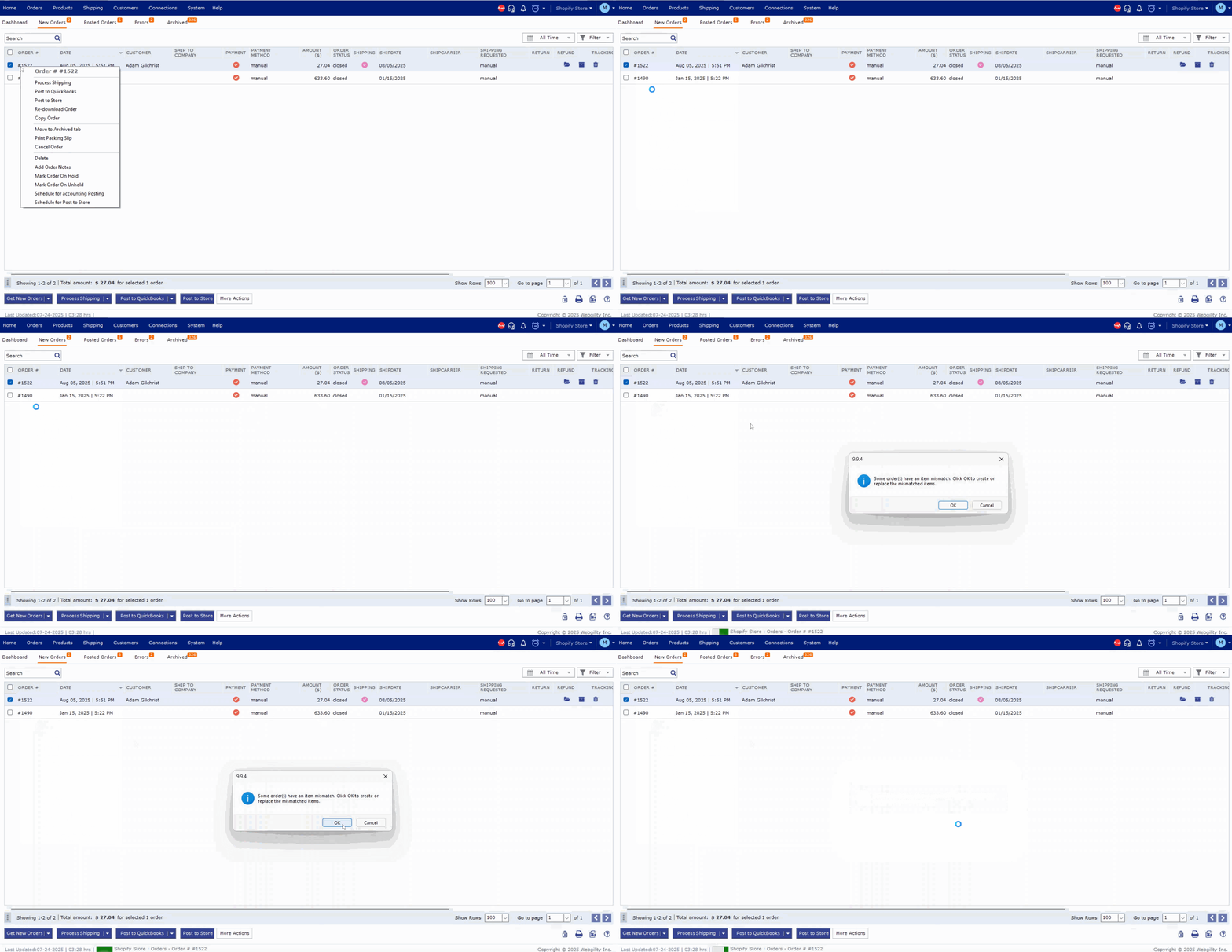
Open the Orders tab in Webgility Desktop, select the gift card order that failed to post, and click Post to QuickBooks. Webgility opens the Item Mismatch dialog because it does not yet know which QuickBooks item corresponds to the gift card SKU.
Step 2: Map the gift card SKU to a QuickBooks item
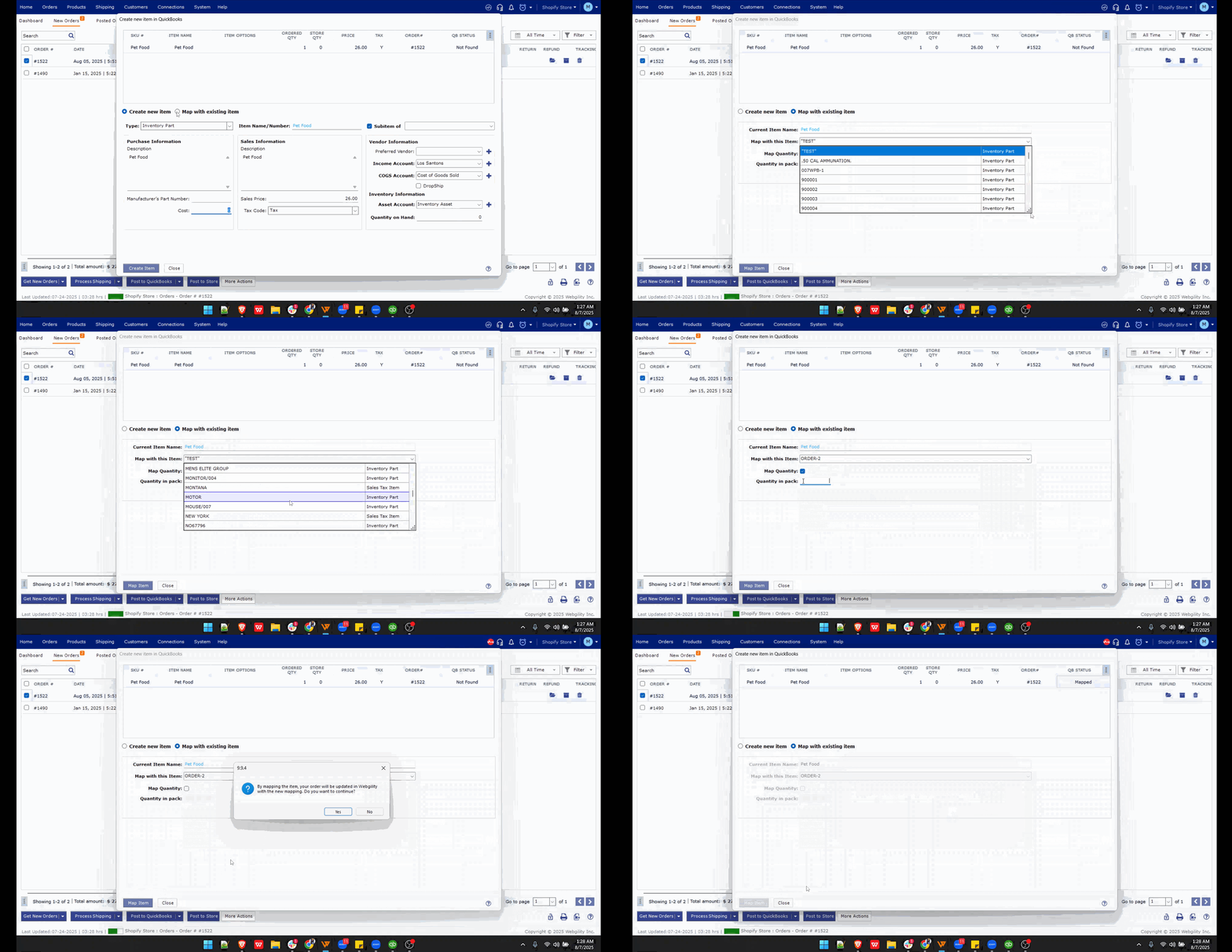
In the Item Mismatch dialog, choose Map with Existing Item, pick the QuickBooks item that represents your gift card (usually a non-inventory item named Gift Card), and click Map item. Webgility remembers this mapping for every future order that carries the same SKU.
Step 3: Confirm the order posted
Select the order and click on 'Post to Quickbooks' button.
Then, open QuickBooks and confirm the gift card order now appears as a sales receipt or invoice with the mapped item on the line.
If Shopify introduces new gift card variants later, each new SKU triggers the Item Mismatch dialog once — map it the same way and future orders in that variant post automatically. To avoid the prompt entirely, turn on Create Missing Items in QuickBooks While Posting Orders under Connections > Accounting/POS/ERP > Sync Settings > Products so Webgility creates the QuickBooks item for you.