
Root Cause
Webgility Desktop's CSV order importer (Importing Orders via CSV in Webgility Desktop) expects clean, unambiguous values in every mapped column. Three specific data issues cause most first-time import failures: special characters (dollar signs, currency symbols, punctuation) inside numeric fields like price and quantity; date values formatted inconsistently within the same column (mixing MM/DD/YYYY and YYYY-MM-DD); and one or more of the mandatory columns (order number, SKU, item price, quantity) missing a value on some rows. The importer treats these as fatal per-row errors, and depending on how the file was assembled, one bad row can stop the whole import.
Solution Steps
Step 1: In Webgility Desktop, go to Orders > Import Orders and pick your CSV file (full walk-through: Importing Orders via CSV in Webgility Desktop). The importer opens the column-mapping dialog where you match your file's columns to Webgility's fields (Order Number, Customer Name, SKU, Item Price, Quantity, Order Date, and so on). If you see the column-mapping dialog but the sample-row preview at the bottom shows blanks or garbled values, your CSV needs cleanup — go to Step 2 before mapping.
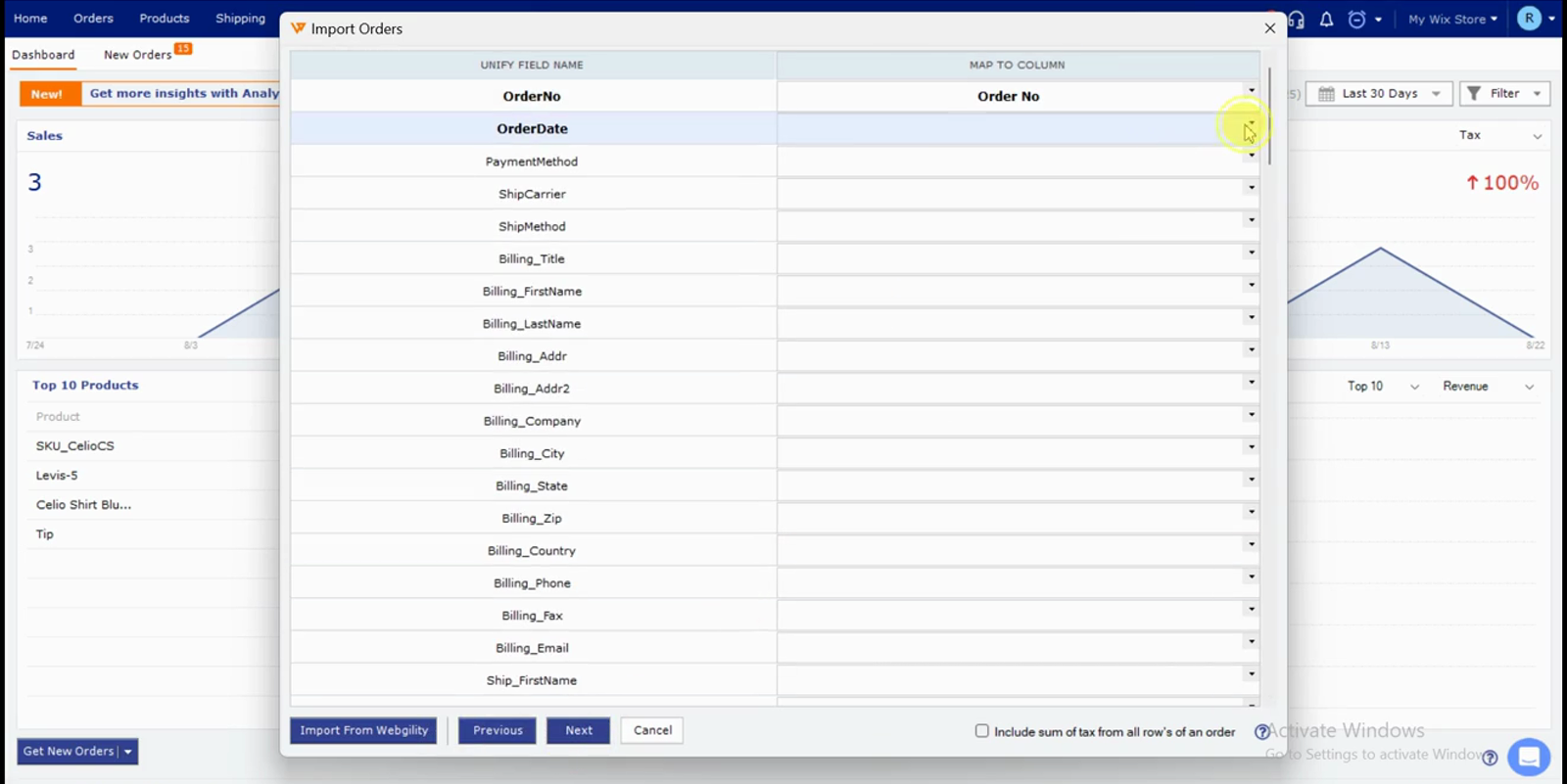
Step 2: Open the CSV file in Excel or Google Sheets and clean the three problem areas: (a) remove all currency symbols and punctuation from price and quantity columns — the Item Price column should contain 19.99, not $19.99; (b) reformat every date cell in the Order Date column to a single consistent format — pick MM/DD/YYYY and apply it to the whole column at once, do not mix formats within one column; (c) confirm that every row has a value in Order Number, SKU, Item Price, and Quantity — the importer rejects rows missing any of those four. Save the cleaned file as a new CSV (not overwriting the original, so you can revert if needed) and retry the import from Step 1.
Step 3: If the mapping completes but some orders do not appear in the New Orders tab after import, some rows were silently rejected during the load. See Troubleshoot Missing Orders when Imported via CSV File for the diagnostic checklist — most commonly, either the Order Number on those rows was already present in Webgility (duplicate detection), the order number colum has wrong formatting or the Order Date on those rows was outside your download date window in Sync Settings.
Important Note
"Save your original CSV file untouched somewhere safe before you edit it. If your cleaned version turns out to have introduced its own problems (for example Excel silently reformatted a numeric SKU like 0088 into 88), you will need the original to start over. Excel's default column type is General, which strips leading zeros — set your SKU column type to Text before pasting the data if your SKUs contain leading zeros."
Further Assistance
If the CSV import still fails after cleaning the file, or if orders are still missing from New Orders after a successful mapping run, contact Webgility Support with your Webgility subscription ID, the CSV file itself (both the original and your cleaned version if different), a screenshot of the error message or the column-mapping dialog with the sample-row preview visible, and a database backup taken before you attempted the import (walk-through: How to Create a Database Backup and Restore It). The full troubleshooting checklist is at Troubleshoot Missing Orders when Imported via CSV File.