
Problem Description
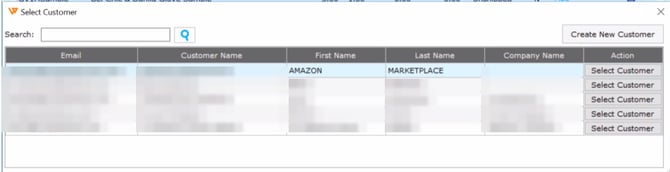
When Webgility finds multiple customer accounts in QuickBooks that match the same customer on an order, it prompts the user with a pop-up to either select one of the existing customers or create a new one, instead of posting the order right away.
Symptoms
- While posting an order to QuickBooks manually, a pop-up appears asking you to select an existing customer or create a new one.
- This pop-up interrupts order posting and requires manual action each time it occurs.
Root Cause
During order posting, Webgility finds multiple customer accounts in QuickBooks that match the same customer and is unable to automatically determine which one to use, so it prompts for manual selection.
Resolution
To avoid this manual step, enable the Select first customer when QuickBooks have multiple customers setting in the Webgility Scheduler. When enabled, Webgility will automatically select the first matching customer and post the order without prompting you.
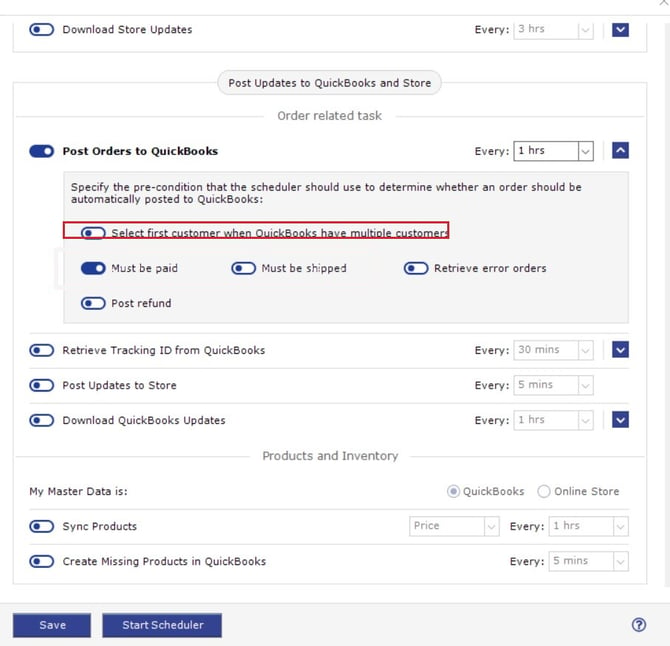
To locate and enable this setting, refer to this help article on configuring Scheduler settings.
Additional Notes
- This setting only determines which customer record Webgility uses when duplicates exist — it does not merge or remove duplicate customer accounts in QuickBooks.
- If you need orders posted to a specific customer record rather than the first match, consider cleaning up duplicate customer accounts in QuickBooks instead of enabling this setting.