
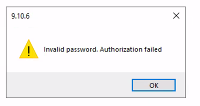
Resolution:
Follow these steps to reconnect the WooCommerce store:
- Open Webgility Desktop.
- Go to Connections > Sales Channel.
- Select Manage Sales Channels.
- Locate and Edit the connection for WooCommerce sales channel.
- Reconnect the store using the current WooCommerce credentials.
- Save the connection settings.
- Confirm that the WooCommerce sales channel authenticates successfully.
Once the connection has been successfully re-established, run the order download again. If you have the Scheduler enabled, you can also allow the Scheduler to process the WooCommerce connection during its next scheduled run.