
Note: This article uses Shopify as an example sales channel. The feature currently applies to Shopify orders posted as Sales Receipts.
Symptoms
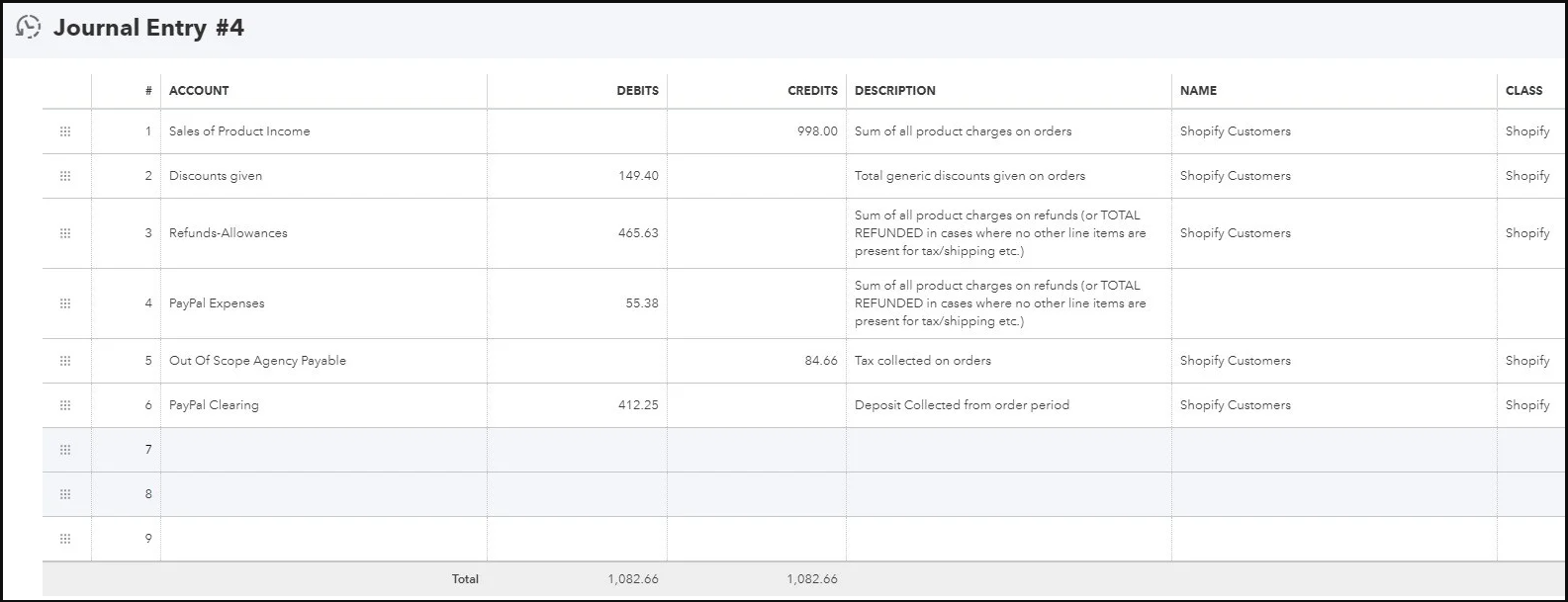
If you see an extra Journal Entry in QuickBooks Online next to the Sales Receipt for a Shopify order, it’s not a duplicate. It’s the step that moves each payment to the correct account.
- An order has a Sales Receipt and a Journal Entry in QuickBooks Online.
- The Journal Entry number starts with JE- (or JE-P- for partially paid orders).
- The order was paid with two or more payment methods, for example Shopify Payments and PayPal.
- The order stays in Posted, but Order History shows a Journal Entry message.
Cause
QuickBooks Online allows only one deposit account on a Sales Receipt. For an order paid through two gateways, Webgility can’t split the receipt across two accounts.
To keep each gateway’s account accurate, Webgility Online does two things:
- It posts the Sales Receipt for the full order amount to your default deposit account (for example, Undeposited Funds).
- It posts a Journal Entry that credits that default account and debits each gateway’s own clearing account for the amount that gateway collected.
The net result is that each payment lands in the account mapped to its gateway, so your payouts reconcile against the right accounts.
When Webgility creates the Journal Entry
A Journal Entry is created when all of the following are true:
- The order comes from Shopify.
- Your profile posts orders as Sales Receipts. Invoice mode already handles multiple payments and doesn’t need a Journal Entry.
- The split payment posting feature is enabled for your profile.
- The order was paid in one of these ways:
- Fully paid with 2 or more different gateways. The gateway amounts add up to the order total.
- Partially paid. At least one payment is known, but the order isn’t fully paid yet. The Journal Entry covers only the payments received so far.
When no Journal Entry is created
- The order was paid with one gateway, or every payment used the same gateway.
- No payment has been recorded yet.
- A payment’s gateway has no clearing account mapped and no “Everything Else” account is set. Webgility skips the whole Journal Entry rather than guess a split.
- The payment’s account is the same as the Sales Receipt’s deposit account, so there is nothing to move. That payment is left out of the Journal Entry.
- The amount was paid by gift card or store credit and is only netted on the order.
How to Fix:
Option 1: Check your gateway mapping
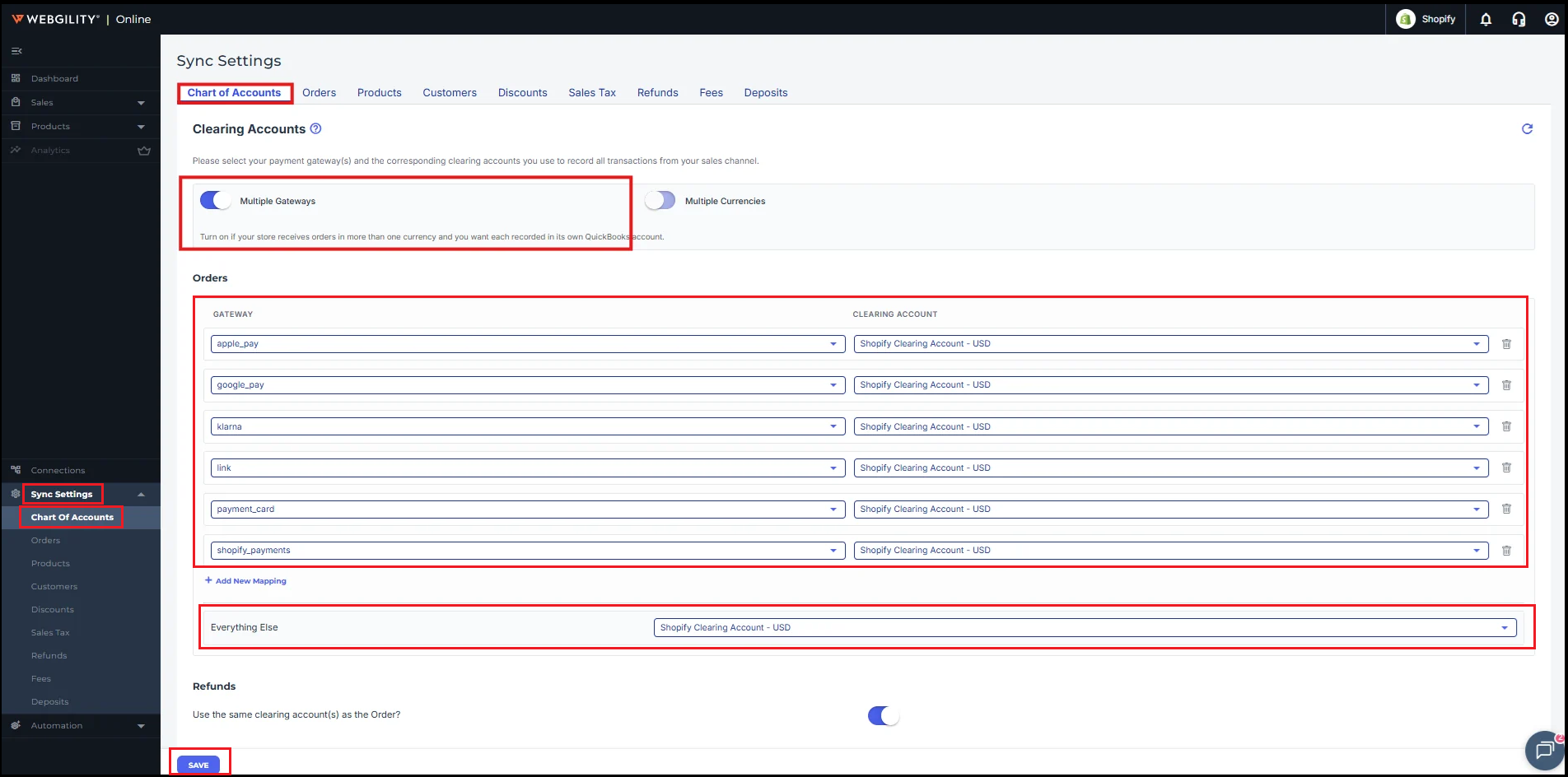
- Go to Sync settings > Chart of Accounts in Webgility Online.
-
Confirm each gateway you use is mapped to the correct QuickBooks account.
- Set an Everything Else account so unmapped gateways don’t block the Journal Entry. Save the settings
- Once done then unpost the order and try posting it again.
Option 2: Turn the Multiple Gateways feature on or off for your profile
-
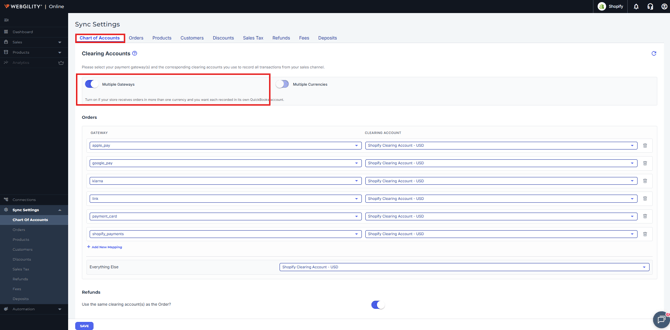
If it’s off, orders paid with multiple methods post the full amount to one account, as before.
What happens when the order changes
- Partial payment completed. When the remaining payment arrives through Order Updates, Webgility deletes the old Journal Entry and Sales Receipt. It then reposts them with one complete Journal Entry for all payments, so nothing is counted twice.
- Undo Post. The Journal Entry is reversed in QuickBooks Online before the Sales Receipt is deleted.
- Journal Entry fails. The order stays Posted and the error appears in Order History.
- Payment fees. If fees post as a line on the Sales Receipt, each Journal Entry line moves the payment net of its fee.