
Overview
In this scenario, a Shopify order with terms such as Net 30 posts to QuickBooks without a customer payment because the customer has not paid yet. Paid orders should include a payment when the posting settings and user permissions allow it.
Steps to check- Check the Shopify order’s payment terms. If the order has Net 30 or similar terms, it is expected to post without a payment. See How to Configure Order Posting Settings for Wholesale and Retail Sales for the related posting setup.
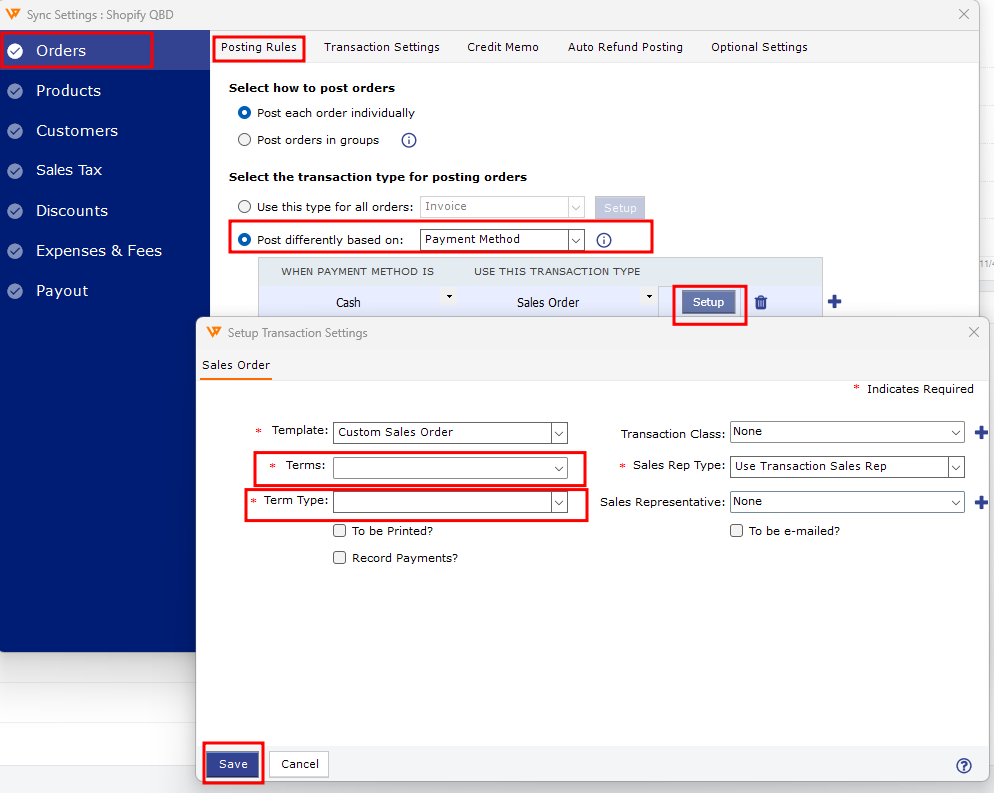
- Check the user’s payment permissions. If a paid order posts without a payment, ask the primary user to review the account’s user permissions. See Managing User Access and Permissions in Webgility Desktop.
- Verify the posting result. Open the order’s History tab in Webgility Desktop and check whether it shows that a customer payment was created.
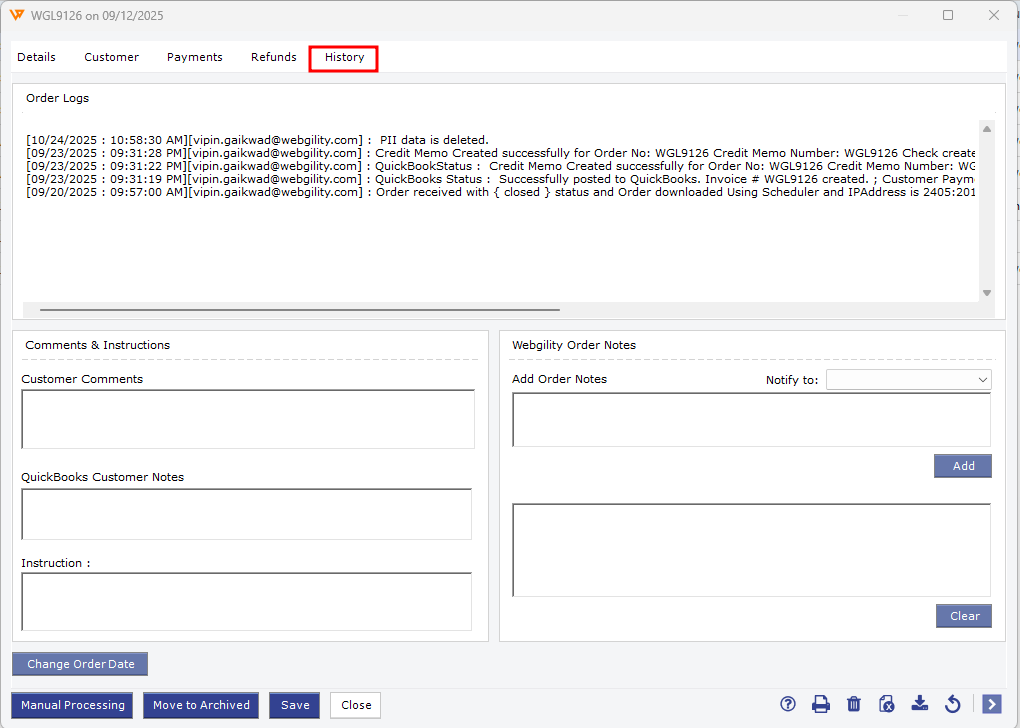
If an order with payment terms is unpaid, record the payment in QuickBooks when the customer pays. If a paid order still posts without a payment after checking permissions and posting settings, contact support with the order number and a screenshot of its History tab.
If you have any questions or need more help, please contact our support team.