
What causes this
After an order has already been posted to QuickBooks Online, Webgility Online may receive new changes from the sales channel. These changes can include updates to:
- line items
- shipping charges
- discounts
- fees
- payment details
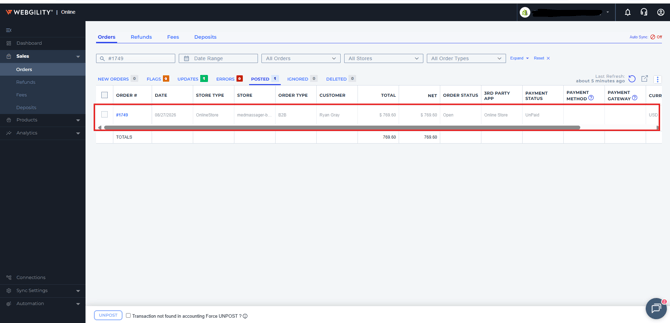
When that happens, Webgility Online moves the order into a pending update state. The order remains visible in the Posted tab, but it appears greyed out and cannot be unposted until the update is processed.
How to resolve it
- In Webgility Online, go to Sales > Orders > Updates.
- Find the affected order.
- Review the pending changes.
- Choose one of these actions:
- Accept Updates if you want Webgility Online to apply the new order details
- Reject Updates if you do not want those changes applied
- Return to the Posted tab.
- Confirm the order is no longer greyed out.
- Unpost the order if needed.
Accept Updates
If you accept the updates, Webgility Online removes the original transaction from QuickBooks Online and posts the updated version using the latest order details.
Reject Updates
If you reject the updates, Webgility Online keeps the original posted transaction unchanged. This also unlocks the order so it can be selected again in the Posted tab, including for unposting.