
Follow These Steps to Connect Webgility Online with Walmart
Step 1: Navigate to Connections
- Log in to Webgility Online.
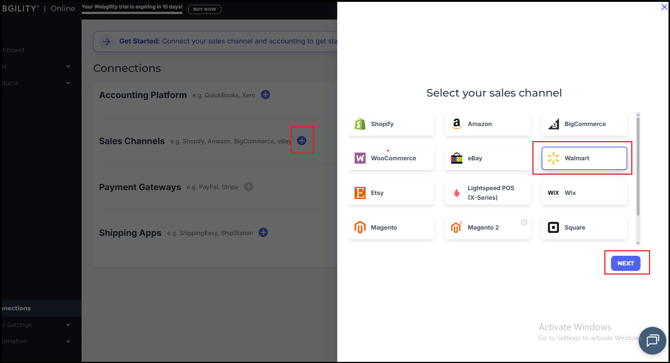
- Go to Connections.
- Click the blue plus (+) icon to add a new store connection.
- Select Walmart from the list of sales channels.
- And click on Next.
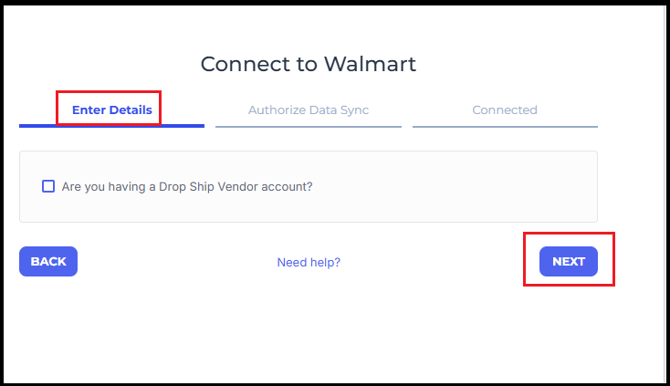
- Under Connect to Walmart
- Enter Details > click on Next.
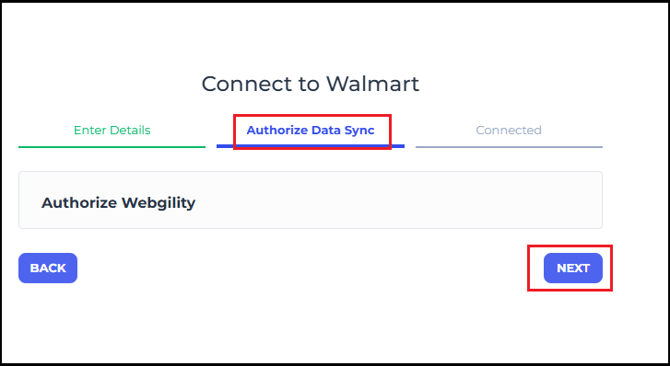
- Authorize Data Sync > click on Next.
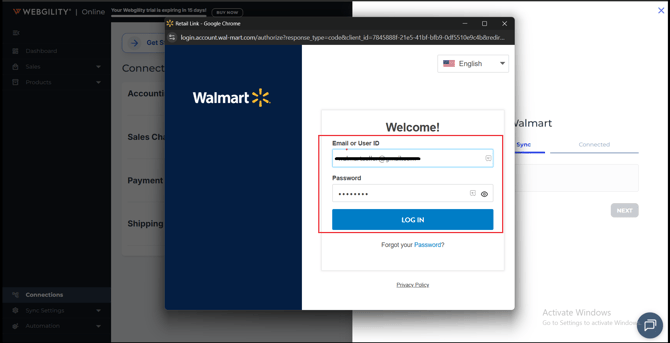
- You will be redirected to the Walmart login and authorization page.
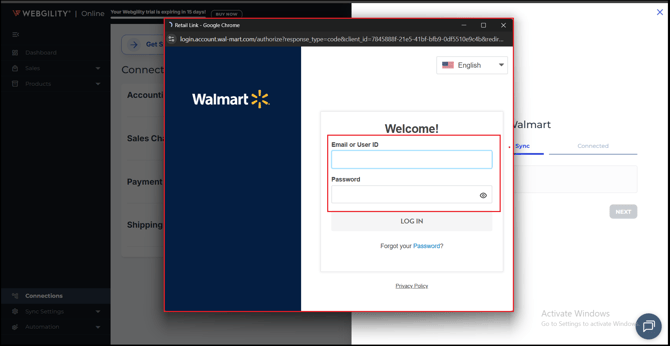
Step 2: Sign In to Walmart
- Enter your Walmart Marketplace account credentials.
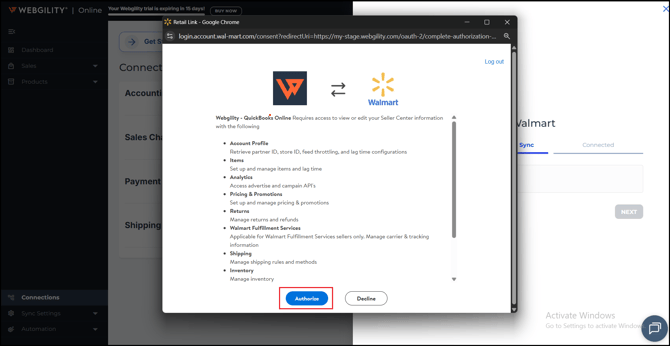
- Review the permissions requested by Webgility Online.
- Click Allow or Authorize to grant access.
Step 3: Complete the Connection
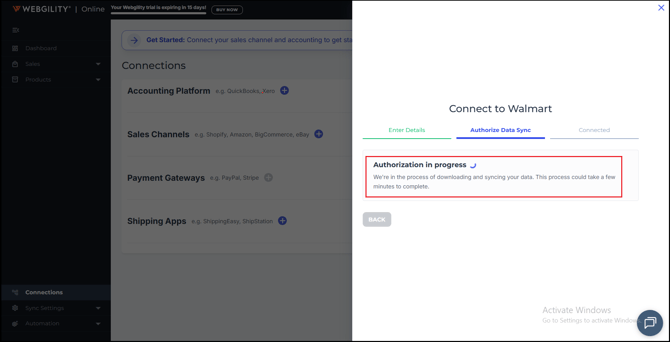
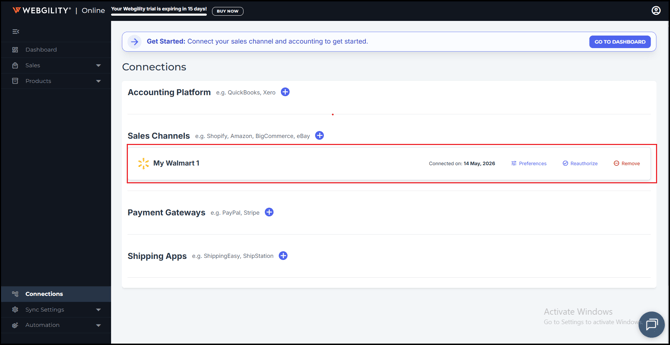
- After authorization is completed successfully, you will automatically be redirected back to Webgility Online.
- Webgility Online will validate the connection and complete the setup process.
Important Notes
- Manual generation of Client ID and Client Secret is no longer required.
- OAuth authentication provides a more secure and simplified connection process.
- Ensure that your Walmart Marketplace account has the required permissions enabled for API access.
Troubleshooting Tips
- If the authorization window does not open, try clearing your browser cache or using an incognito/private window.
- Make sure pop-ups are enabled in your browser.
- Verify that your Walmart Marketplace account is active and in good standing.