
- First-time setup of a sales channel.
- You added a new carrier or shipping option on your store (e.g. added USPS Ground Advantage).
- Shipping charges are showing on invoices under the wrong QuickBooks item.
- You are seeing an "Invalid reference to shipping item" posting error.
Before you begin
In QuickBooks, create a Service or Non-inventory item for each shipping method category you want to track. Common setups:
- Shipping Income — one generic item, revenue-only.
- USPS / UPS / FedEx / DHL — four items, one per carrier, all pointing at the same shipping income account. Lets you track carrier mix.
- Standard / Expedited / Overnight — three items grouped by speed. Lets you see which service level drives revenue.
Step-by-step: map shipping methods:
Step 1
Open Sync Settings and go to Configure Mappings
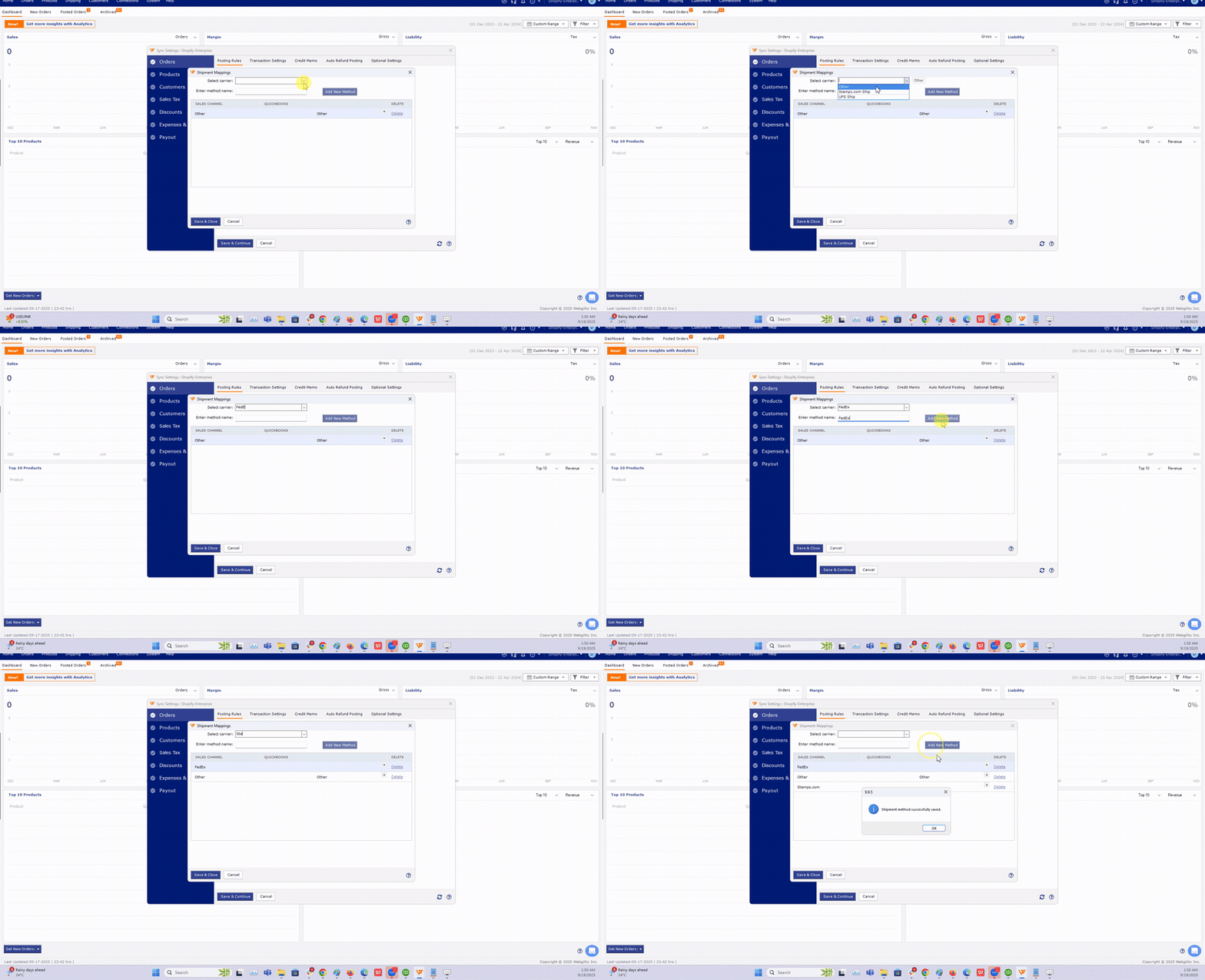
In Webgility Desktop, go to Connections > Accounting/POS/ERP > Sync Settings. On the Posting Rules tab, click Configure Mappings. In the popup, choose Map Shipping Methods.
Screen recorded in Webgility Desktop / Online with sample data. Your data will differ.
Step 2
Set a default shipping item
Pick a QuickBooks shipping item as the default from the top dropdown. Click Set As Default. This is the fallback used when a shipping method arrives that isn't explicitly mapped — keeps orders posting instead of flagging them.
Step 3
Add specific mappings
For each shipping method your customers pick:
- Enter the exact shipping method name as it comes from the sales channel (e.g. "USPS Priority Mail", "Standard Shipping", "Free Shipping"). Case sensitivity may matter — copy the string from an existing order for accuracy.
- Pick the matching QuickBooks shipping item.
- Click Add New Method.
Example for a store using UPS and USPS:
| Sales channel value | QuickBooks item |
|---|---|
| USPS Priority Mail | USPS Shipping Income |
| USPS Ground Advantage | USPS Shipping Income |
| UPS Ground | UPS Shipping Income |
| UPS 2nd Day Air | UPS Shipping Income |
| Free Shipping | Shipping Income (Promo) |
| Local Pickup | (none — set unit price 0) |
Step 4
Configure shipping tax handling (optional)
Also on the Posting Rules tab, look for the Shipping Tax or Shipping Tax Code selector. This tells QuickBooks whether shipping charges are taxable in your jurisdiction. Common settings:
- Taxable: use this if your state taxes shipping (e.g. NY, CA on shipping-and-handling).
- Non-Taxable: most states where shipping charged separately is exempt.
- Match Order: use the tax code of the first taxable item on the order.
Check with your CPAShipping tax rules vary by state and by whether shipping is charged separately or is included. When in doubt, ask your accountant.
Step 5
Save and test
Click Save & Close, then Save & Continue on Sync Settings. Post a test order that included shipping. Open the posted invoice in QuickBooks and confirm the shipping line uses the correct item and the amount matches the order.
Troubleshooting
Shipping shows as $0 on the posted invoice
The shipping method matched a mapping row that points at an item with unit price 0 (e.g. Local Pickup). Confirm the mapping is correct and the QuickBooks item has the right rate.
All orders post under "Shipping Default" instead of the specific carrier
The sales channel value in the order doesn't exactly match any of your mapping rows. Open a recent order and look at the exact shipping method string — case, spacing, and any extra suffixes must match. Update the mapping.
Invalid reference to shipping item error
The QuickBooks item was deleted or made inactive. Reactivate it or update the Webgility mapping to point at a different item.
Related articles- How to Map Shipping Methods with QuickBooks
- How to Map Sales Channel Payment Methods to QuickBooks in Webgility Desktop
- Shipping: Unable to Generate Label due Zip-Code format
- How to Configure Order Download and Posting Settings for a Sales Channel