
When Webgility posts an order to QuickBooks, it looks up the sales channel payment method (e.g. "Shopify Payments", "PayPal Express") in its internal mapping table and translates it to the corresponding QuickBooks payment method (e.g. "Bank Deposit", "Credit Card"). If any link in that chain is broken — either the mapping is missing or the QuickBooks side of the mapping no longer exists — the post fails with this error.
Step-by-step: fix the error
Step 1
Open the errored order and read the payment method
Go to Home > Error tab. Locate the failed order. Look at the Payment Method column — note the exact value (e.g. "Shopify Payments — Visa"). This is the source-side name that Webgility cannot map.
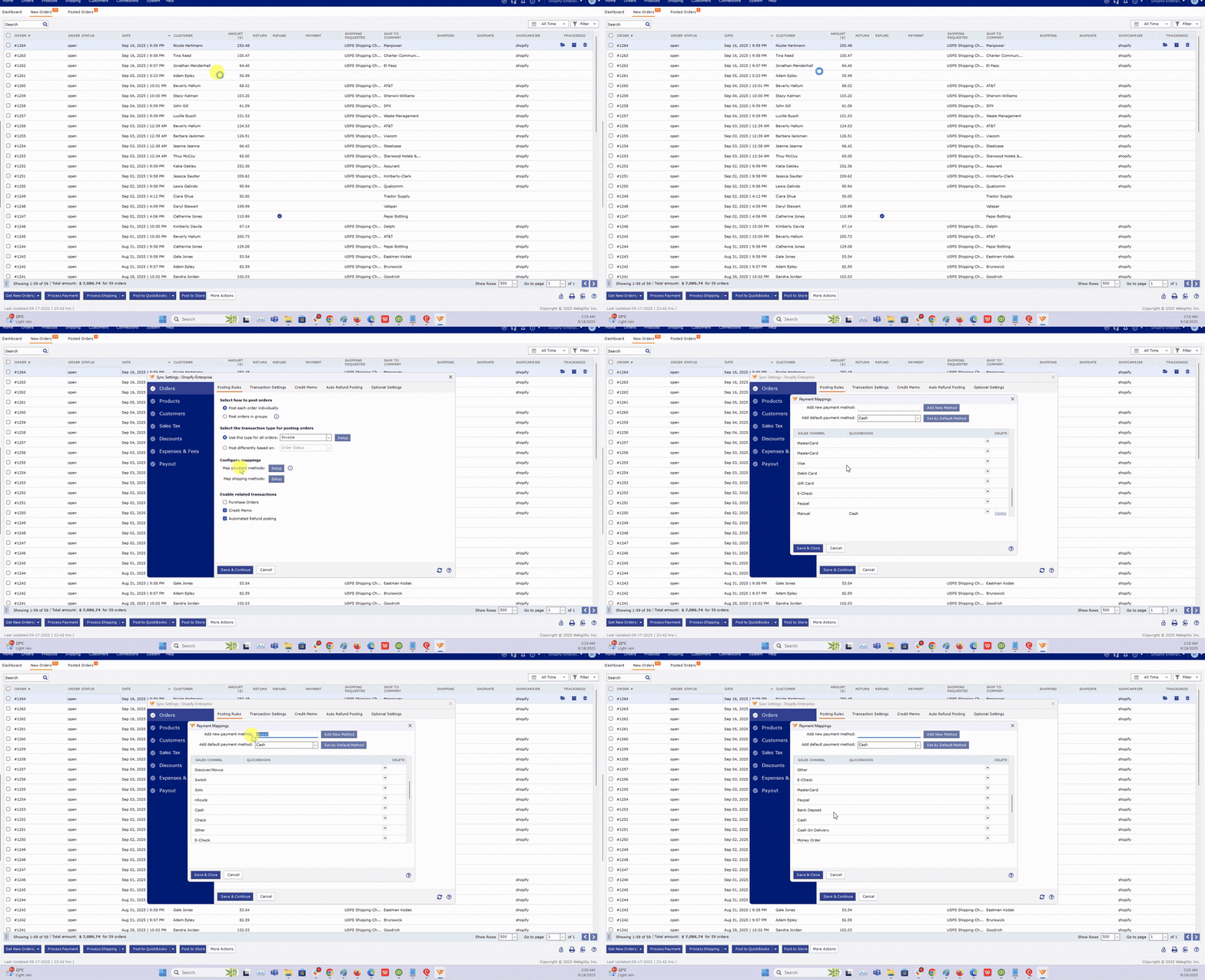 Screen recorded in Webgility Desktop / Online with sample data. Your data will differ.
Step 2
Check whether the payment method exists in QuickBooks
Open QuickBooks and go to Lists > Customer & Vendor Profile Lists > Payment Method List (QuickBooks Desktop) or Settings > All Lists > Payment Methods (QuickBooks Online).
Scan the list for a payment method that matches or is a reasonable equivalent (e.g. "Credit Card" or "Bank Deposit"). If the exact name doesn't exist and no equivalent is there, add one now: click New, name it, save.
Do not delete payment methods in QuickBooksIf you deleted a payment method Webgility was using, undelete it (or create a replacement with the same name). Deleting active payment methods is what breaks previously-working mappings.
Step 3
Open Payment Method Mapping in Webgility
In Webgility Desktop, go to Connections > Accounting/POS/ERP > Sync Settings. On the Posting Rules tab, click Configure Mappings > Map Payment Methods. You see a two-column table: Sales Channel payment methods on the left, QuickBooks payment methods on the right.
Step 4Add the missing mapping row
Click Add New Method. Type the exact sales-channel payment method name from step 1 in the left column. Pick the matching QuickBooks payment method from the dropdown in the right column. Click Save & Close.
You can also set a default mapping — a fallback QuickBooks payment method used whenever an incoming order has a payment method not in the list. Use Set As Default Method for the fallback.
Step 5Retry the failed order
Return to Home > Error tab. Select the previously failed order. Click Process Payment and then Post to QuickBooks. The order should now post cleanly.
If multiple errored orders share the same missing payment method, they will all clear on the next scheduler cycle, or you can select them all and click Post to QuickBooks as a batch.
Other causes for the same error
The QuickBooks payment method was renamed
Webgility mappings are name-based. If you renamed a payment method in QuickBooks (e.g. "Credit Card" to "CC-Visa"), every existing Webgility mapping pointing at the old name breaks. Rename it back, or update the Webgility mapping to the new name.
The QuickBooks payment method was made inactive
Inactive payment methods are treated as deleted by the QuickBooks API. Reactivate the payment method: in QuickBooks, right-click the payment method and choose Make Active.
Multi-currency payment method mismatch
QuickBooks Online enforces that payment methods used in a foreign-currency transaction must be foreign-currency-enabled. If your Webgility mapping points at a home-currency-only payment method for a USD order, and the order is in EUR, the post fails with this error. Fix: create a currency-specific payment method in QuickBooks and update the mapping.
Prevent this in the futureSet a default fallback payment method in Webgility's mapping dialog. That way, when a new payment method appears on an order (e.g. a new Shopify wallet), Webgility posts it under the default instead of flagging the order for manual attention.
Related articles
- How to Map Sales Channel Payment Methods to QuickBooks in Webgility Desktop
- How to Post Transactions Based on Payment Methods in Webgility Desktop
- There is an invalid reference to QBs items in the sales receipt
- Business Validation Error Please Choose an Account of Type Bank or Other Current Assets