
Note1: This applies to all the Webgility Desktop users running the Shopify sales channel.
Overview
Starting January 2025, all orders placed through the Shop app on Shopify are subject to Shopify’s marketplace facilitator tax handling. This means:
- Shopify deducts marketplace sales taxes directly from the payout,
- Shopify remits these taxes to the tax agencies,
- The deducted amount appears clearly in the Shopify payout report.
For more information, refer to Shopify’s documentation: “Shop app sales tax handling”.
To ensure accurate accounting and proper bank reconciliation, Webgility Desktop now automatically detects both orders & payouts and adjusts your records appropriately.
How to manage Marketplace Tax settings in Webgility Desktop
- In Webgility Desktop, navigate to Connections > Accounting/POS/ERP > Sync Settings
- Under Sales Tax > “Do not record marketplace tax in QuickBooks”, a toggle setting has been added to manage this feature. When the feature is first available, the toggle will be automatically enabled by default.
Note 2: Disabling this setting can lead to errors when posting payouts.
How Webgility Online Handles Marketplace-Collected Tax
There are three main areas where marketplace tax will be handled:
A. Handling in Orders
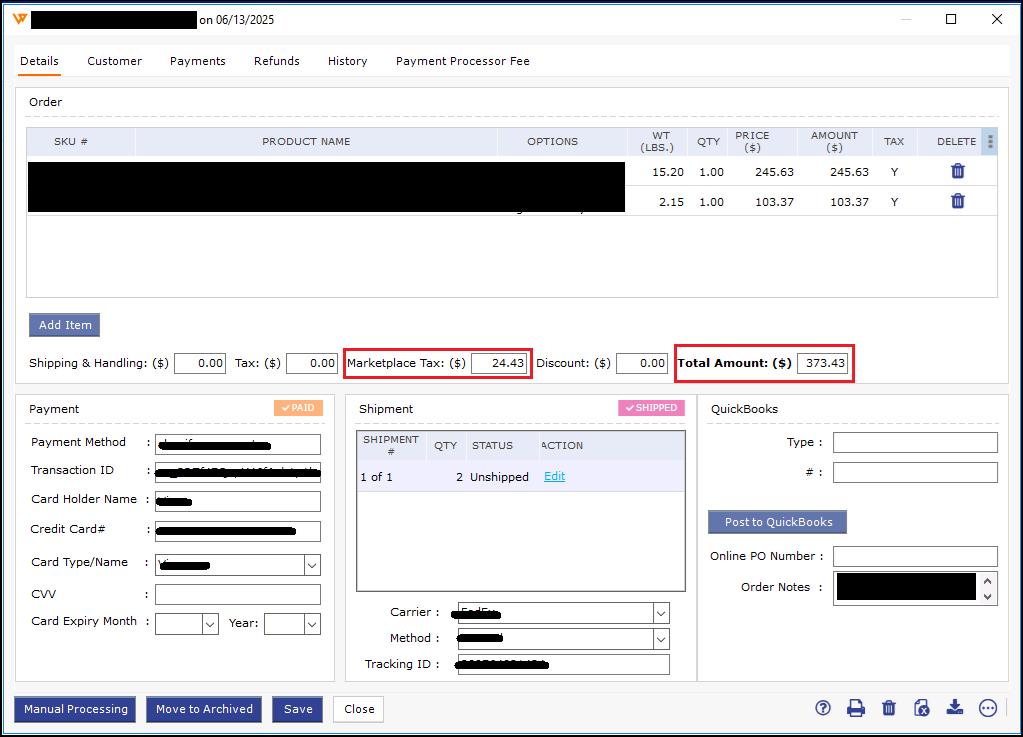
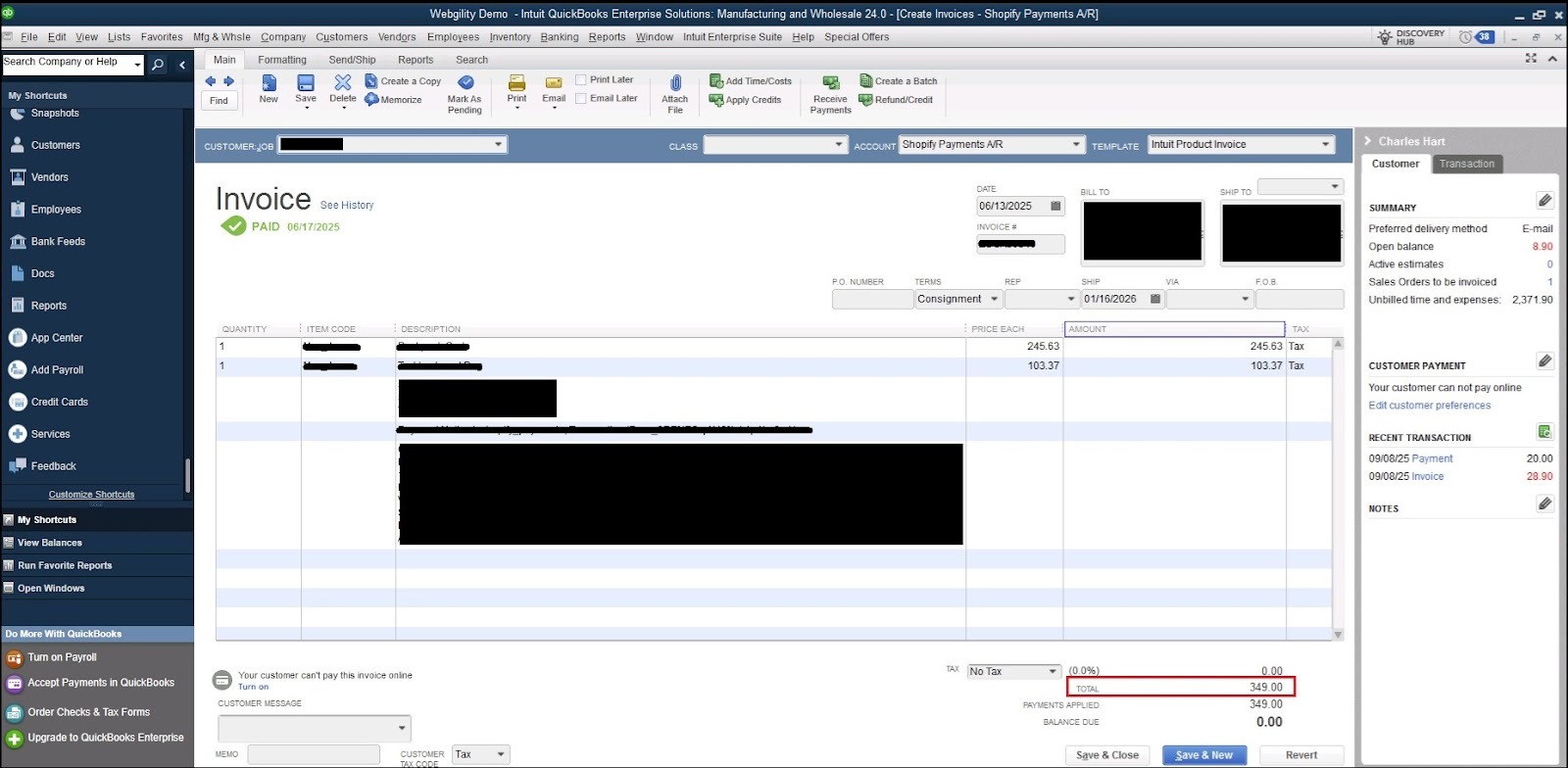
A new field called “Marketplace Tax” has been added to the order details. If applicable, this field displays the marketplace tax amount, and the order total in Webgility Desktop reflects this value. However, when the order is posted, Webgility Desktop subtracts the Marketplace Tax from the order total, ensuring that the marketplace tax is not recorded as part of the sales transaction in QuickBooks.
B. Handling in Refunds
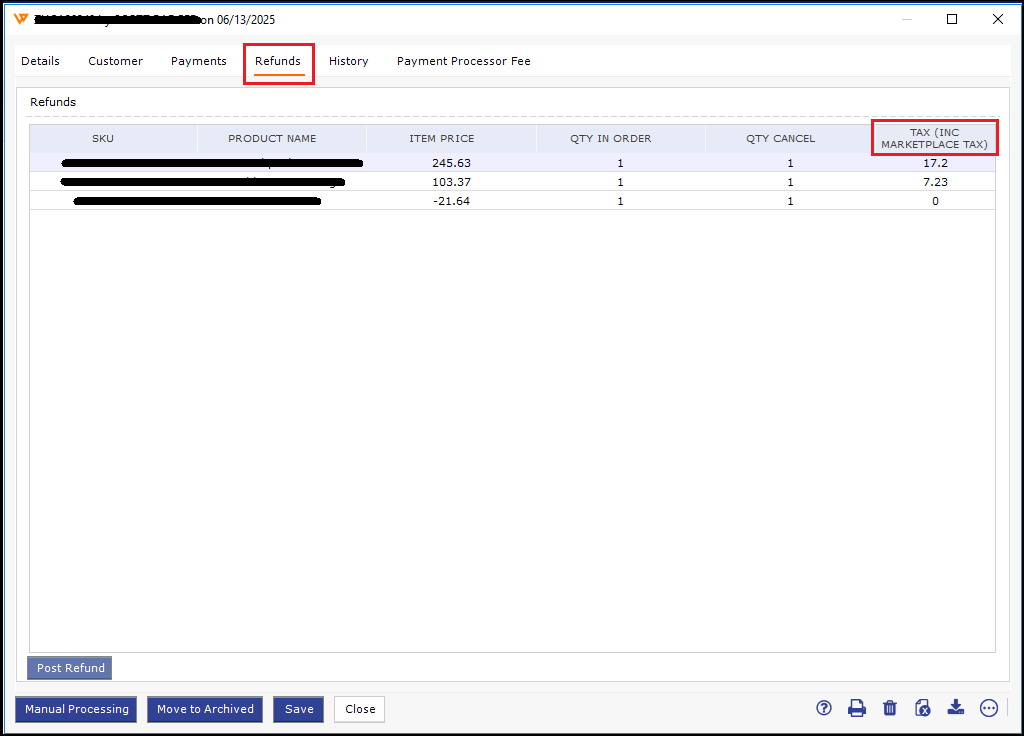
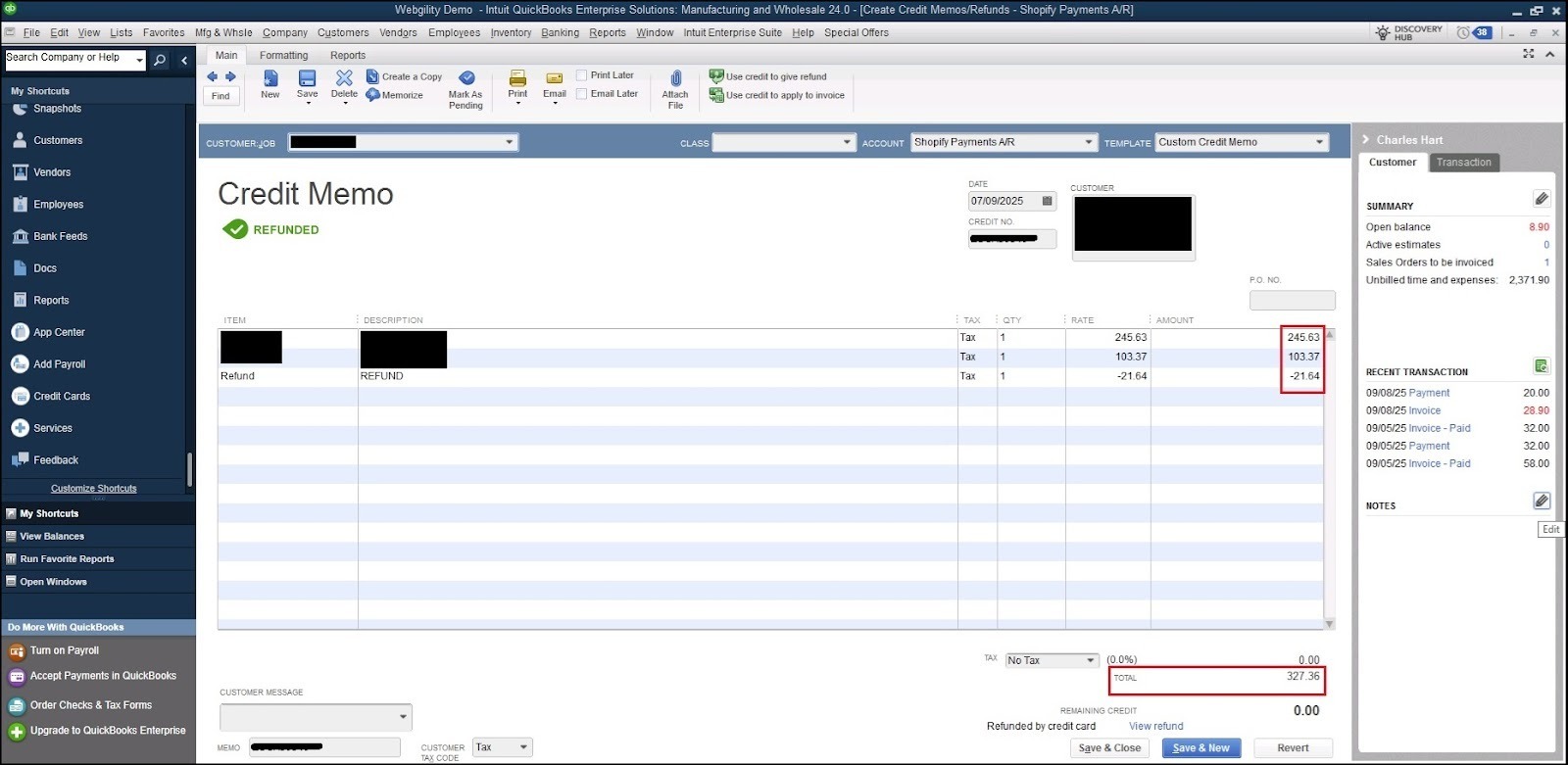
For refunded orders, the Tax column under the Refunds tab is now labeled “Tax (INC MARKETPLACE TAX)”. This column displays the combined total of regular tax and marketplace tax. When the refund is posted, Webgility Desktop subtracts the marketplace tax from this combined amount, ensuring that the marketplace tax is excluded from the refund transaction recorded in QuickBooks.
C. Handling in Payouts
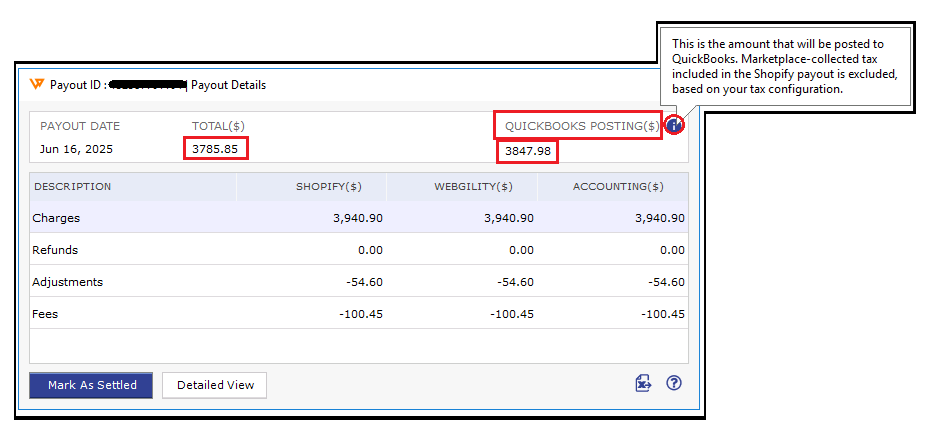
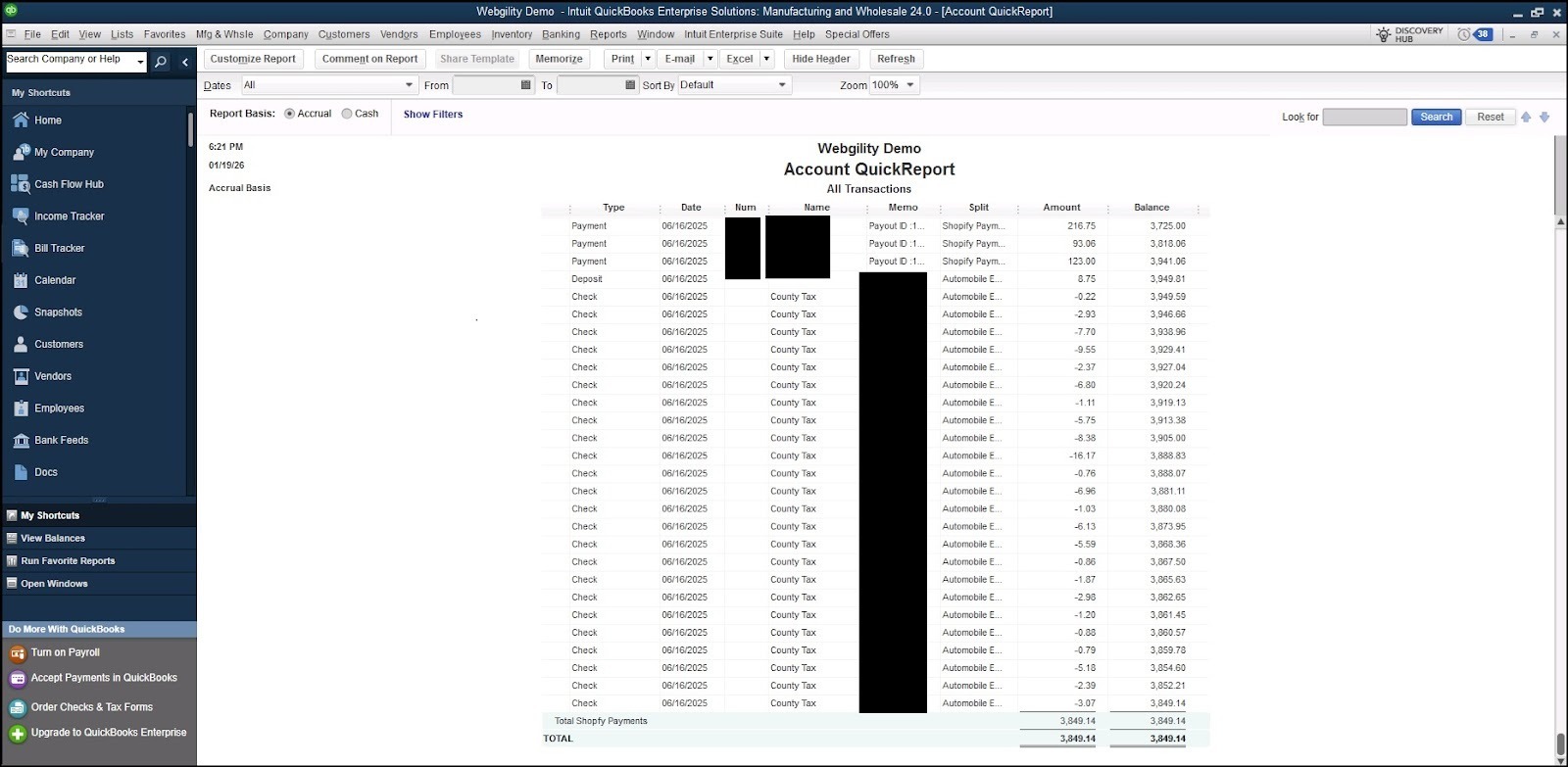
When both Shopify and Webgility Desktop are configured to handle marketplace tax, the payout amount shown in Shopify may or may not match the amount posted by Webgility Desktop. This difference depends on when the order with marketplace tax was created in relation to the payout report generation.
Below are the two possible scenarios:
Scenario 1: Order with Marketplace Tax Created Before the Payout Report Is Generated
In this scenario, Shopify deducts the marketplace tax in a next payout, while Webgility Desktop posts the full order total based on order data.
Example
Day 1
- Order A
- Order Total: $100
- Marketplace Tax: $0
Day 2
- Order B
- Order Total: $110
- Marketplace Tax: $10
- Order C
- Order Total: $100
- Marketplace Tax: $0
Day 2 – Shopify Payout-1: Includes Day 1 orders and only the marketplace tax for Day 2 orders (payout generated after Day 2 orders)
- Includes Order A
- Payout calculation:
- $100 − $10 (marketplace tax from order B) = $90
- $100 − $10 (marketplace tax from order B) = $90
- Webgility Desktop posts: $100
Day 3 – Shopify Payout-2: Includes Day 2 Orders
- Includes Order B and Order C
- Payout calculation:
- $110 + $100 = $210
- Webgility Desktop posts:
- $110 − $10 (marketplace tax) + $100 = $200
Key Outcome
In this scenario:
- Shopify’s settled amount is always less than the amount posted by Webgility Desktop
- This difference is expected and can be reviewed in the Payout Details window in Webgility Desktop
Scenario 2: Order with Marketplace Tax Created After the Payout Report Is Generated
In this scenario, marketplace tax is deducted within the same payout that includes the order. As a result, Shopify and Webgility Desktop remain aligned.
Example
Day 1
- Order A
- Order Total: 100
- Marketplace Tax: 0
Day 2 – Shopify Payout-1: Includes Day 1 Orders & marketplace tax for Day 1 orders
- Includes Order A
- Payout calculation:
- 100 − 0 = 100
- 100 − 0 = 100
- Webgility Desktop posts: 100
Day 2 (Orders are created after Payout-1)
- Order B
- Order Total: 110
- Marketplace Tax: 10
- Order C
- Order Total: 100
- Marketplace Tax: 0
Day 3 – Shopify Payout-2: Includes Day 2 Orders & marketplace tax for Day 2 orders
- Includes Order B and Order C
- Payout calculation:
- 210 − 10 (marketplace tax) = 200
- 210 − 10 (marketplace tax) = 200
- Webgility Desktop posts: 200
Key Outcome
In this scenario:
- Shopify’s settled amount exactly matches the amount posted by Webgility Desktop
- The same values should be visible in the Payout Details window in Webgility Desktop