
When opening the Webgility Desktop application, it automatically begins downloading accounting data from QuickBooks. While this download is in progress, the application becomes unresponsive — users are unable to perform any actions, including switching between tabs, until the download completes.
Root CauseBy default, Webgility Desktop is configured to automatically download accounting data from QuickBooks each time the application is launched. This automatic download process locks the interface, preventing any user interaction until it finishes, which can be disruptive — especially when the download takes a long time.
Resolution StepsThis behavior can be resolved by disabling the automatic download of QuickBooks accounting data through a configuration change in the apiConfig.xml file.
- Close the Webgility Desktop application if it is open.
- Navigate to the following folder location on your system:
C:\Webgility\UnifyEnterprise\XML - Locate the file named apiConfig.xml.
- Right-click the file and open it with Notepad (or any plain text editor).
- Add the following node anywhere within the XML file:
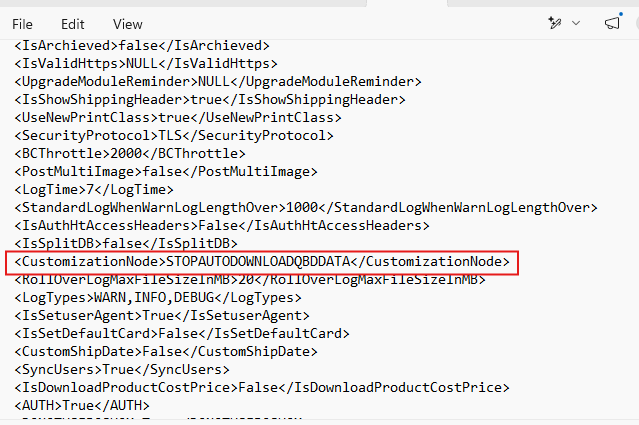
<CustomizationNode>STOPAUTODOWNLOADQBDDATA</CustomizationNode>- Save the file and close Notepad.
- Reopen the Webgility Desktop application.
Once this change is made, Webgility will no longer automatically download QuickBooks accounting data on launch, and the application should remain responsive immediately after opening.
Additional Notes
-
Since automatic download is now disabled, you may need to manually trigger accounting data downloads from within Webgility when needed.
- Ensure the XML syntax is not disrupted while editing the file — an incorrectly formatted file may prevent Webgility from starting properly. It's a good practice to keep a backup copy of the original apiConfig.xml file before making changes.
If the issue persists after adjusting this setting, please reach out to Webgility Support or Chat Support for further assistance.