
Symptoms
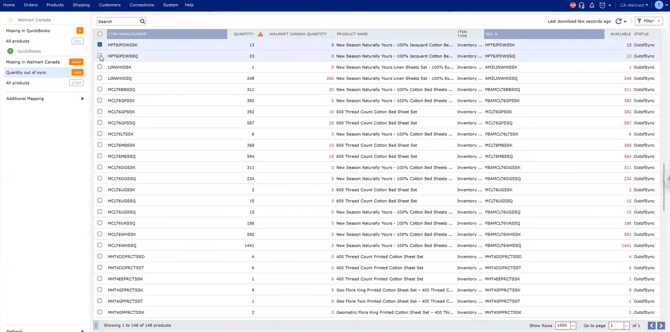
- Items stay in the Quantity out of sync list after you sync them, and the count keeps coming back (for example, 148 items).
- The Walmart Canada Quantity column shows 0, although the QuickBooks Quantity column shows stock (for example, 174 units of one item).
- The Available column shows a negative number for those items.

Why it happens
Two settings combine to send 0 to the store:
- Sync setting = Available Quantity. In QuickBooks, Available Quantity is On Hand Quantity minus the quantity on pending sales orders. An item with 174 on hand and enough open sales orders shows a negative Available value (-92 in the example above).
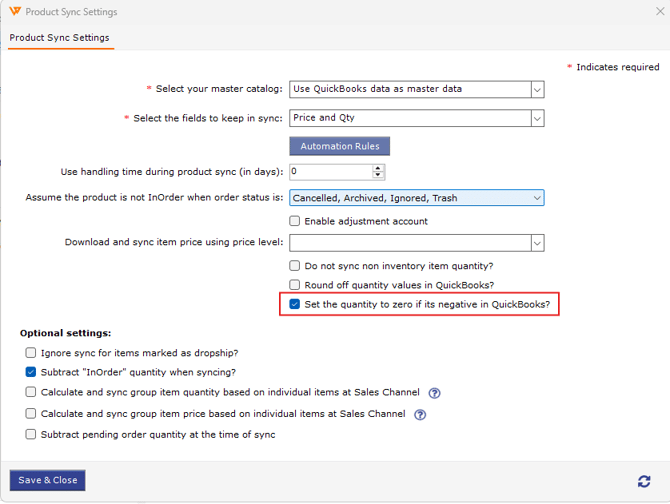
- "Set the quantity to zero if it's negative in QuickBooks?" is checked. This is the recommended Webgility setting. When Available is negative, Webgility sends 0 to the store instead of a negative number.
Result: the store receives 0, the item never matches QuickBooks, and it returns to the Quantity out of sync list on every sync.
On Hand Quantity does not subtract sales order quantities, so it stays positive in this situation.
Resolution: sync On Hand Quantity
Keep "Set the quantity to zero if it's negative" checked. Change the quantity source instead.
- In Webgility Desktop, open Product Sync Settings for your store.
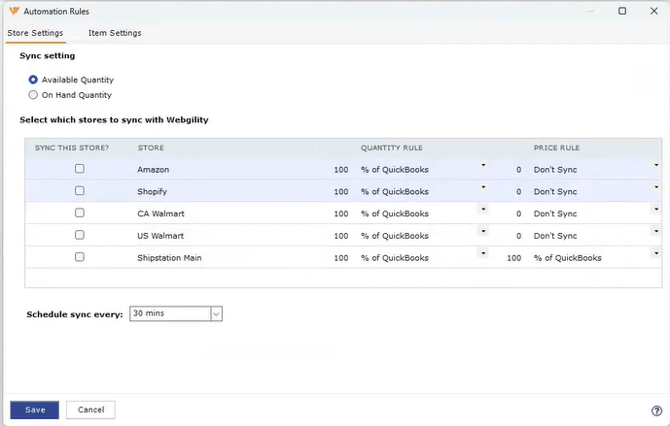
- Click Automation Rules. Under Sync setting, Available Quantity is selected:
-
Select On Hand Quantity:
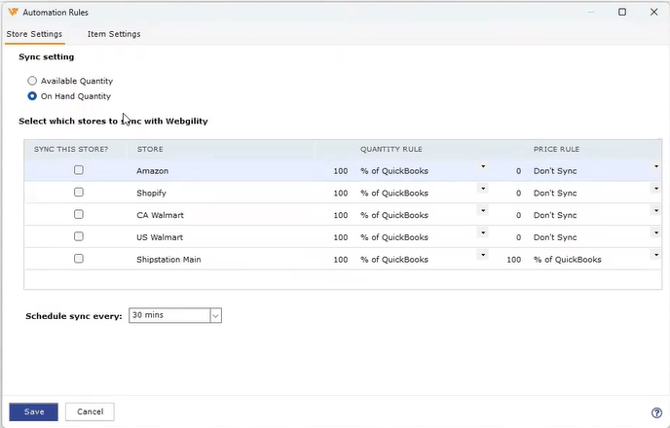
- Click Save, then Save & Close in Product Sync Settings.
- If the setting does not take effect, close Webgility completely (end it in Task Manager), reopen it, confirm On Hand Quantity is still selected, and save again.
- In Products, open Quantity out of sync, select the items, and sync them.
Verify the fix
- Refresh the Products list. Synced items should show a Walmart Canada Quantity that matches the QuickBooks Quantity and leave the Quantity out of sync list.
- Refresh the store's listing page. The update can take a couple of minutes to appear.
Which setting to choose
|
Sync setting |
What it sends |
Use it when |
|---|---|---|
|
Available Quantity |
On Hand minus pending sales orders |
Open sales orders in QuickBooks should reduce what the store can sell |
|
On Hand Quantity |
Units physically in stock, ignoring sales orders |
Sales orders should not reduce store stock, or negative Available values keep sending 0 |
On Hand can oversell if open sales orders are real commitments to other customers, so confirm how your team uses sales orders before switching.
If you require any further assistance, please feel free to reach out to Webgility Support. We'll be happy to help!