
Overview:
While you are subscribed to Webgility Online, it might happen that the payment for your Webgility Online subscription fee fails due to a change in your credit card details.
This article is a step-by-step guide for you to learn how to update your credit card details if the subscription expires due to payment failure.
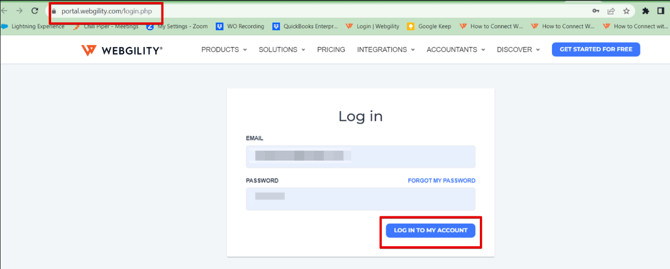
1). Log in to your My Account Portal page using the link https://portal.webgility.com/login.php
2). Method One
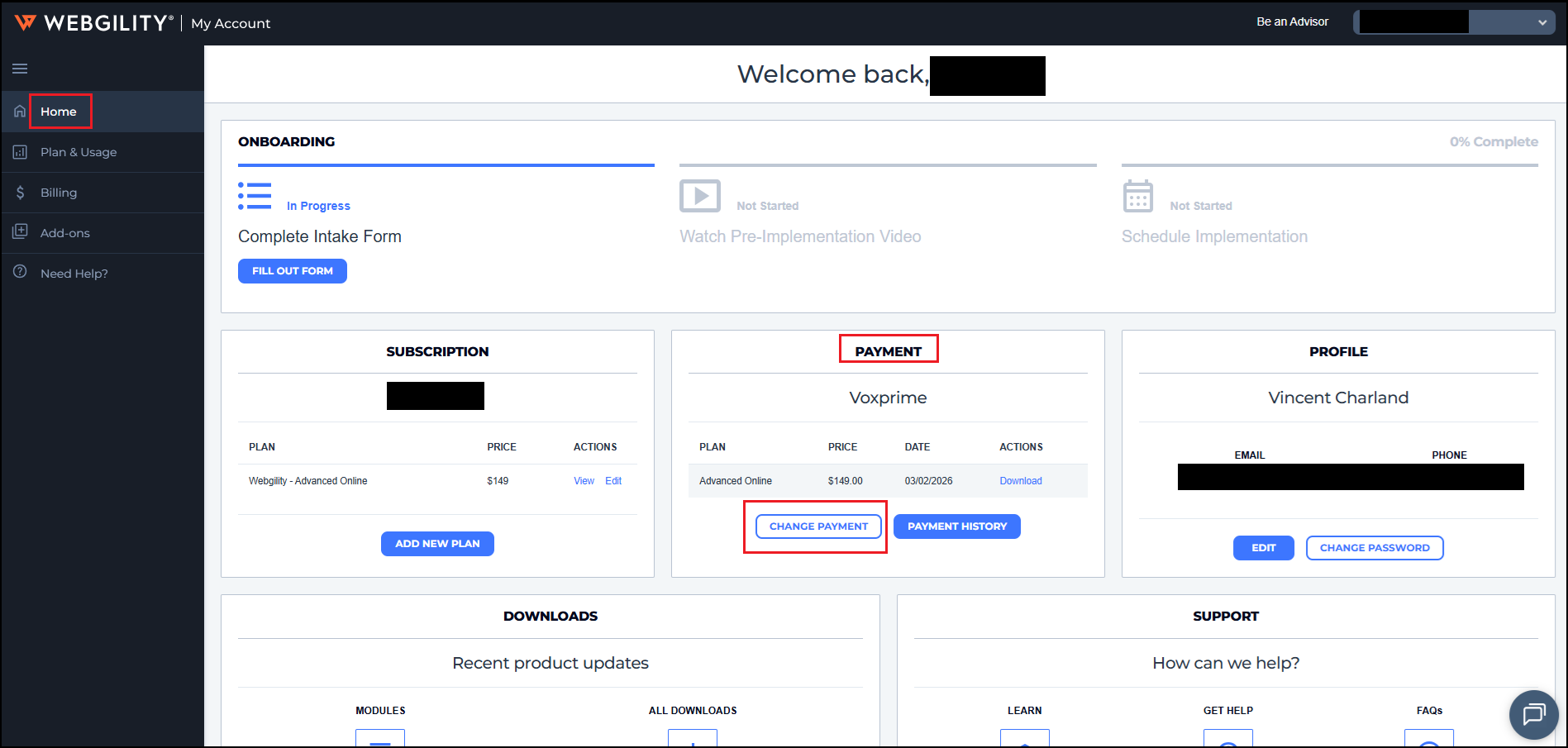
In your Webgility My Account portal and on the Home Page, click on the CHANGE PAYMENT button under the Payment section to update your card details.
3). Method Two
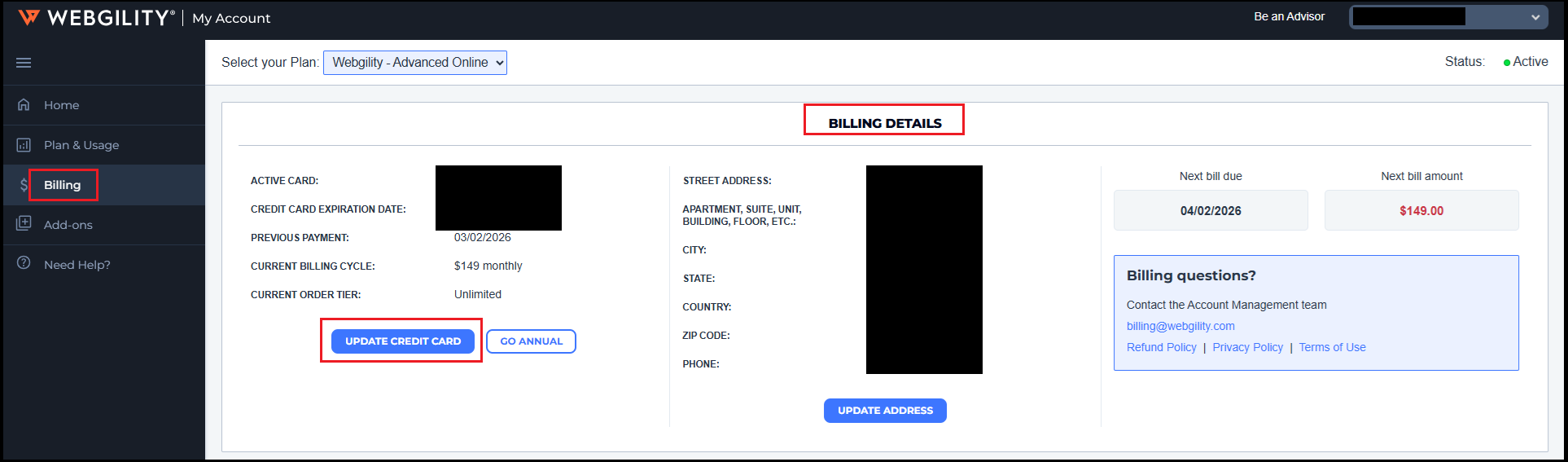
In your Webgility My Account portal and on the Billing under Billing Section click on UPDATE CREDIT CARD
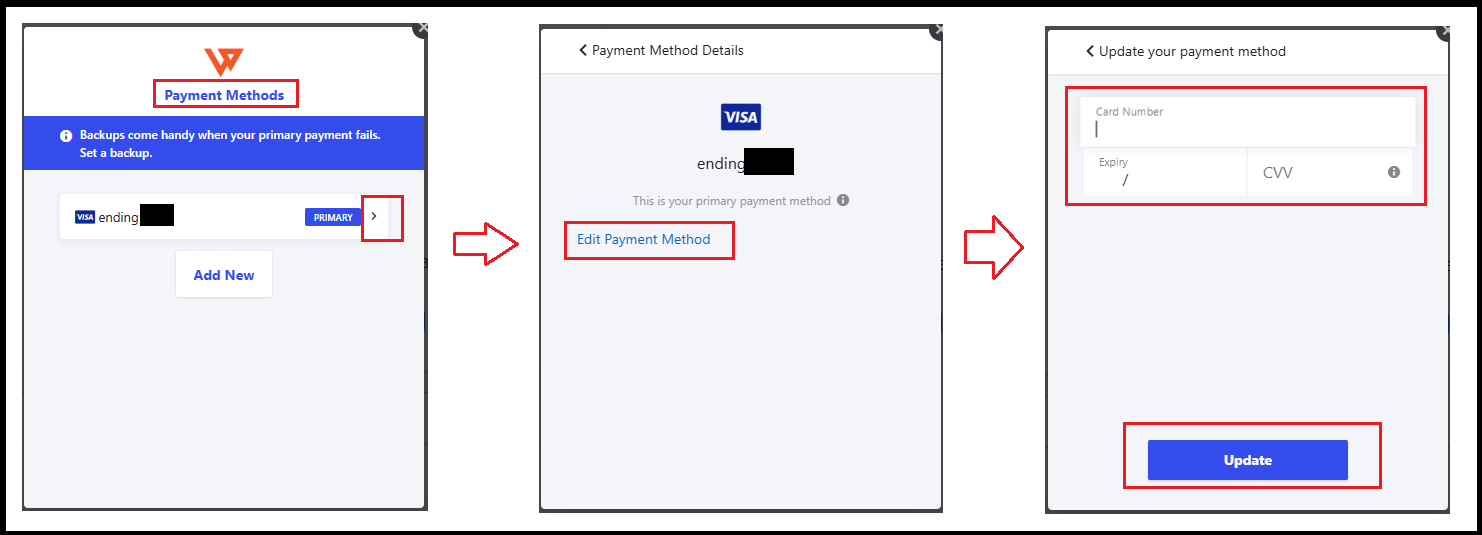
Both of the above mentioned methods will direct you to a popup where you can Update Payment Method
Once the Credit card has been updated and payment for the previous failed billing happens then you can navigate back to your respective Webgility Online application and start using it again.