
Overview
When Webgility Desktop is configured to automatically create a weekly database backup, you may see the following notification:
“Unify-Error: Invalid directory for backup”
This error occurs when the backup scheduler is configured to use a directory that is no longer valid, accessible, or does not match the expected Webgility backup location.
Cause
The error generally occurs when the automatic backup scheduler is enabled but the configured backup directory is incorrect or unavailable.
For example, if Webgility is configured to save the weekly backup to an invalid or outdated location, the scheduler will be unable to create the backup and may repeatedly display the error notification.
Resolution
Follow these steps to update the backup directory:
- Open Webgility Desktop.
- Navigate to the Scheduler settings.
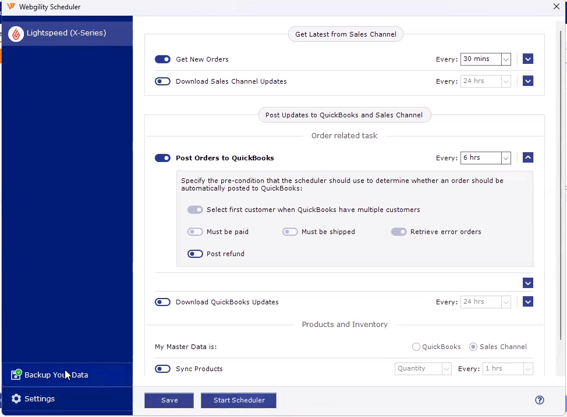
- Go to 'Backup Your data option'. Review the location configured for the automatic backup.
- Click Browse to select a valid backup directory.
- Select the appropriate Webgility backup folder. For example:C:\Webgility\Unify Enterprise
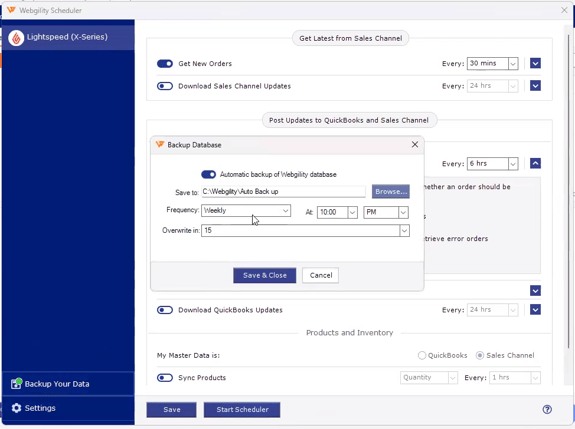
- Save the updated backup location.
- Ensure the weekly automatic backup scheduler is enabled.
- Confirm the scheduled backup time and save the settings.
- Allow the scheduler to run at the next scheduled time and verify that the backup is created successfully.
If the Error Continues
If the notification continues to appear after correcting the backup location:
- Verify that the selected folder exists.
- Confirm that the user has permission to access and write to the folder.
- Make sure the computer is powered on and Webgility is available when the scheduled backup is expected to run.
- Recheck the configured backup directory in Webgility.
- If the issue persists, contact Webgility Support for further assistance.
Expected Result
After selecting a valid backup directory and saving the scheduler settings, Webgility should be able to create the weekly database backup successfully, and the “Unify-Error: Invalid directory for backup” notification should no longer appear.
If you still need assistance, contact Webgility Support at support@webgility.com