
Issue Summary:
-
Payments for certain sales orders are missing in QuickBooks.
-
The related orders in Webgility are not marked as Paid.
Step-by-Step Resolution:
1. Ensure Webgility Desktop is Up-to-Date
-
If you're unable to log in to Webgility, reinstall it from portal.webgility.com.
-
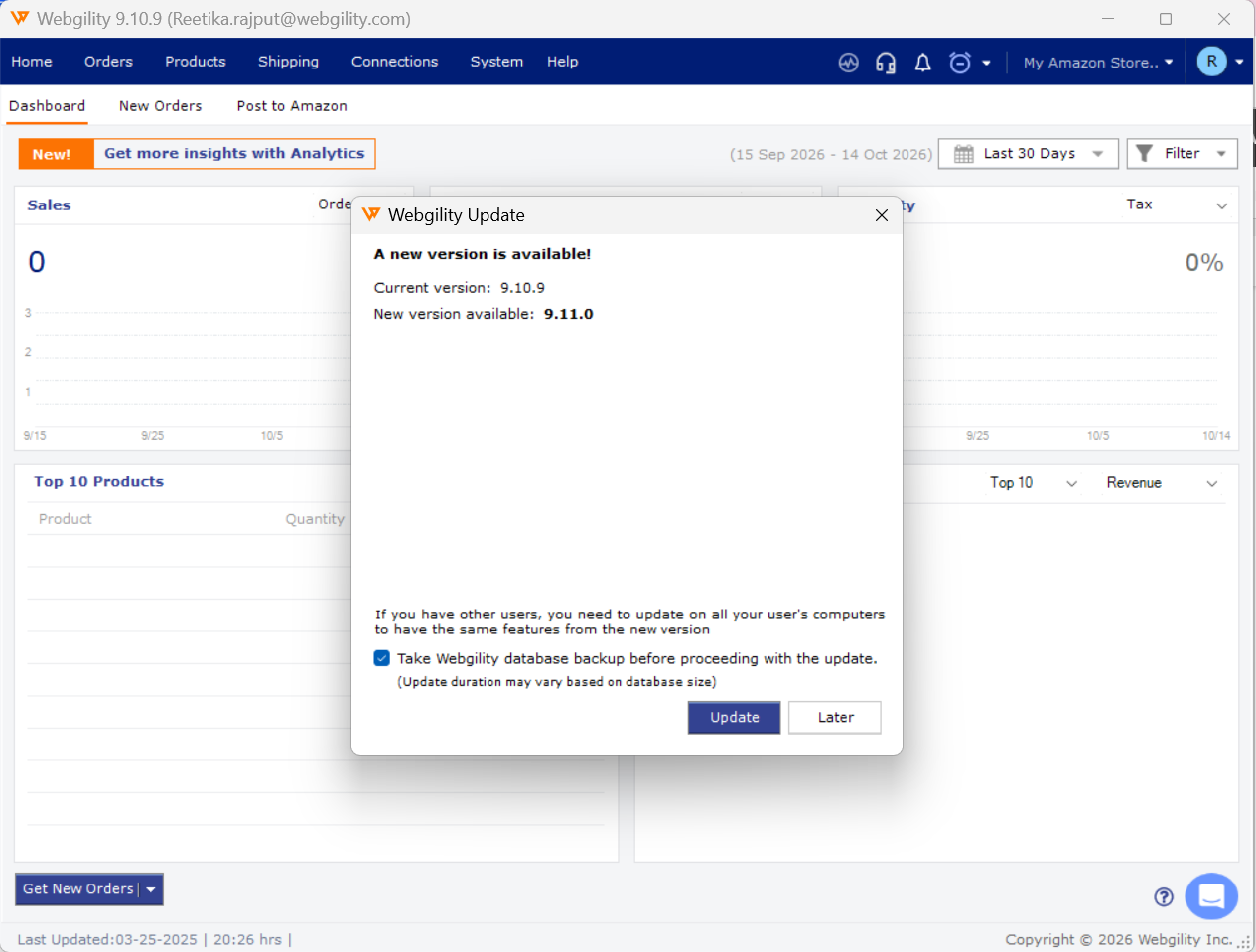
If you are logged in, go to Help > Check for Updates > Update to ensure you're using the latest version.
2. Identify the Affected Orders
Locate the impacted sales orders in Webgility and note their current order statuses, such as Processing or Completed.
3. Verify Sales Channel Payment Settings
- Navigate to Connections > Sales Channels > Settings.
- Locate the relevant order status.
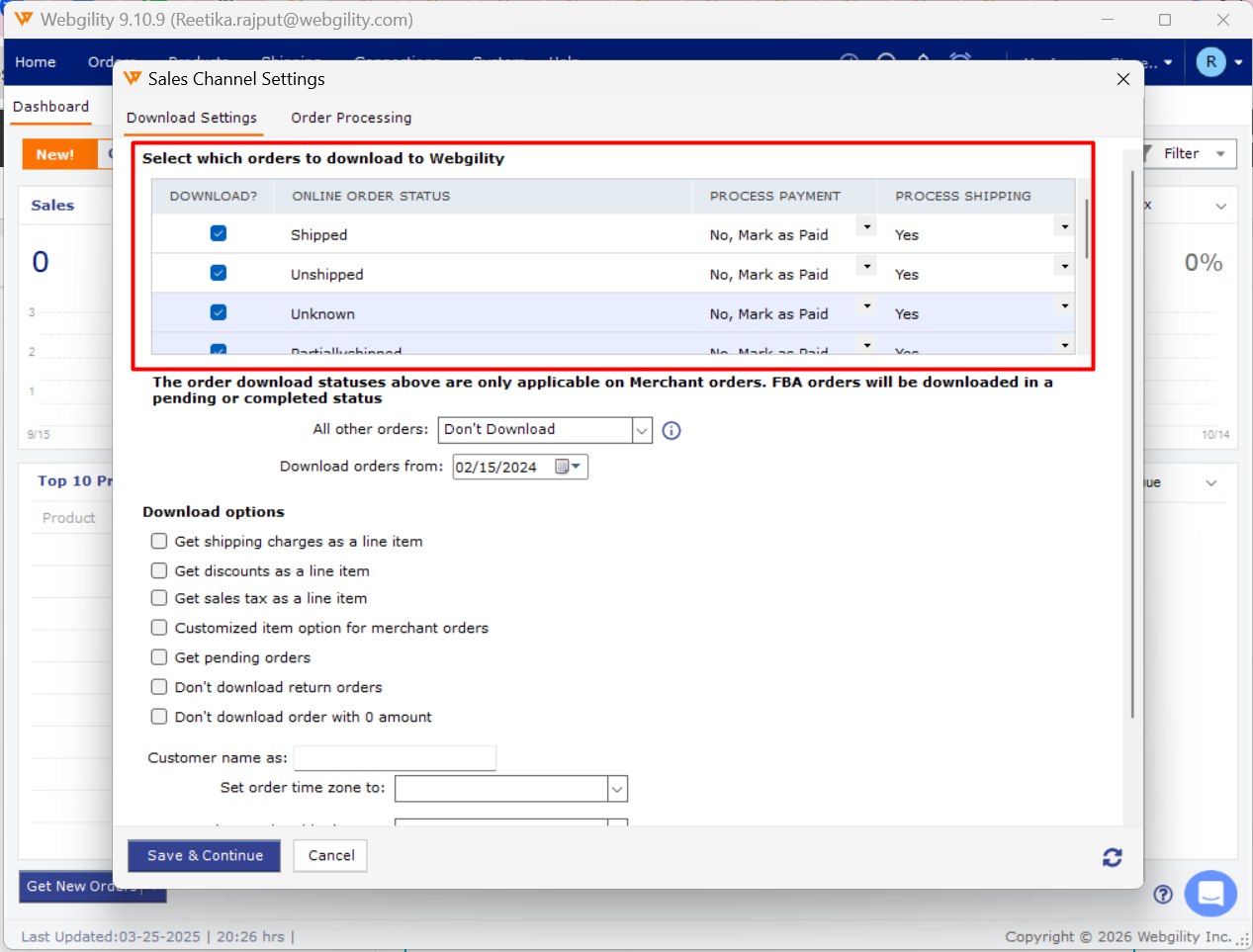
- Under Process Payment?, select No Mark as Paid.
- Click Save.
4. Verify Accounting Settings
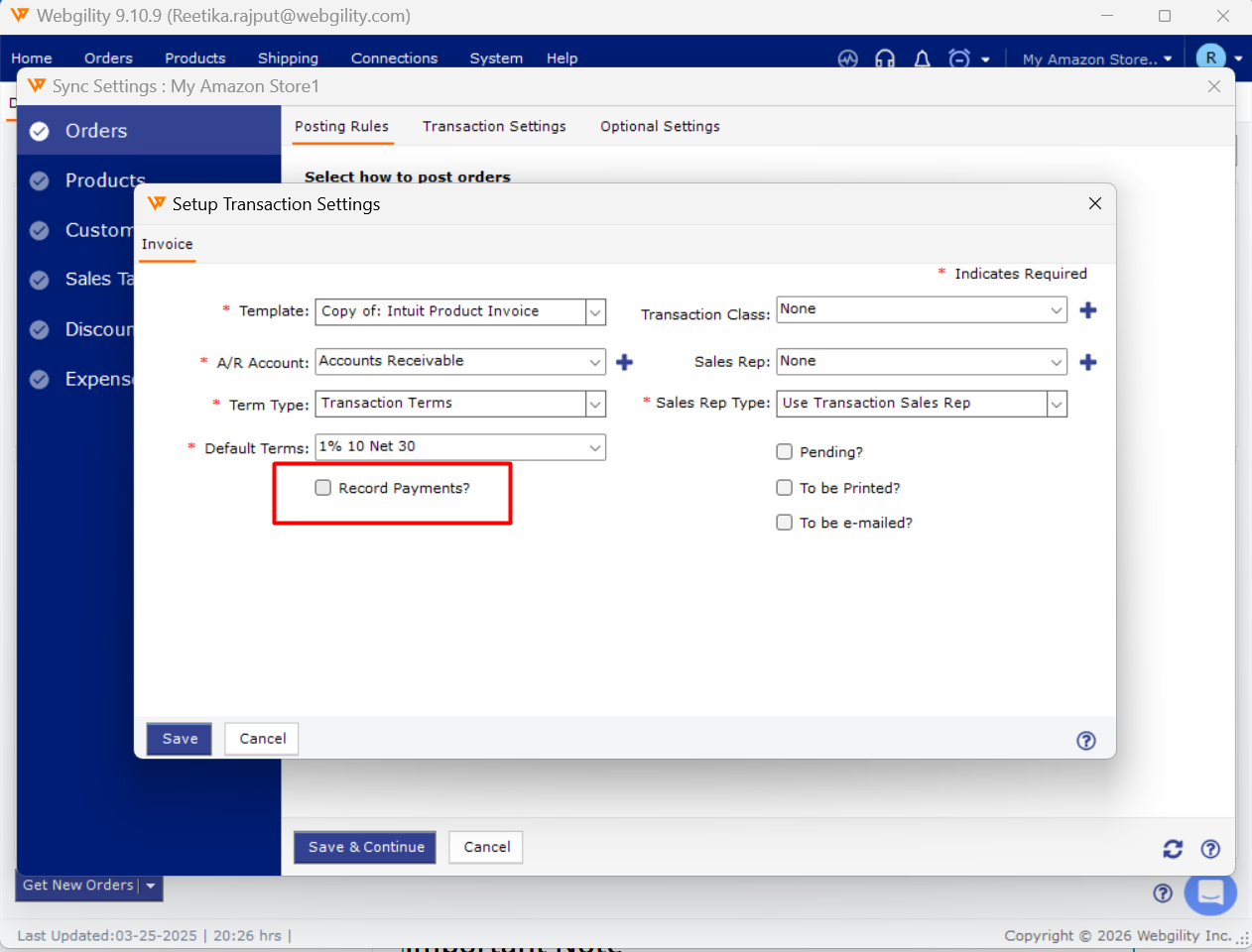
- Go to Connections > Accounting > Sync Settings > Orders > Invoice/Sales Order Setup.
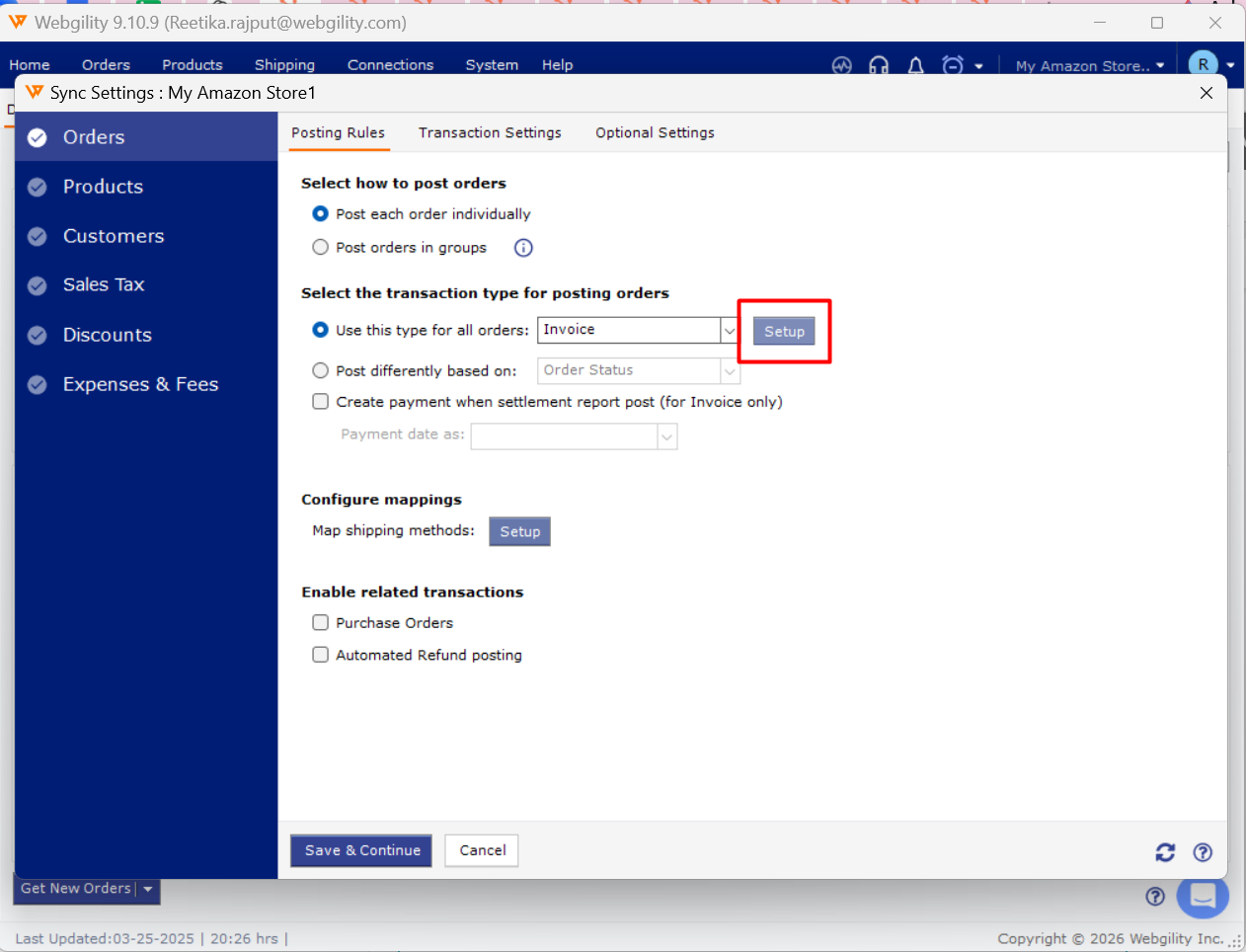
- Ensure the Record Payments option is selected.
5. Resync the Affected Orders
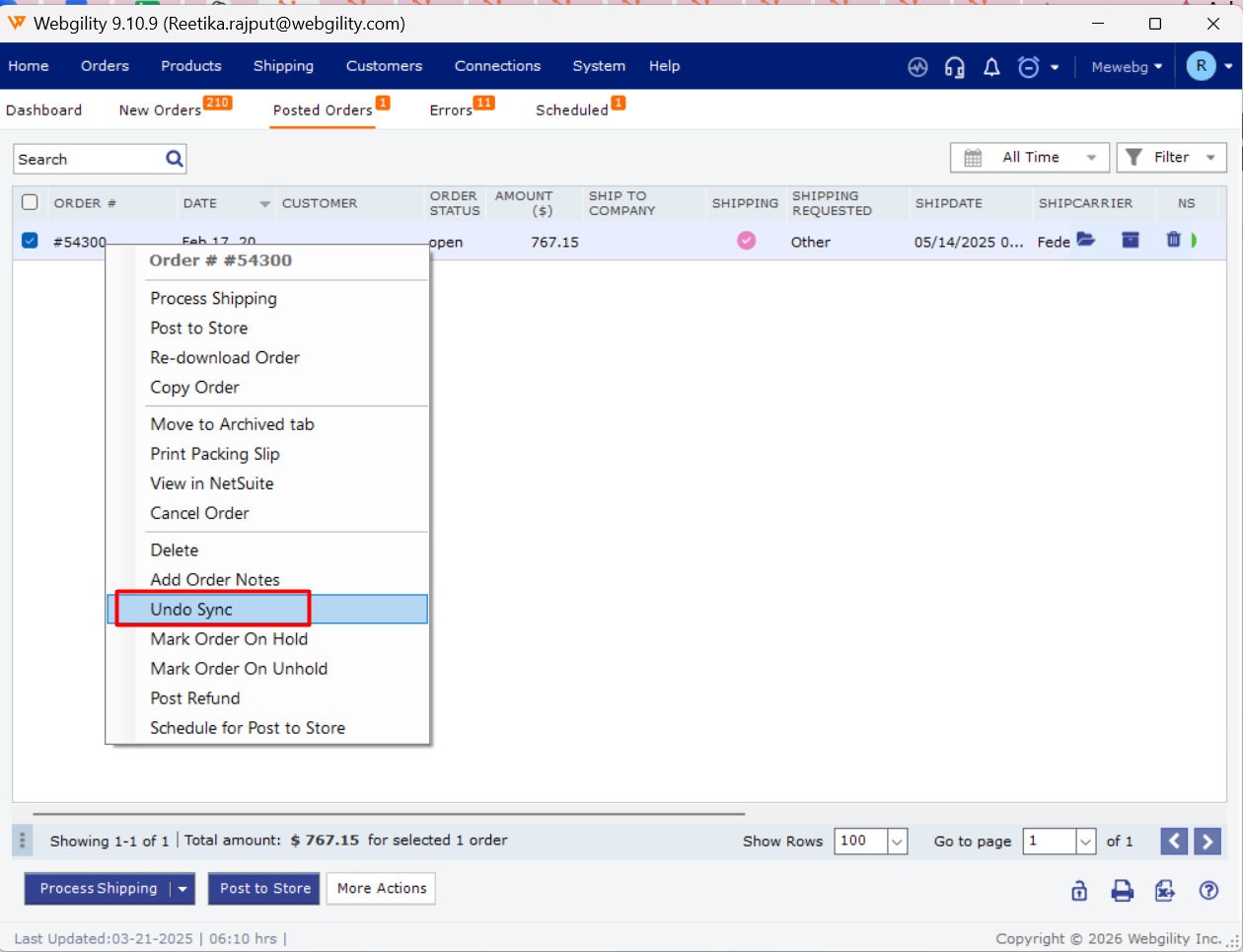
- Select the impacted orders in Posted Orders tab and click Undo Sync to move them to the New Orders tab.
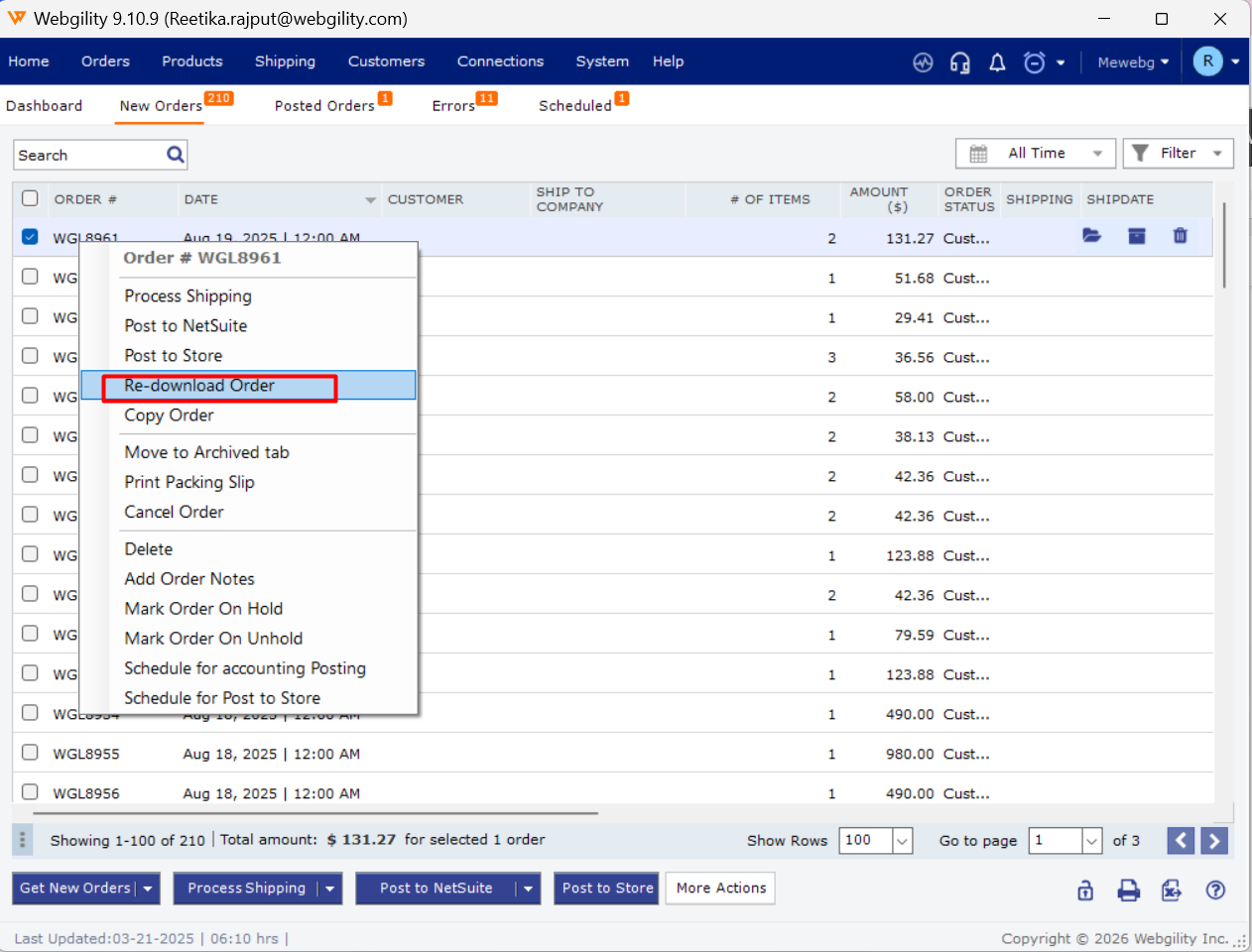
- Right-click each order and select Redownload.
- Post the orders to QuickBooks again.
- Verify that the payment details are reflected correctly in QuickBooks.
Important Note
Before undoing or reposting orders, review their existing QuickBooks records to avoid duplicate transactions. If payments are still missing after resyncing, contact Webgility Support for further assistance.