
Overview
Webgility Online may be unable to connect to Xero if another app or Webgility setup is already connected to the same Xero account or same company file.
The issue can also occur when the wrong Xero company file is selected during the connection process.
Follow the steps below to remove any conflicting connection, confirm the correct Xero company file, and reconnect Xero to Webgility Online.
Resolution:
Step 1: Check Connected Apps in Xero
- Log in to Xero.
- Open Connected Apps.
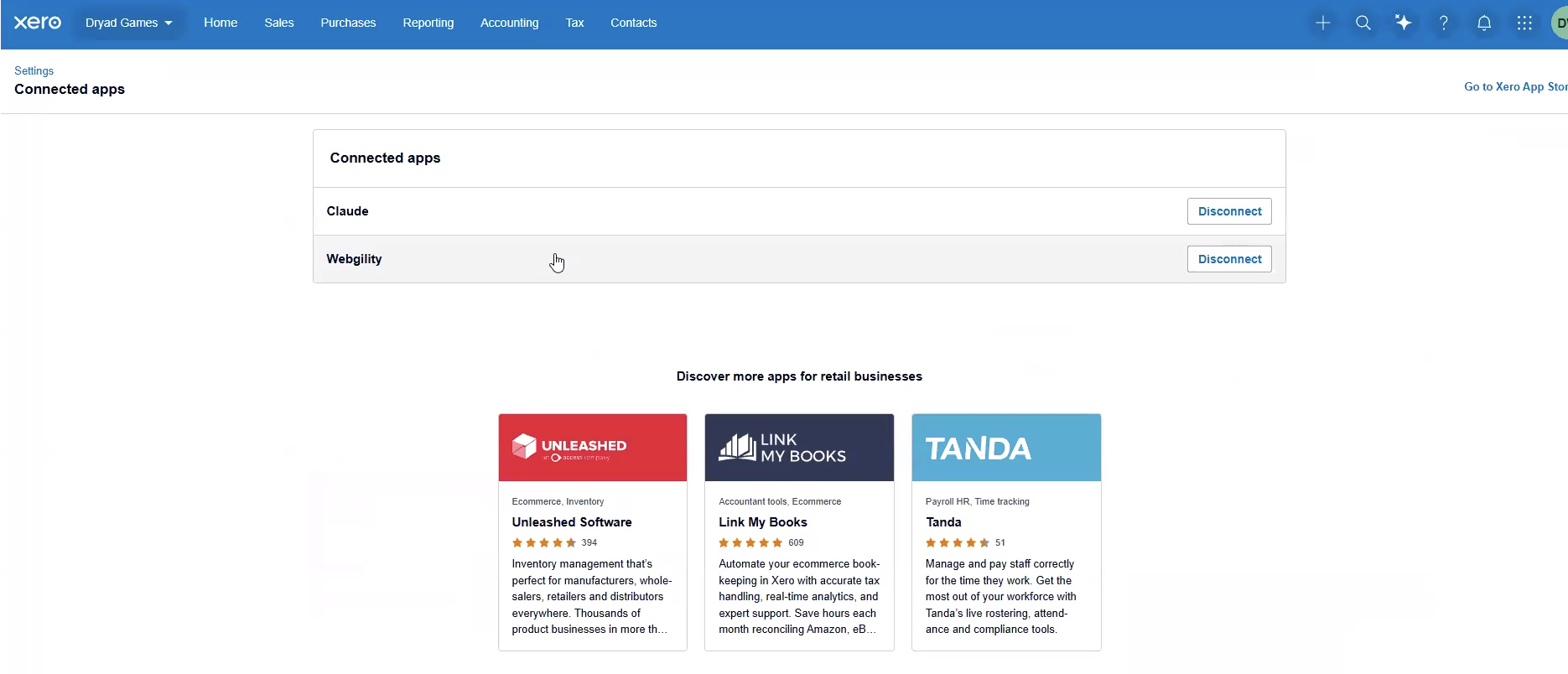
- Review the list of connected apps.
- Check whether Webgility or another Webgility setup is already connected.
Step 2: Remove the Conflicting Connection
If another Webgility setup is connected to the same Xero account:
- Identify the Webgility connection that is currently using the account.
- Temporarily disconnect the conflicting Webgility setup, if it is no longer needed or is being replaced.
- Make sure you do not disconnect an active setup that is still required for syncing.
Step 3: Select the Correct Xero Company
When reconnecting Webgility:
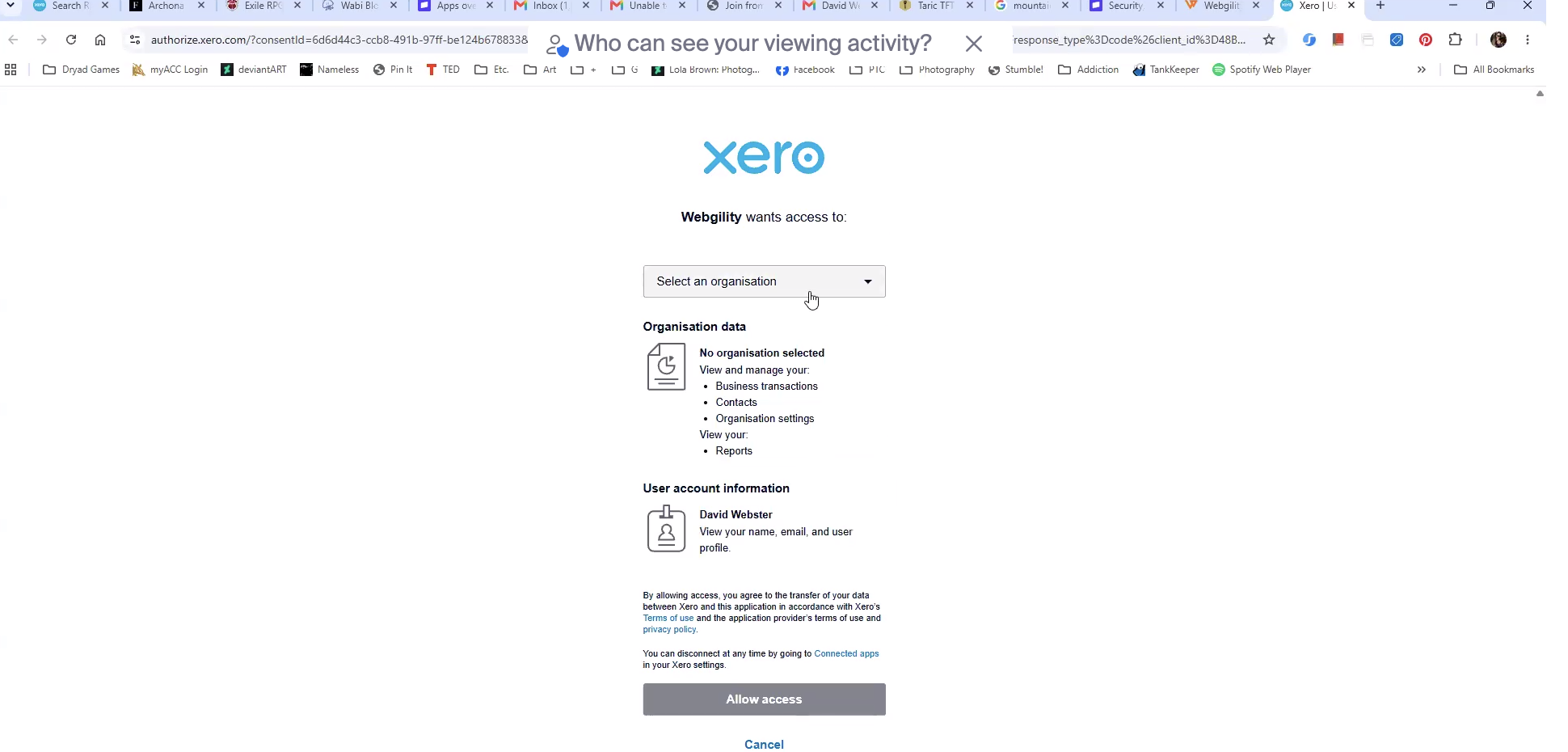
- Start the Xero connection process in Webgility Online.
- Sign in to the correct Xero account.
- Select the correct Xero company file that you want to connect to Webgility.
Step 4: Verify the Connection
After completing the connection:
- Return to Webgility Online.
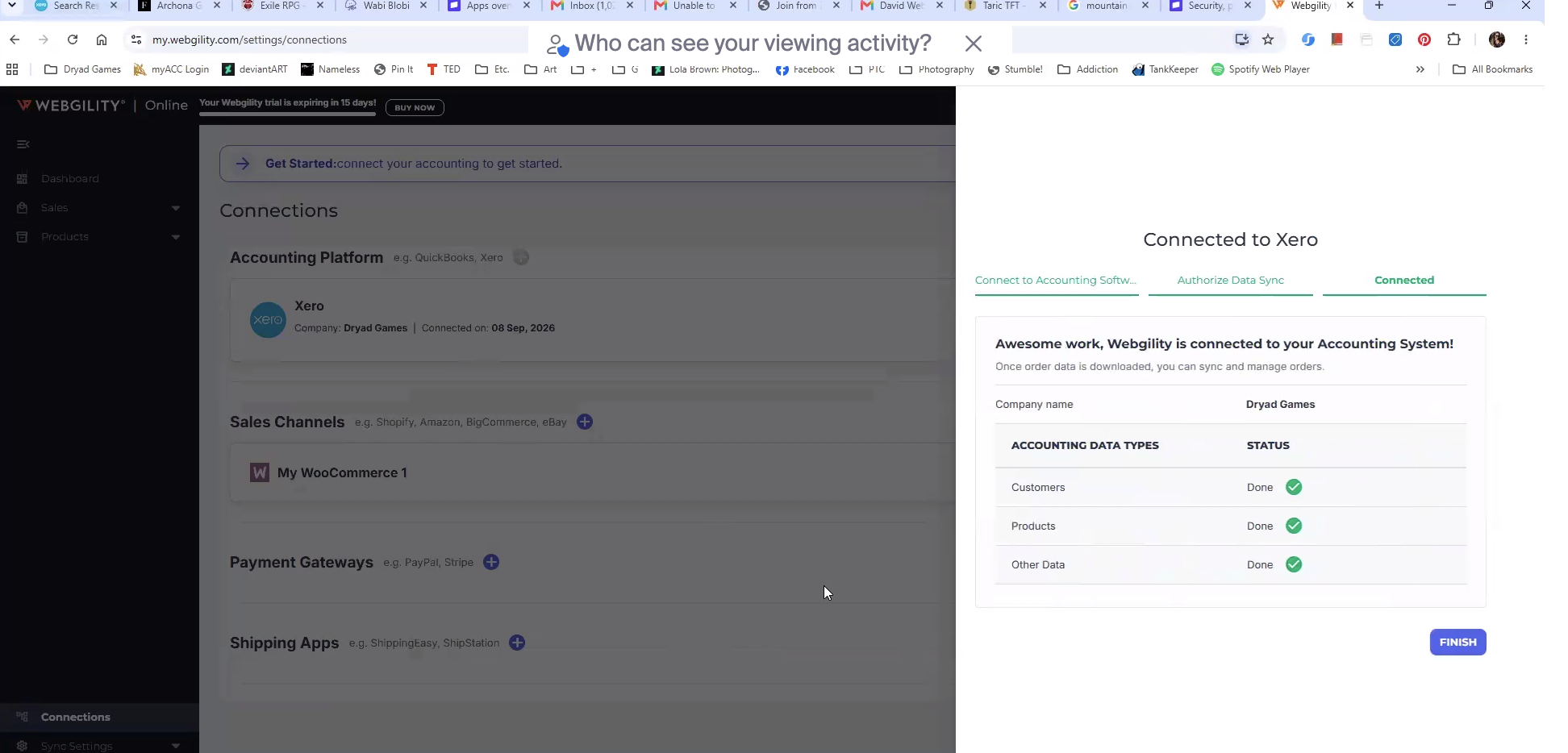
- Verify that the Xero connection shows as connected.
- Confirm that the correct Xero company is connected.
- Test the connection before proceeding with your regular workflow.
If the Issue Persists
If you continue to experience the connection issue after removing the conflicting connection and selecting the correct Xero company, please contact Webgility Support at support@webgility.com for further assistance.
Tip: Trying a different browser may not resolve this issue if the problem is caused by an existing Xero connection, account permissions, or an incorrect company selection.