
Overview
If Shopify orders aren’t appearing in Webgility Desktop, use these checks to confirm the store connection is active and the orders meet your download settings.
Steps1. Check the Shopify connection
In Webgility Desktop, go to Connections > Sales Channels > Manage Sales Channels. Select Edit next to your Shopify store, then choose Connect to Shopify and follow the prompts.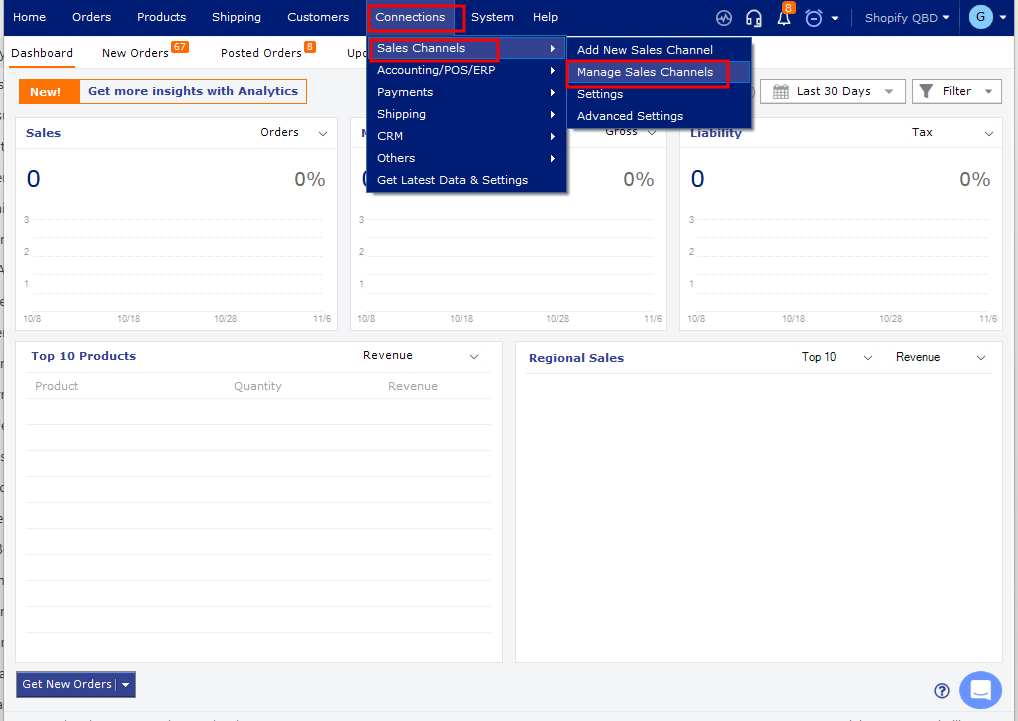
For detailed instructions, see How to Test Your Store Connection in Webgility Desktop.
2. Check order download settings
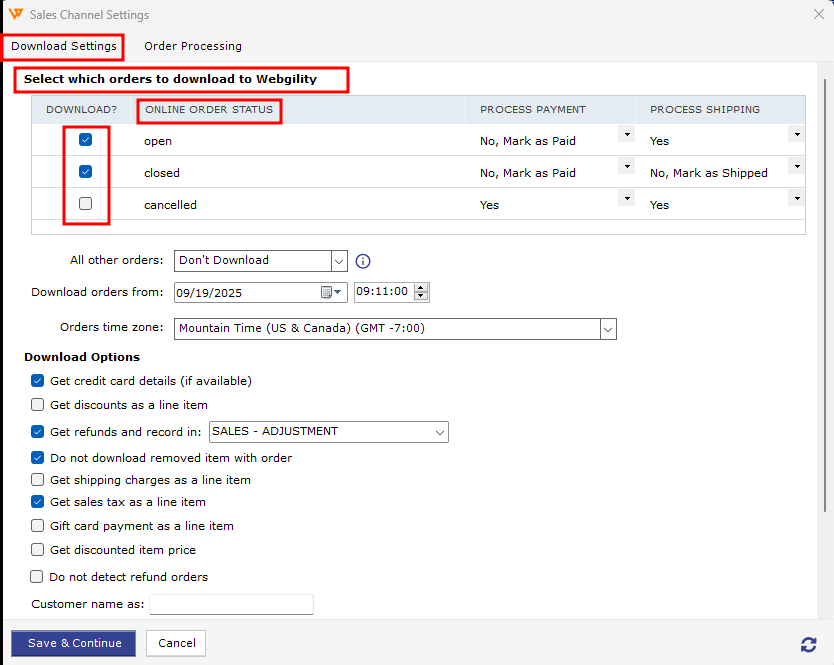
Go to Connections > Sales Channels > Settings. Confirm the date range and order status filters include the orders you want to download.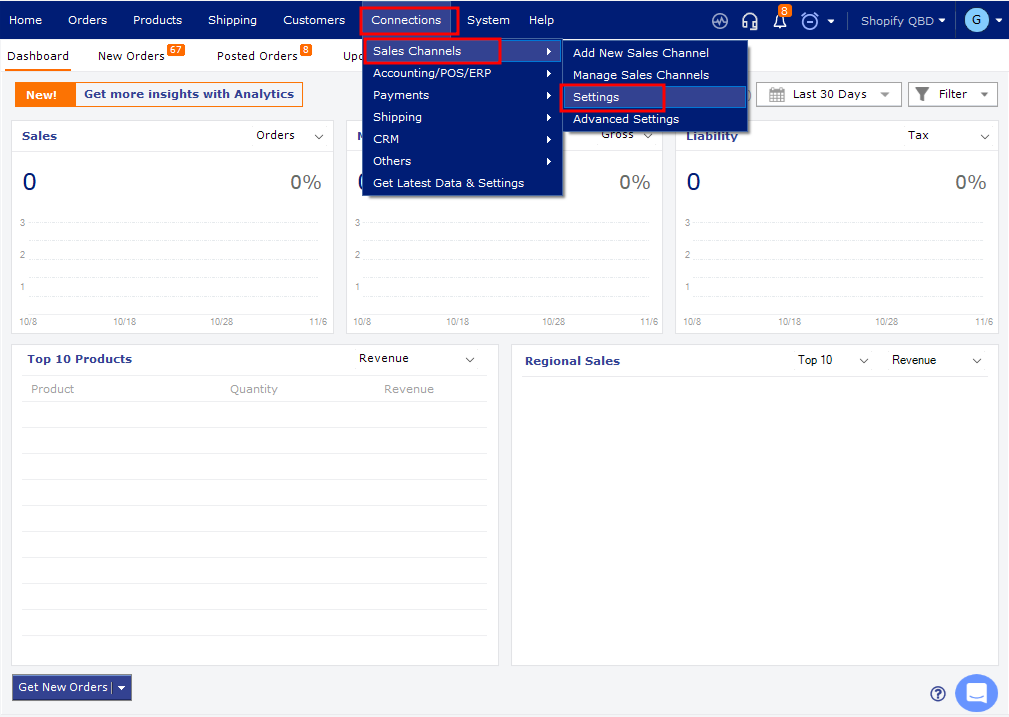
3. Try downloading orders manually
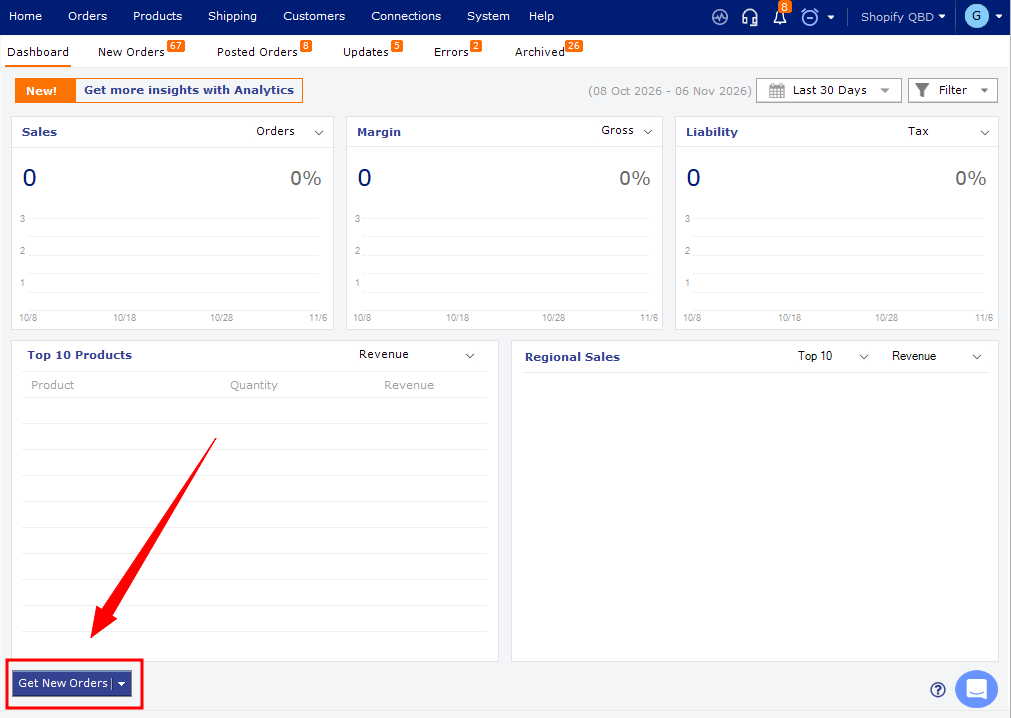
From the Webgility dashboard, select Get New Orders. Choose a date range that includes the orders, then review the results for errors or skipped orders.
If the orders still don’t download, note the order numbers and any error messages, then contact Webgility Support.