
Common causes
- The wrong Shopify store is selected in Webgility.
- The Shopify connection needs attention.
- Download filters exclude the affected orders.
- The sync schedule is misconfigured.
- Shopify or Webgility encounters a temporary delay or error.
Troubleshooting steps
1. Check the Shopify connection
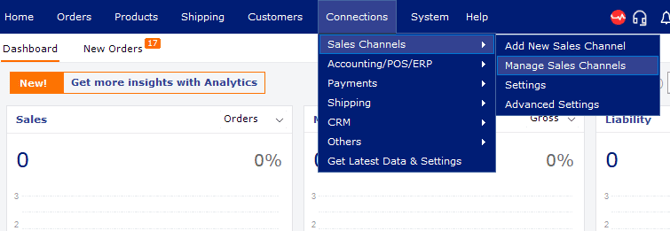
- In Webgility, go to Connections > Sales Channel > Manage Sales Channel.
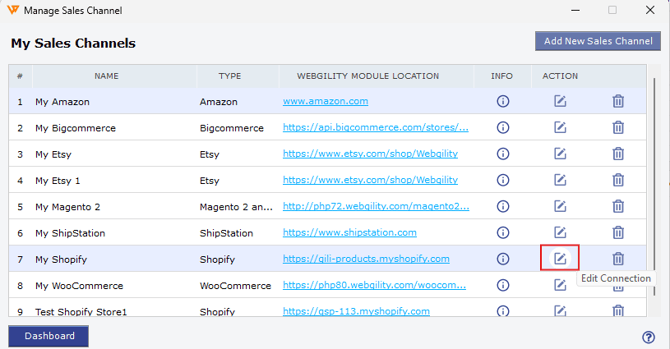
- In the Action column, select Edit for the Shopify connection.
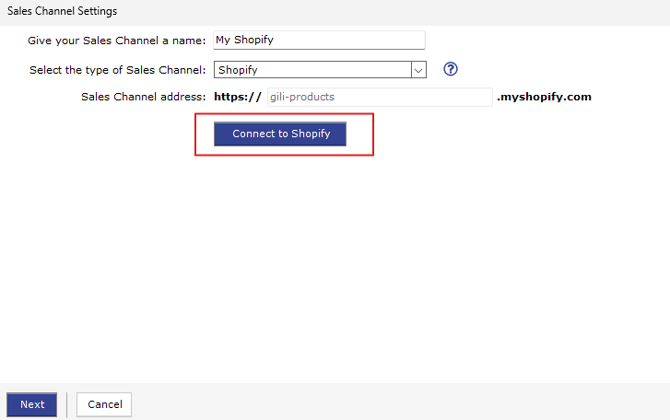
- Select Connect to Shopify and follow any prompts to resolve connection issues.
2. Review order download settings
- Go to Connections > Sales Channel > Settings.
- Check the date range and any order status, payment, or fulfillment filters.
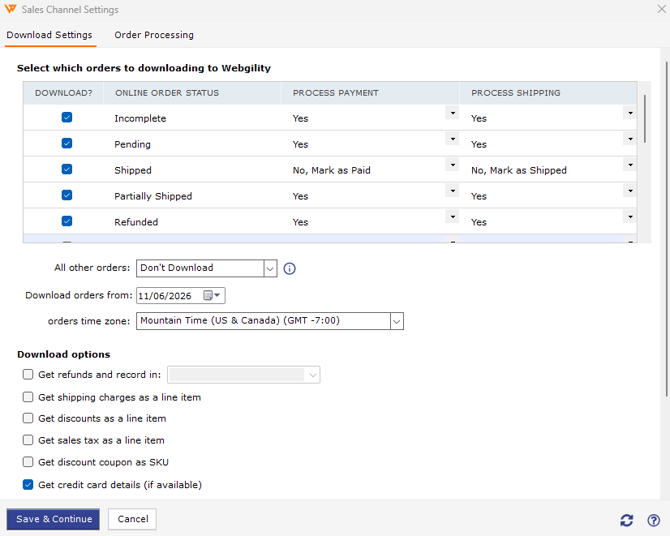
- Confirm the settings include the orders you’re trying to download.
3. Try downloading orders manually
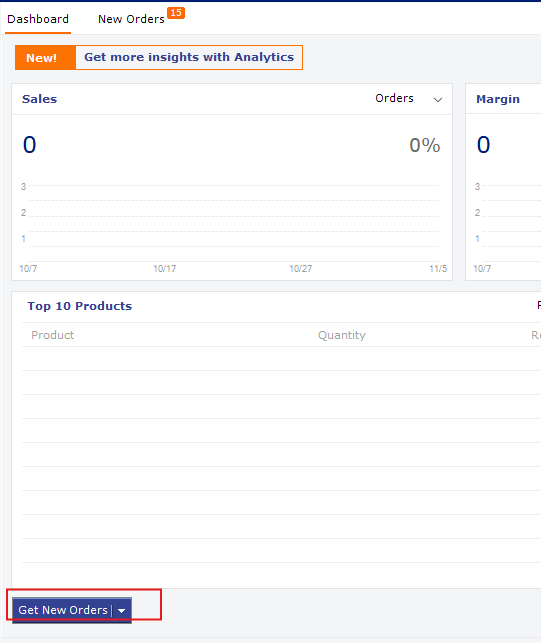
- From the Webgility dashboard, select Get New Orders.
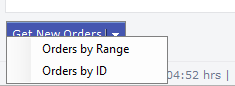
- Choose a date range that includes the missing orders.
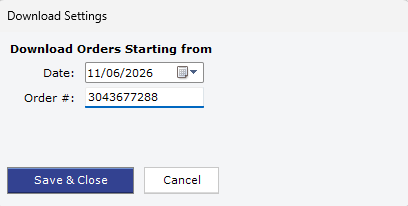
- Review the sync results for errors, timeouts, or skipped orders.
4. Verify the orders in Shopify
In Shopify admin, search for the affected order numbers. Check that the orders exist and meet Webgility’s download filters. For example, confirm their dates and statuses are included.
5. Review Webgility logs
Check the Webgility error logs for messages related to order downloads. The article’s original path is CDrive > Webgility > Unify Enterprise > Error Logs; verify the folder location on your computer, since it may vary by installation.
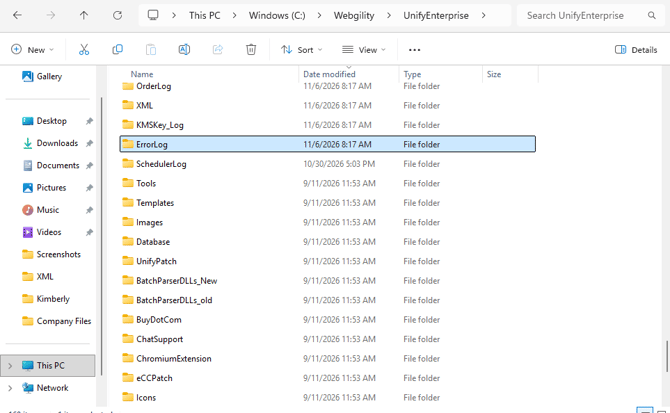
Note any error codes or messages so you can share them with Webgility support if needed.
6. Test whether new orders download
If possible, create a test order in Shopify and run Get New Orders in Webgility. If the test order downloads but older orders do not, review the date and status filters for those older orders.
Still having trouble?
If the connection test succeeds and the affected orders meet your filters but still won’t download, contact Webgility support with the order numbers, sync time, and any related log messages.