
Problem Description
"You are seeing your Amazon settlement post with amounts that do not match Amazon Seller Central or QuickBooks Online. Common symptoms include expenses posted as income, missing income transfers, payments that never settled because a card was invalid, or a small dollar difference sitting in Undeposited Funds."
Root Cause
Amazon settlement discrepancies almost always trace back to one of four causes: an account is mapped to the wrong QuickBooks type in Webgility Online, a fee category is missing from the Deposits/Fees mapping, the settlement rolled a failed payment forward to the next period so an amount appears "short", or QuickBooks has a stray Undeposited Funds entry from an earlier partial post.
Solution Steps
Step 1: In Amazon Seller Central, open the settlement report for the period in question and note the total: gross sales, refunds, fees, reserves, and net deposit.
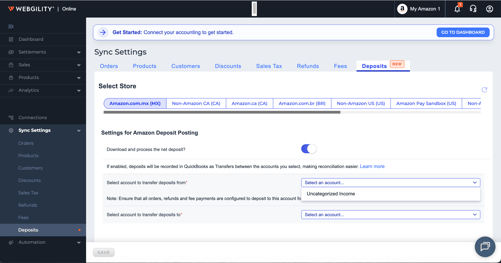
Step 2: In Webgility Online, open Sync Settings > Deposits and confirm every Amazon deposit account is mapped to the correct QuickBooks bank account.
 .
.
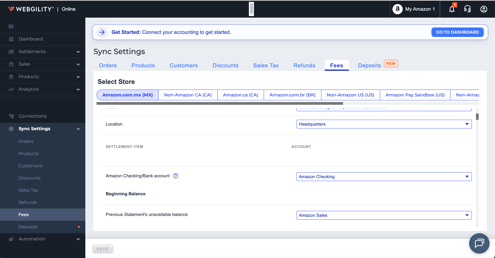
Then open Sync Settings > Fees and confirm the fee account is a QuickBooks expense account, not an income account.
For the full Amazon reconciliation walk-through see Amazon Reconciliation for Webgility Online.
Step 3: Confirm the Amazon posting method matches the recommended configuration for your workflow — either summary posting for a single journal per settlement, or transactional posting for one entry per order.
For the full recommended settings see Recommended Settings for Amazon Sales Channel with Webgility Online.
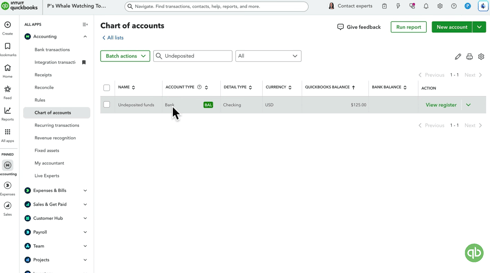
Step 4: In QuickBooks Online, open the Undeposited Funds register and look for stray Amazon entries left over from earlier partial posts. Match them against the settlement or move them to the correct deposit so the register clears.
Step 5: If a specific fee or payment is missing — for example a card charge that failed on the Amazon side — check the next settlement report for the same period; Amazon rolls failed charges forward and they usually appear in the following payout rather than being lost.
Important Note
"When the discrepancy is a small dollar difference (a few cents to a few dollars), it is almost always Amazon rolling a fee across settlement periods. Reconcile against the next settlement before assuming the amount is missing."
If you still need assistance, contact Webgility Support at support@webgility.com