
Overview:
Webgility adds the tracking number to the QuickBooks transaction’s Item Description only when the order’s internal Webgility shipping status is Shipped at the time the order is posted.
The shipping carrier and shipping method can sync independently. If an order is still marked Unshipped, the tracking number may not be added even when Shopify or a fulfillment service already provides tracking information.
Verify the Following Settings:
- First, we need to make sure that the tracking ID is available on the order in your Sales Channel & in Webgility Desktop.
-
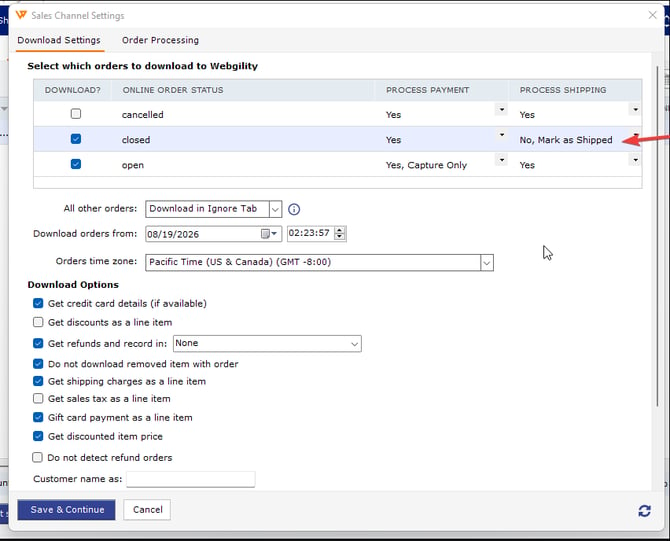
Verify the Correct Process Shipping Status: Go to Connections, then Sales Channels, go to Settings under Select which orders to download into Webgility, Change the "open" row's Process Shipping dropdown from "Yes" to "No, Mark as Shipped" and Save the Setting.
-
Save the settings. This allows future or current orders that already include tracking information to post it to QuickBooks.
- To post the tracking number independently of the order’s shipping status, go to Connections, then Accounting then Sync Settings. Under Orders go to the Transaction Tab, expand the Transaction Memo Dropdown and select Tracking ID.
- Optional: Under Connections, then Accounting then Sync Settings, under Orders go to the Transaction Tab, under Display these order related fields in Transaction, check Shipment Details.
-
This will allow Webgility Desktop to sync Shipment Carrier & Shipment Details to Quickbooks.