
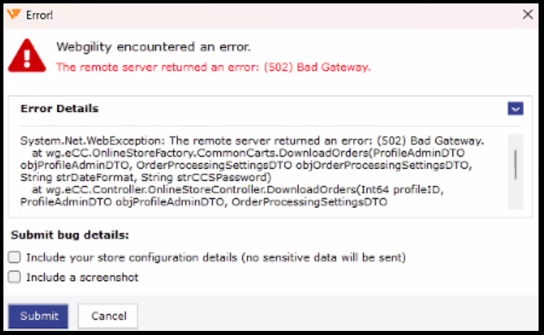
Error Message:
The remote server returned an error: (502) Bad Gateway in Webgility Desktop
Cause of the issue:
If you're encountering the error “The remote server returned an error: (502) Bad Gateway” while using Webgility, it typically means there’s a communication issue between Webgility Desktop and your Server hosting your Sales Channel. This can be resolved by ensuring that Webgility’s IP addresses are properly whitelisted and the system is rebooted afterward.
Steps to fix:
1). Whitelist Webgility’s IP Addresses
To ensure secure and uninterrupted communication between Webgility Desktop and your Sales Channel, please whitelist the following IP addresses on your Server or hosting firewall.
183.182.84.170
111.118.255.21
Note: If your server has additional security settings (such as firewalls, IP filtering, or security plugins), these IPs must be allowed explicitly.
2). After whitelisting the IP addresses, restart your Server or hosting environment. Alternatively, restart the web services (Apache, Nginx, etc.) if a full reboot is not possible.
3). Now try Sales channel connection again in Webgility Desktop.