
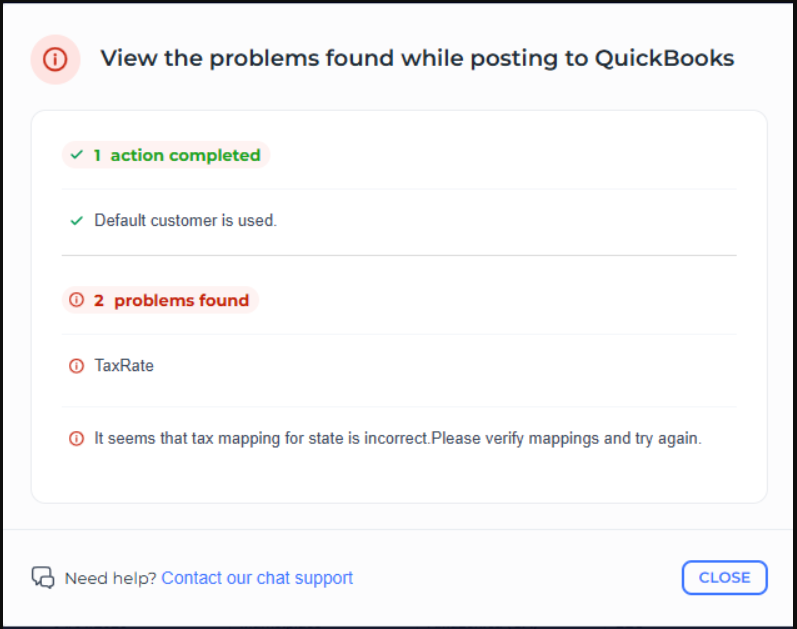
Error Message
Tax rate, It seems that tax mapping for state is incorrect. Please verify mappings and try again
Possible Causes
This usually happens when the tax rate currently selected under Sales Tax settings in Webgility Online is not valid or has expired.
Troubleshooting Steps
- In Webgility Online navigate to Sync Settings > Sales Tax.
- Click on refresh to refresh the latest data from QuickBooks Online.
- Now select the valid and active sales tax rate under “Select how to record Sales Taxes”
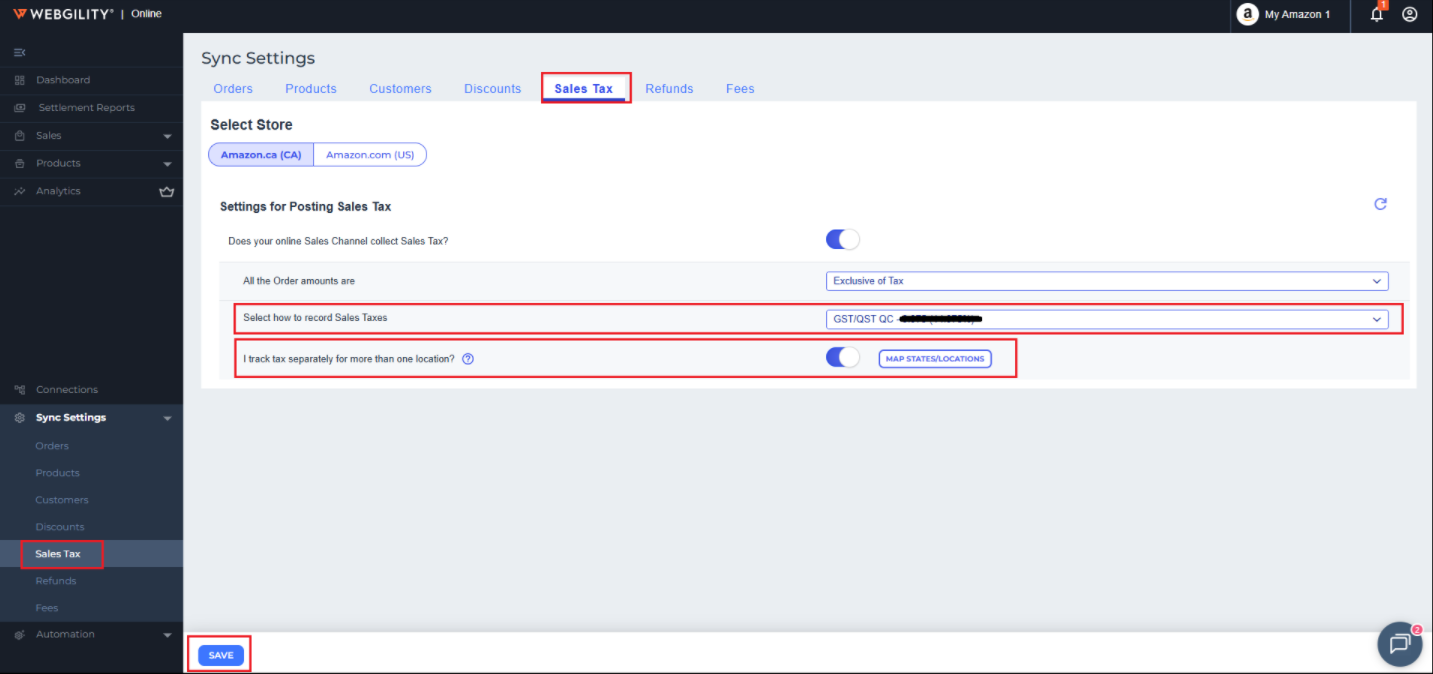
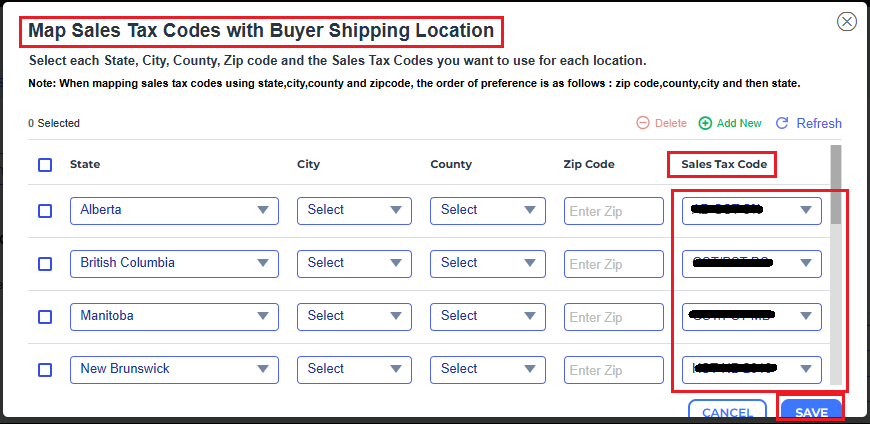
- If you have also enabled the feature “I track tax separately for more than one location?” then click on the “MapStates/Location” button and then verify and make sure all the Tax rates that are configured are valid and active inside your QuickBooks Online. If not, then reconfigure and save and do the final Save of the settings.
- Now the orders should post successfully.