
Skip to content
  • There are no suggestions because the search field is empty.

Some of Your Orders Are Still Not Downloaded or Posted to Accounting

This article explains Webgility Desktop users about the cause of the “Some of Your Orders Are Still Not Downloaded or Posted to Accounting” error that may appear while posting Shopify payouts to QuickBooks through Webgility Desktop. This error generally indicates that certain orders linked to the payout have not been properly downloaded or posted to the accounting system, preventing Webgility from creating the corresponding payment entries. To resolve the issue, users may need to add a specific customization node to the apiConfig.xml file so Webgility can correctly process all payout-related components. The steps provided in this guide walk users through locating, updating, and saving the configuration file before attempting to post the payout again.

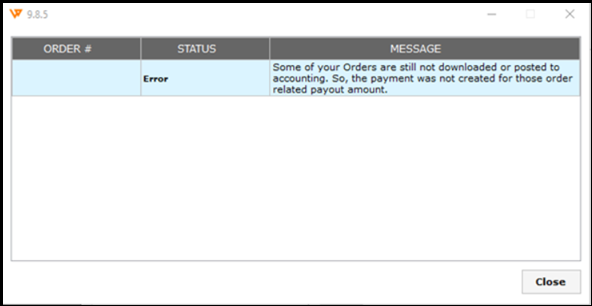
Error Message:

Some of Your Orders Are Still Not Downloaded or Posted to Accounting. So the payment was not created for those order related payout amount


Overview:

This error typically occurs when posting Shopify payouts to QuickBooks.


Steps to solve:

If you encounter this error while posting an order in Webgility Desktop, you can resolve it by adding a custom node in the apiConfig file.

Step 1: Navigate to the apiConfig.xml File

  • Open File Explorer on your computer.

  • Go to the following path: C:\Webgility\UnifyEnterprise\XML


  • Locate the file named apiConfig.xml.

Step 2: Edit the apiConfig.xml File

  • Right-click on apiConfig.xml and select Open With Notepad.

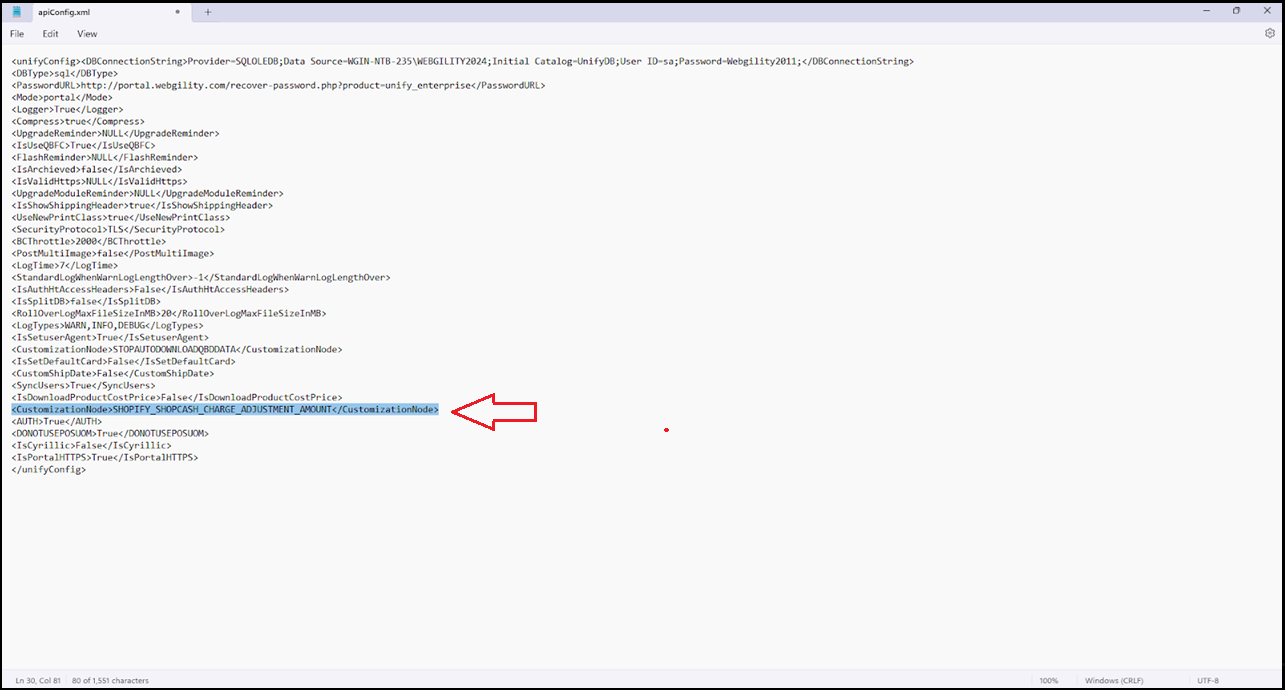
  • Scroll down to the last 3-4 lines of the document. Refer to the following screenshot.

  • Copy and paste the following customization node before the closing tags:

<CustomizationNode>SHOPIFY_SHOPCASH_CHARGE_ADJUSTMENT_AMOUNT</CustomizationNode
Step 3: Save and Restart Webgility Desktop

  • Click File menu and Save.

  • Close the file.

  • Log out of Webgility Desktop and log back in.

  • Try posting the order again.