
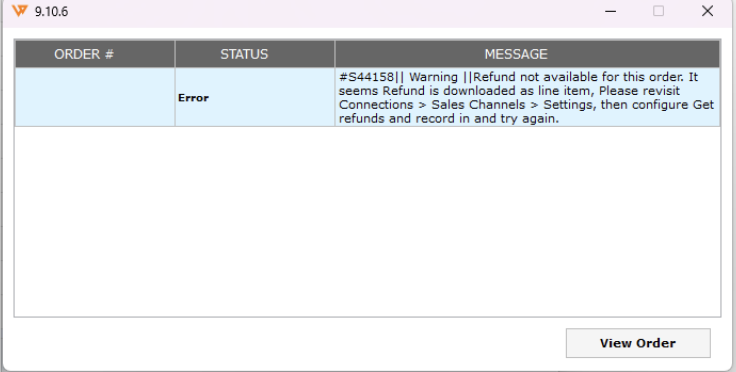
Error Message:
Cause
This issue occurs because the refund is downloaded into Webgility as a line item. This typically happens when a partial refund is issued or when only the refund amount is processed on the store without a corresponding return of the product.
Resolution
Step 1: Review Shopify Order Download Settings
- Open Webgility Desktop.
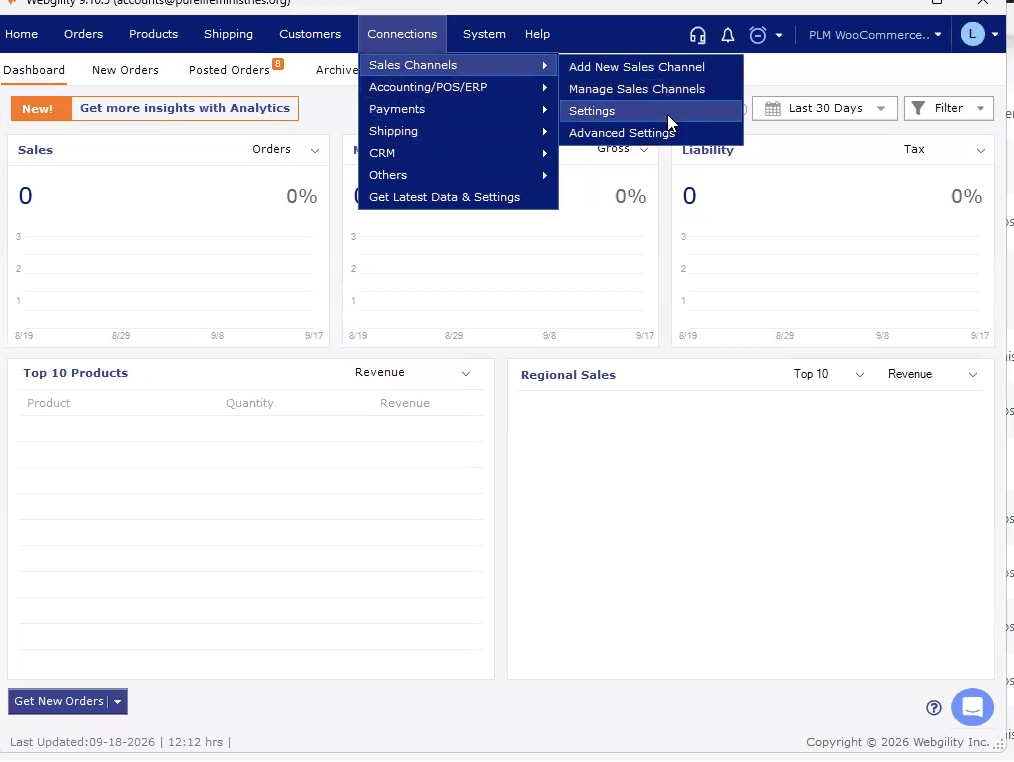
- Go to Connections > Sales Channels.
- Go to the Settings tab.
- Select the 'Get Refunds and Record in' option, then choose a QuickBooks item with the Non-Inventory type to record refunds in QuickBooks.
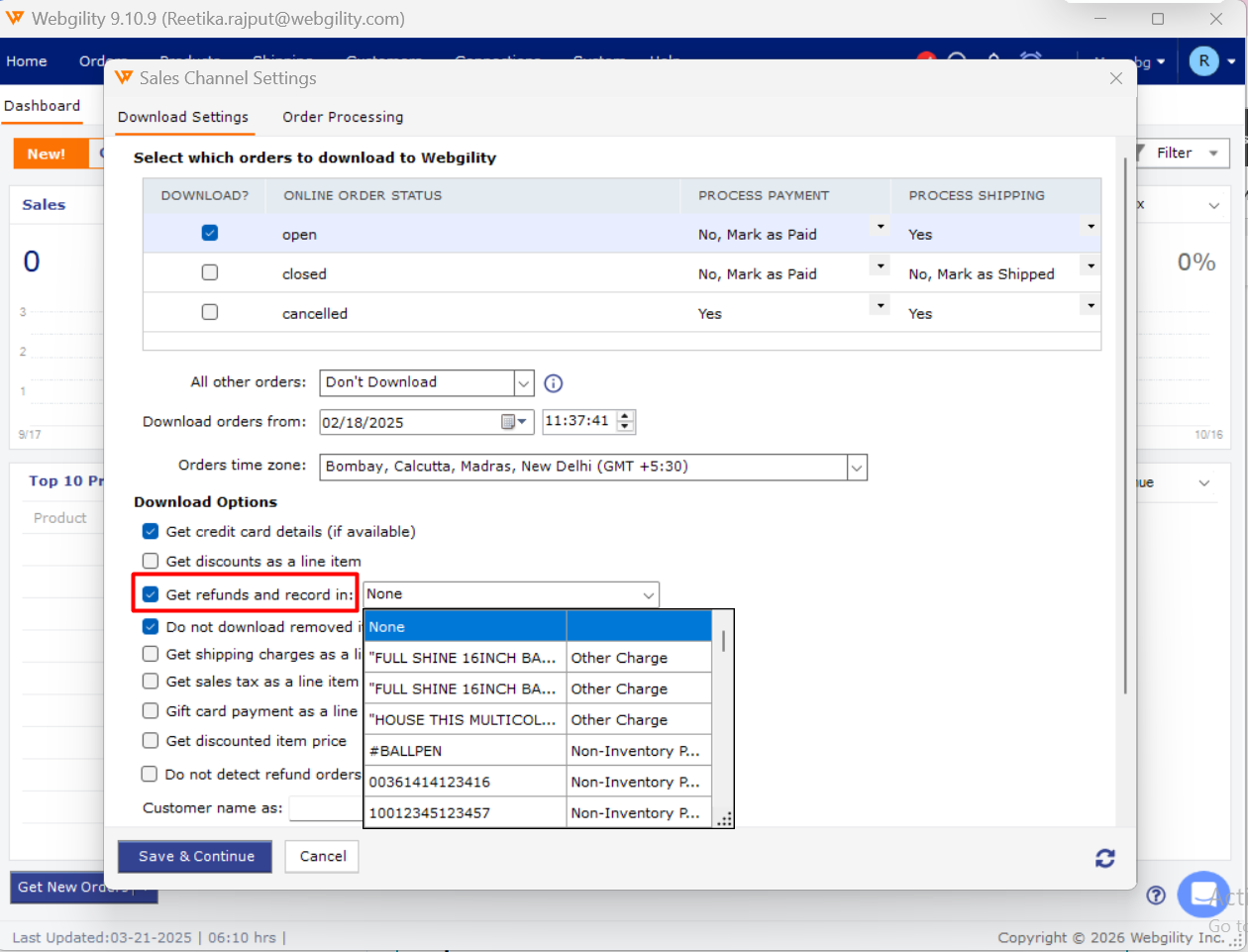
- Click Save to apply the changes.
Step 2: Re-download the Affected Order
- Return to the Webgility Desktop Dashboard.
- Go to Posted Orders tab.
- Right-click the affected order and select Undo Sync to unsync the order. The order will move to New orders tab.
- Allow Webgility to re-download the affected order by right-clicking on the order under 'New orders' tab.
- Open the order in Webgility and verify that the refund information is available.
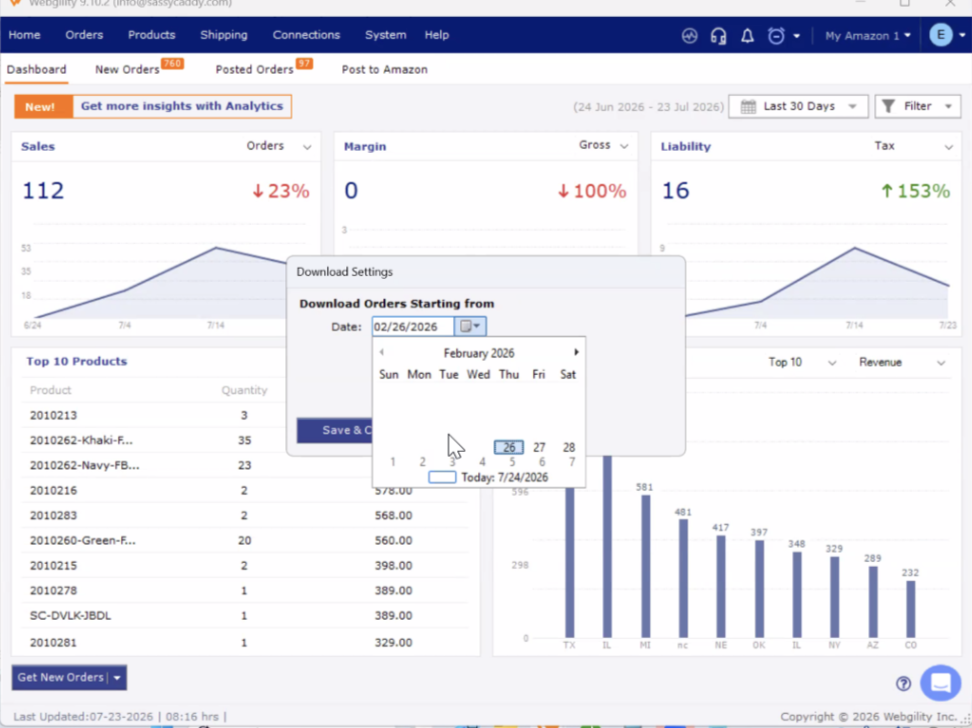
Step 3: Retry the Payout
Once the affected Shopify order and refund are available in Webgility:
- Retry the payout posting.
- Verify that the refund is included correctly in the payout.
- Confirm that the payout posts successfully to your connected accounting system.
Still having trouble?
If the issue continues after following these steps, contact Webgility Support.