
Overview
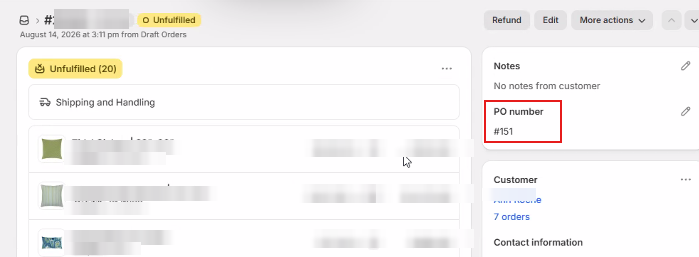
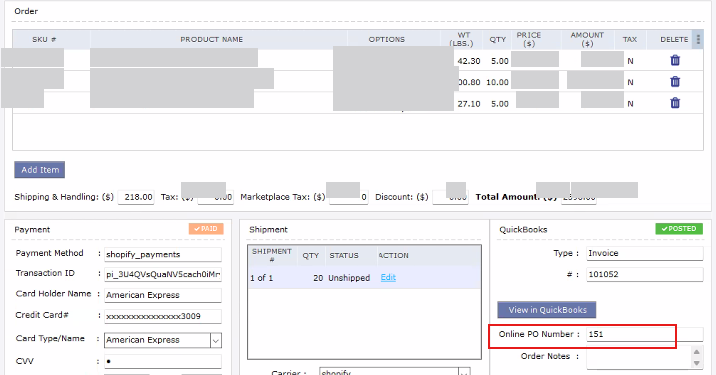
When a customer enters a Purchase Order (PO) number in Shopify, Webgility Desktop should transfer it to the designated PO field on the corresponding QuickBooks Desktop invoice. This article explains how to resolve an issue where the QuickBooks PO field is blank or shows Shopify order number instead of the customer-entered PO number.

Symptoms
- The customer PO number entered in Shopify does not appear in the intended QuickBooks Desktop PO field.
- The Shopify order number appears in the QuickBooks PO field instead or the field is blank in QuickBooks.
Root cause
- The PO source was not set to the correct option under Webgility Desktop transaction settings.
Resolution
Correct the PO mapping
- Open Webgility Desktop.
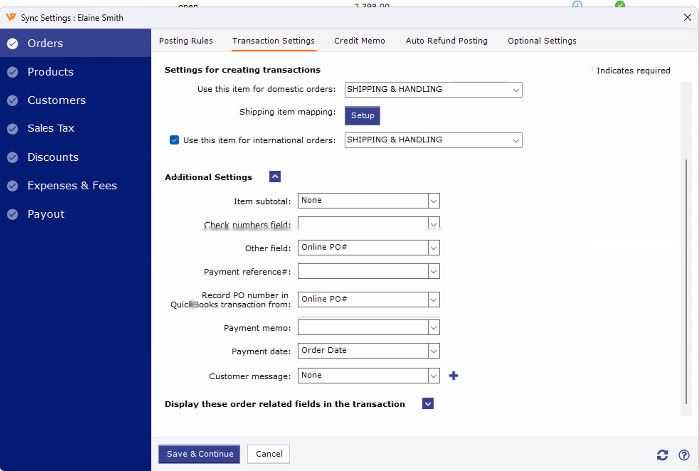
- Go to Connections > Accounting/POS/ERP > Sync Settings.
- Open Orders and select the Transaction Settings tab.
- Expand Additional Settings.
- Enable the setting to store the PO number.
- For Record PO Number in QuickBooks Desktop transaction from, select Sales Channel PO Number.
- Select Save and Continue.
Reprocess and test the order
- Undo the previously synced order or orders that were posted with the incorrect value.
- Sync and post the test orders from Shopify.
- Open the corresponding invoices in QuickBooks Desktop.
- Confirm that the customer-entered Shopify PO number appears in the intended PO field and that the Shopify order number is no longer being used for that field.