
Step-by-Step Instructions
1. Update the Shopify Order Download Settings
To configure Webgility Desktop to download only paid Shopify orders:
- Open Webgility Desktop.
- Navigate to Connections > Sales Channels > Advanced Settings.
- Select the Other tab.
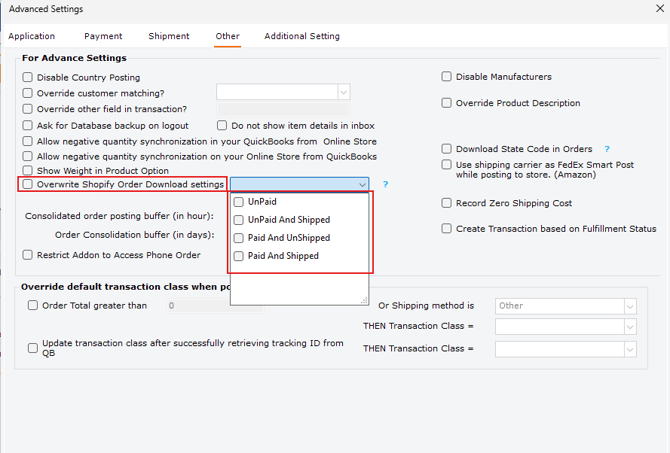
- Select the Overwrite Shopify order download settings checkbox.
- Select the following order statuses:
- Paid & Unshipped
- Paid & Shipped
- Click Save to apply the changes.
2. Test the Order Download
-
After updating the settings, perform a manual order download or wait for the scheduler to confirm that the correct orders are being downloaded.
-
Only orders with the Paid & Unshipped or Paid & Shipped status should be downloaded. Unpaid, canceled, and pending orders should be excluded based on the configured settings.