
Problem Description
Inactive items from QuickBooks appear alongside active items under the Products tab in Webgility Desktop, even though they are not needed for order or inventory management.
Symptoms
- The Products tab in Webgility Desktop lists items that are marked as inactive in QuickBooks.
- Inactive items are downloaded and displayed along with active items, making the product list cluttered and harder to manage.
Root Cause
Webgility is downloading both active and inactive items from QuickBooks because the setting to exclude inactive data has not been enabled. As a result, Webgility is unable to differentiate between active and inactive items during the download process.
Resolution:
-
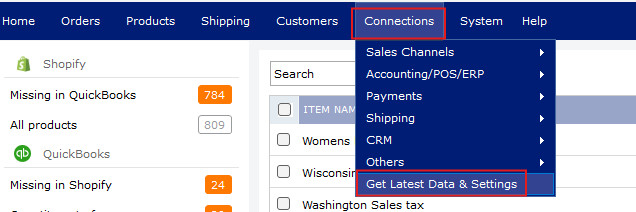
In Webgility Desktop, navigate to Connections > Get Latest Data and Settings.
-
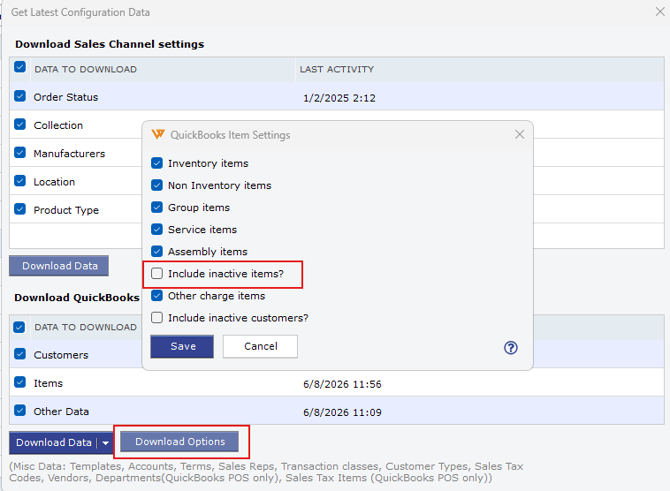
Uncheck Include Inactive Items and any other inactive data you do not want to download from QuickBooks.
-
Redownload the data from QuickBooks in Webgility to confirm that only the expected (active) data is now displayed.
Additional Notes
- If inactive items continue to appear after following these steps, verify that the items are indeed marked inactive in QuickBooks and re-check the download settings before contacting Webgility Support.