
What does this error mean?
When you try to post an order, Webgility Online may show a “View the problems found while posting to QuickBooks” popup with the message: “Error While Creating Payment Method in QuickBooks. Error Message: Error while creating payment method. Error: The ticket parameter is invalid.”
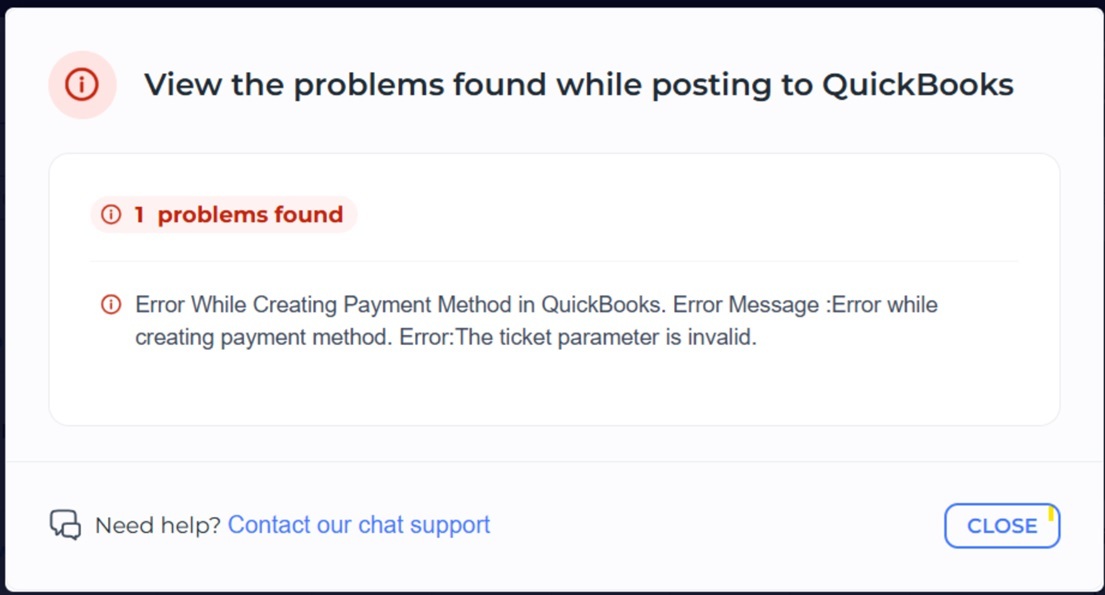
The “problems found while posting to QuickBooks” popup showing the payment method error
This usually happens when an item, customer, or other piece of data has been updated directly in QuickBooks. Webgility Online is still working from older data, so it needs to re-download the latest information and have its settings saved again before it can post the order.
How do I resolve it?
Step 1: Go to Sync Settings
In Webgility Online, navigate to Sync Settings.
Step 2: Refresh each tab
Sync Settings is organized into tabs — Orders, Products, Customers, Discounts, Sales Tax, Refunds, and Fees. On every tab, you'll find a Refresh Settings option (the circular arrow icon). Clicking it downloads the latest data and settings from QuickBooks for that tab.
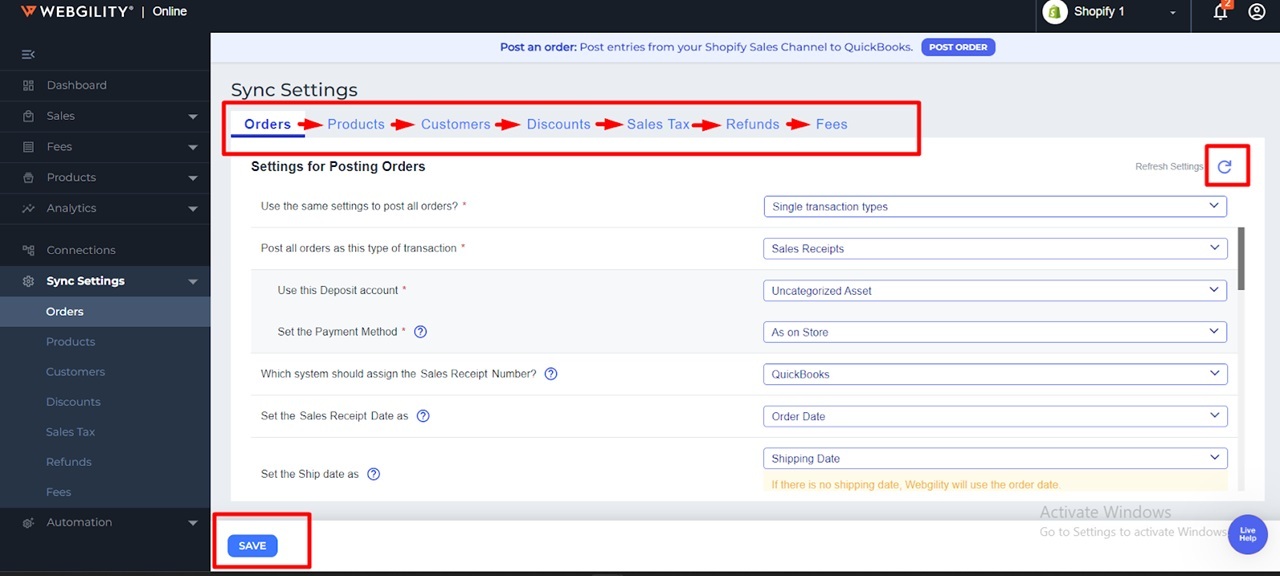
Sync Settings — the tabs run from Orders to Fees, with Refresh Settings and Save in the top right and bottom left
Step 3: Work through every tab, then save
Go through each tab one by one, from Orders to Fees. On each one, click Refresh and wait for it to finish, then click Save at the bottom before moving to the next tab.
Step 4: Post the order again
Once every tab has been refreshed and saved, go back to the order and post it again. It should now sync successfully to QuickBooks.
Note: Refreshing pulls in whatever has changed in QuickBooks since Webgility Online last synced — updated items, customers, payment methods, tax rates, and so on — so it's worth doing all seven tabs even if you only know of one thing that changed elsewhere in QuickBooks.