
Overview:
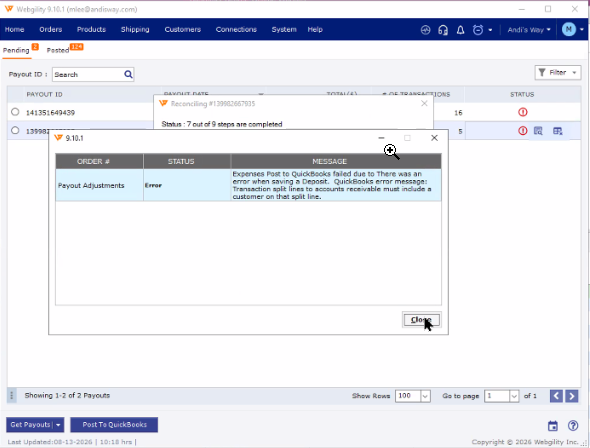
If the account selected under Webgility Desktop is not active in QuickBooks, Shopify payments may fail to sync with the error: “Transaction split lines to Accounts receivable must include a customer on that split line.”
Steps to follow:
- In Webgility, go to Connections > Get Latest Data & Settings and download the latest QuickBooks data.
-
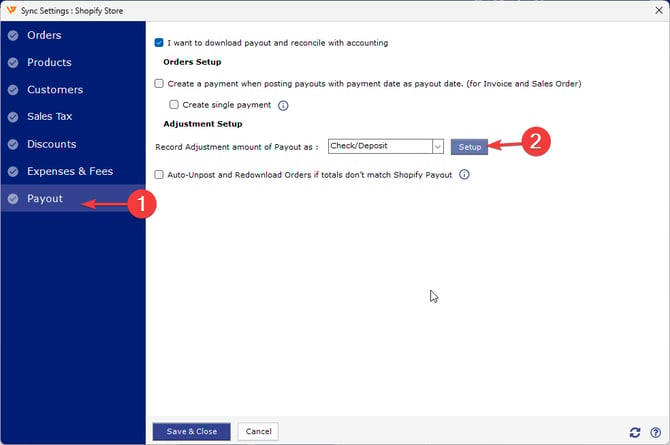
Go to Connections > Sync Settings. Under Payouts in the Adjustment Setup section, click Check/Deposit Setup.
-
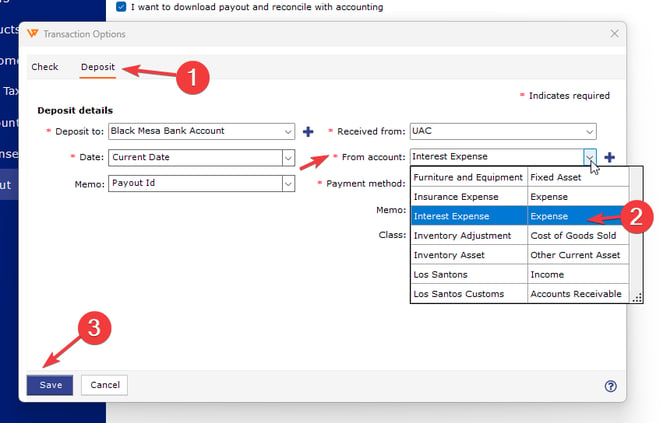
In Check/Deposit Setup, select the Deposit tab and verify the From Account.
Make sure an account with an Expense account type is selected. Click Save, and then click Save & Close.
- Retry posting the payout. Go to Orders > Shopify > Payouts, select the affected payout, and post it to QuickBooks.