
Note: This feature is available to all Webgility Desktop users connected to Shopify channel and QuickBooks Desktop, across all plan types.
Overview
When reconciling Shopify payouts in Webgility Desktop, users may encounter situations where the payout amount does not match the total of the associated orders. These discrepancies commonly occur when:
- An order is edited on the Shopify store after posting
- Taxes or discounts are adjusted
- Currency conversions impact totals
- Other post-purchase modifications alter the order value
Previously, resolving such mismatches required contacting Webgility Support to manually un-post and re-download all orders tied to the payout. This often resulted in delays for users trying to complete their reconciliation.
With the new Un-Post and Re-Download feature, Webgility Desktop users can now effortlessly correct order total mismatches on their own—either manually or through automation using the Scheduler.
What This Feature Does
The Un-Post and Re-Download feature allows you to:
- Identify orders within a payout where the order total does not match the payout amount
- Un-post all associated orders in a single action
- Re-download the updated versions of those orders directly from Shopify
- Re-post the corrected orders once the totals align
This process helps ensure payout accuracy without requiring the Support team's intervention.
Why This Feature Matters
Order discrepancies are common in Shopify due to post-purchase edits, order adjustments, or multi-currency scenarios. Until now, Webgility Desktop could not automatically refresh posted orders whose totals had changed.
This new feature:
- Eliminates dependency on Support for un-posting and re-syncing orders
- Speeds up reconciliation, reducing delays caused by manual back-and-forth
- Ensures accuracy in reporting, payout matching, and bookkeeping
- Supports automation, enabling scheduled reconciliation without manual effort
How This Feature Is Different from the Existing "Order Updates" Option
Webgility Desktop already includes a daily-focused Update Order feature that refreshes individual orders for operational accuracy.
However, the new Un-Post and Re-Download capability is specifically designed for payout reconciliation and allows users to perform bulk actions, including:
- Detecting mismatched orders across an entire payout
- Reversing all affected orders at once
- Downloading corrected versions in bulk
- Streamlining the reposting workflow
In short:
- Update Order = Order-level maintenance
- Un-Post & Re-Download = Payout-level reconciliation
How the Feature Works
Manual
- Webgility Desktop identifies orders in a payout with mismatched totals.
- Navigate to the details of the payout.
- Go to the Partially Settled tab.
- Click on “Unpost and Redownload,” button and this will un-post and redownload all orders associated with the payout with mismatched totals.
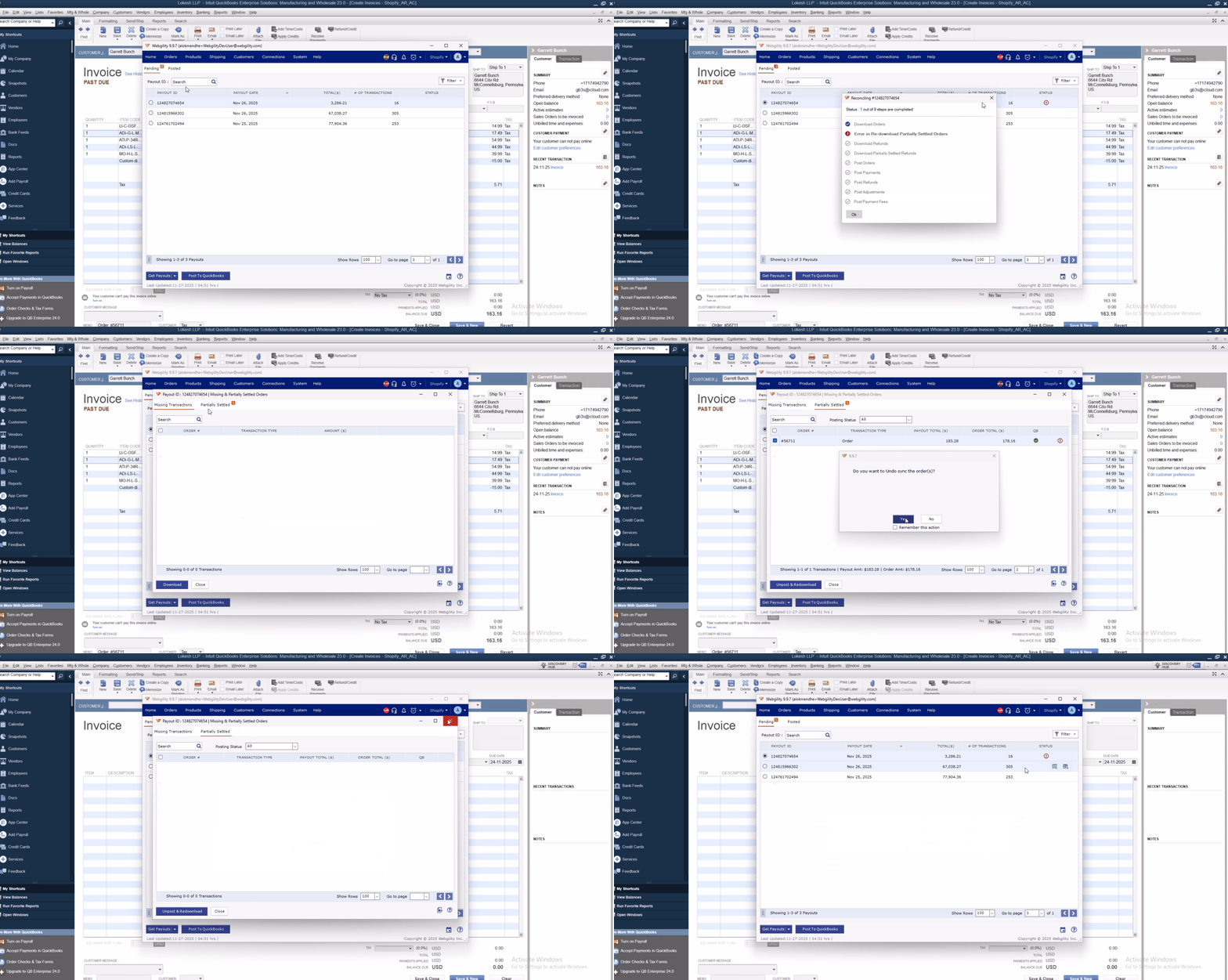
- Once the correct totals are retrieved, you can repost the Payout.
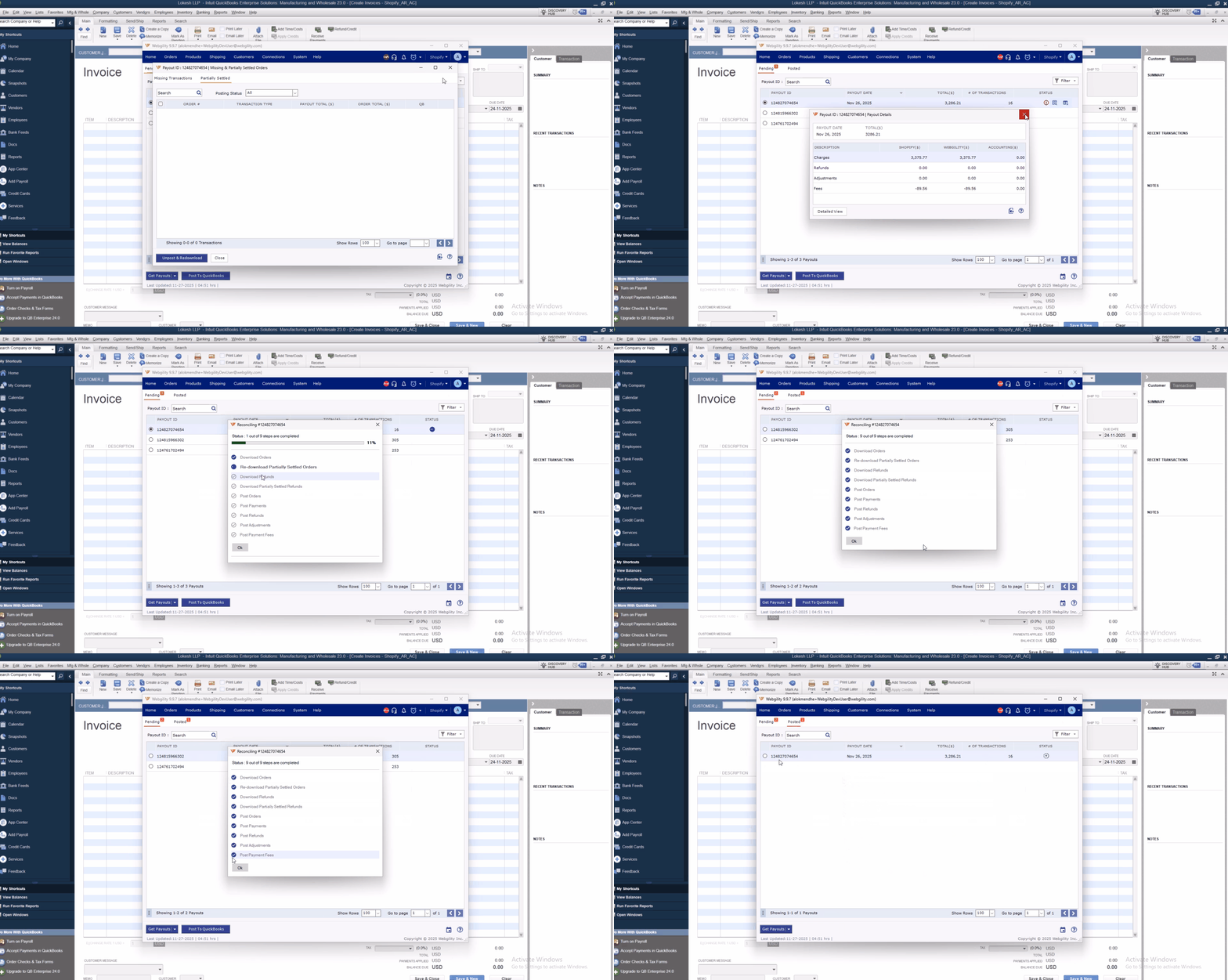
Automation
To enable the automation for the same in Webgility Desktop navigate to Connections > Accounting/POS/ERP > Sync Settings > Payouts and then check the box for “Auto-Unpost and Redownload Orders if totals don't match Shopify Payout” then click on Save and Close.
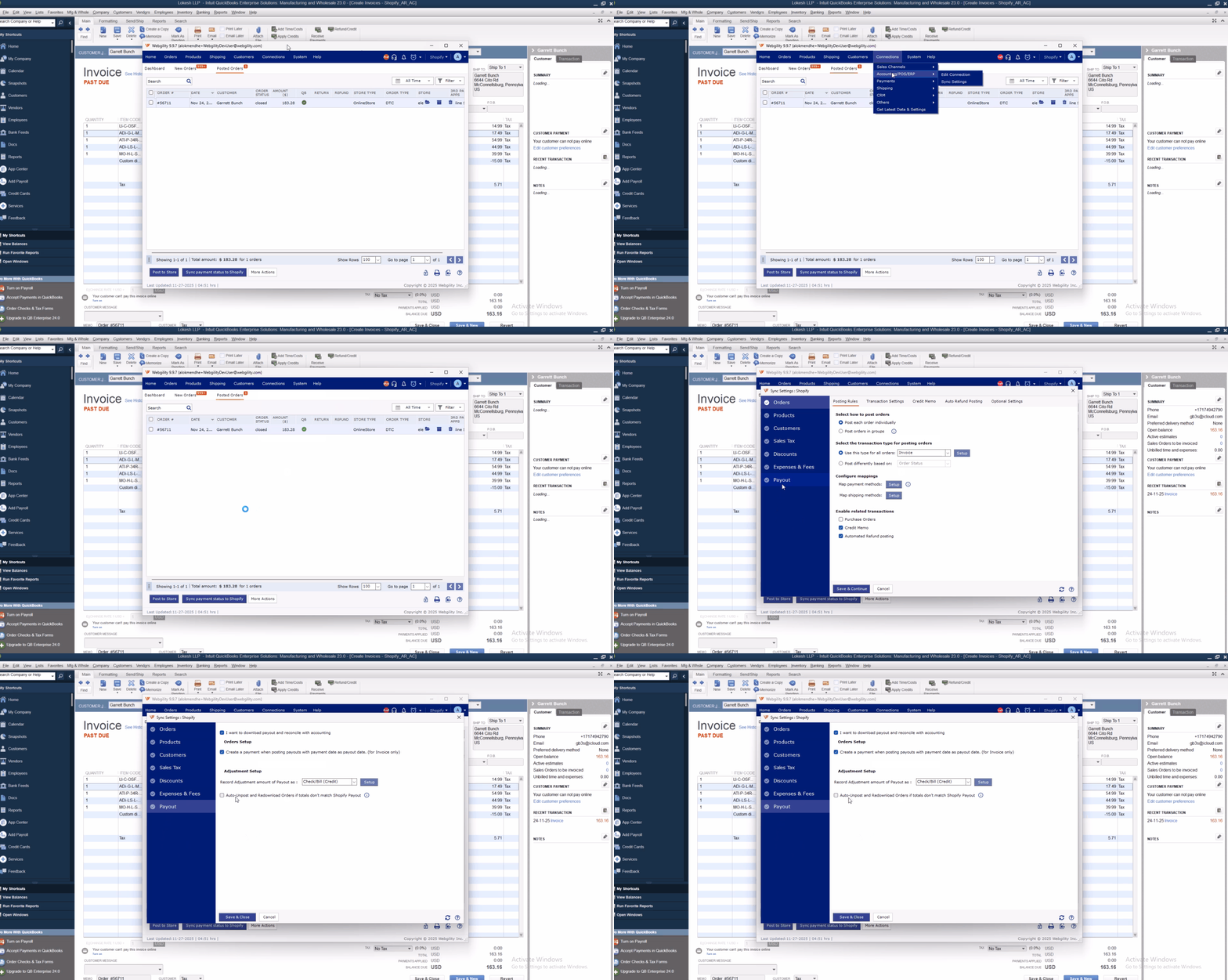
This ensures the payout and order totals remain aligned for accurate reconciliation.
Availability
This feature is available with the following conditions:
Available For
- All Webgility Desktop users connected to Shopify and QuickBooks Desktop, across all plan types.
Not Available For
- Webgility Desktop users using Consolidation Posting
- Integrations with QuickBooks Online
- Integrations with NetSuite