
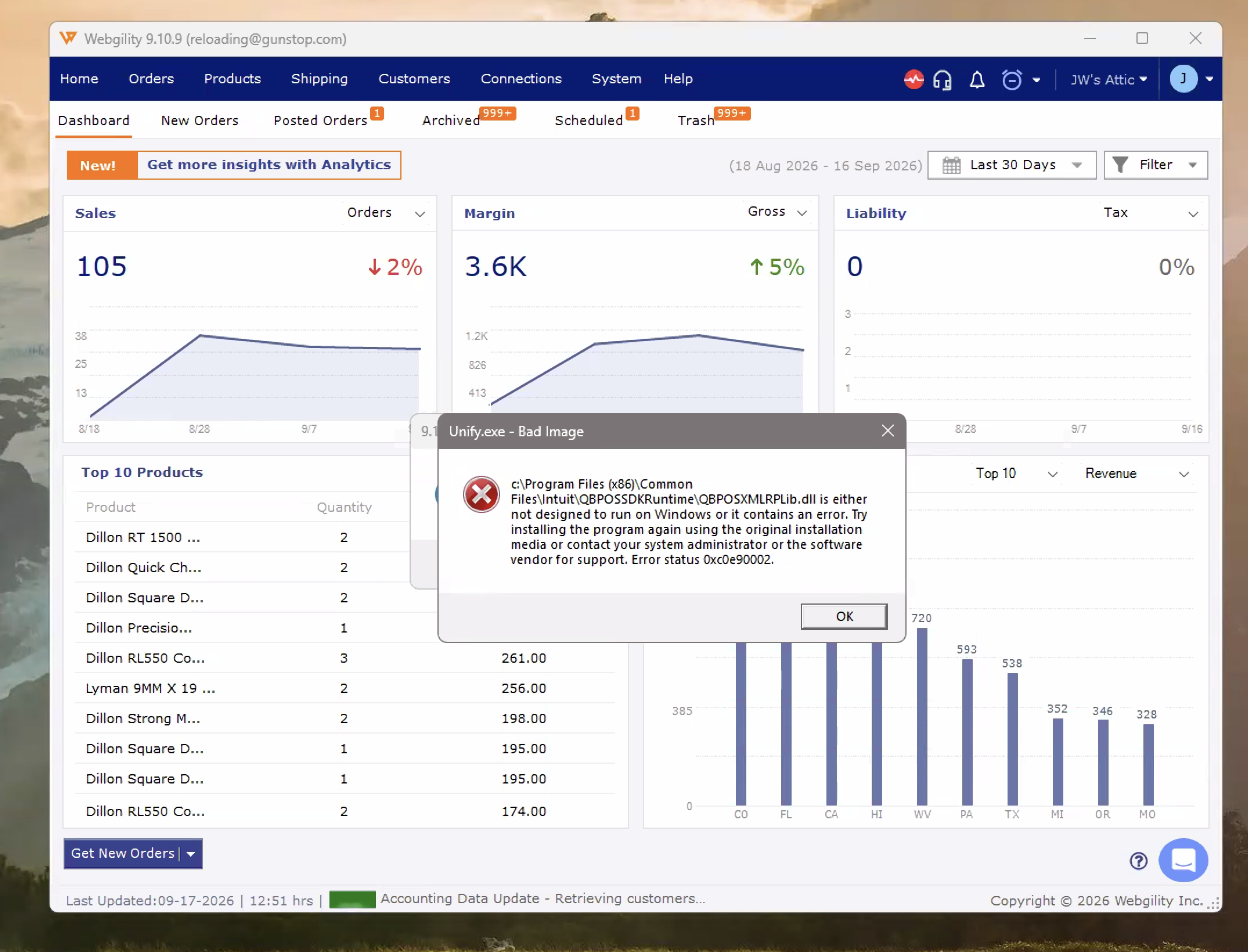
If Webgility Desktop freezes, locks up, or throws a 'QBPOSSXMLRPLib.dll' related error during order downloads after a recent update, a system dependency may be damaged or missing.
This issue typically occurs when an update fails to register all required system dependencies properly, while background scheduler activity causes additional app conflicts.
Symptoms
- Webgility Desktop freezes or becomes unresponsive.
- Order downloads fail or stop responding.
- Error message: "DLL is either not designed to run on Windows or it contains an error."
- Background scheduler pop-ups or conflicts occur during operation.
Error Message
You may see an error similar to:
Unify.exe - Bad Image
C:\Program Files (x86)\Common Files\Intuit\QBDPOSSDKRuntime\QBPOSSXMLRPLib.dllis either not designed to run on Windows or it contains an error.
Error status: 0xc0e90002
Resolution
Follow the steps below to repair the required dependencies.
Step 1: Turn Off the Webgility Scheduler
Temporarily turn off the Scheduler to prevent background tasks from interfering with the repair.
- Right-click the Webgility Scheduler icon in the Windows system tray.
- Select Exit or Turn Off.
Step 2: Close Webgility Processes
- Press Ctrl + Shift + Esc to open Task Manager.
- Under the Processes tab, look for Webgility or UnifyEnterprise processes.
- Right-click each related process and select End Task.
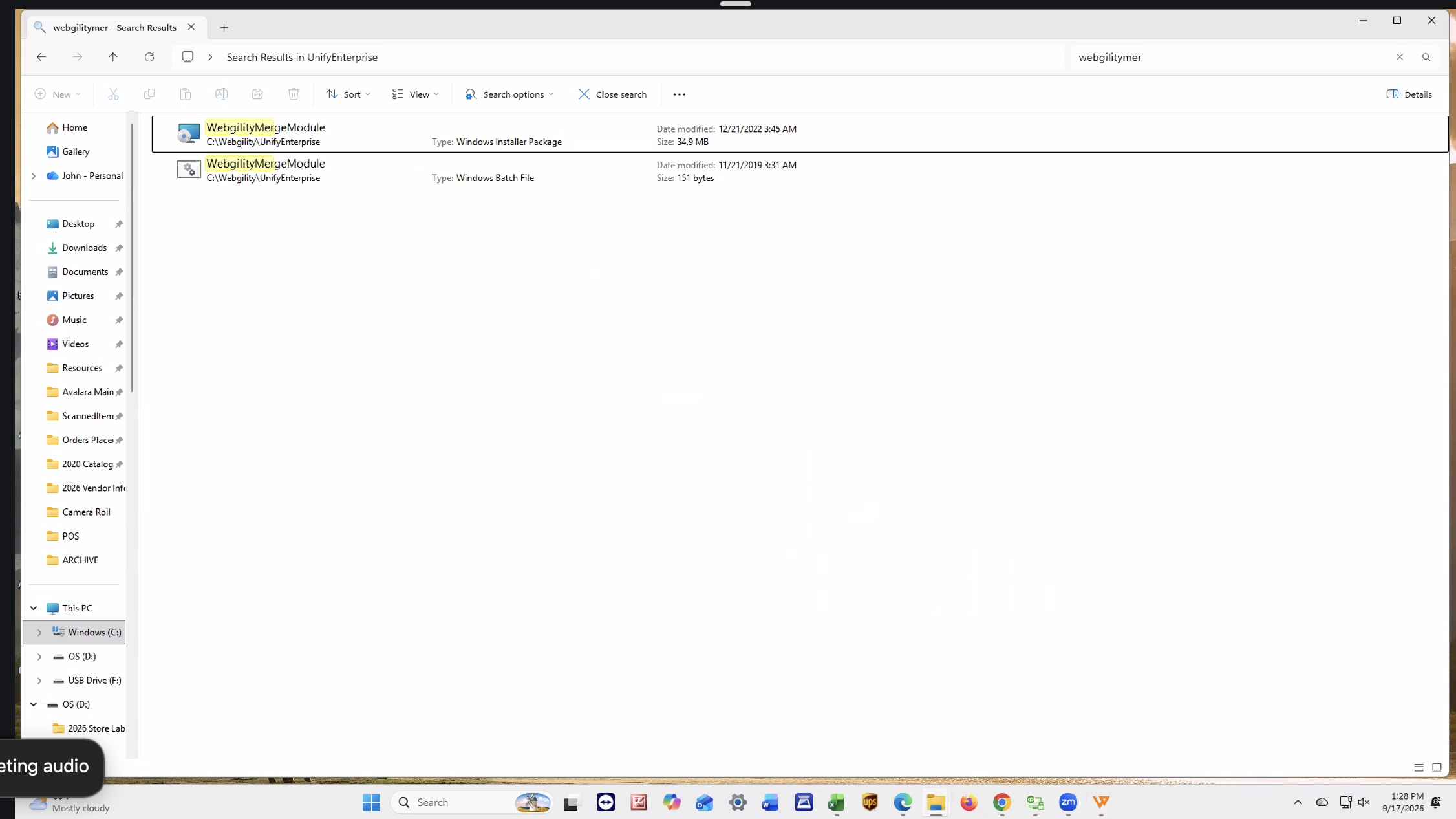
Step 3: Run the Webgility Merge Module
The Merge Module reinstalls and registers the required Webgility dependencies.
- Open File Explorer.
- Go to:
C:\Webgility\UnifyEnterprise - Locate WebgilityMergeModule.exe.
- Double-click the file to run it.
- Follow the on-screen instructions and allow the installation to complete.
Step 4: Restart Webgility and Test
- Open Webgility Desktop again.
- Try downloading an order.
- Verify that Webgility no longer freezes or displays the DLL error.
- Once everything is working normally, turn the Webgility Scheduler back on.
If the Issue Persists
If you continue to receive the QBPOSSXMLRPLib.dll error after running the Merge Module, please contact Webgility Support for further assistance.