
Overview
An email address listed as both the Primary User and an Add-On User may cause a Webgility Desktop sign-in conflict. Check the user list and correct the duplicate assignment.
Steps- Sign in to the Webgility Portal.
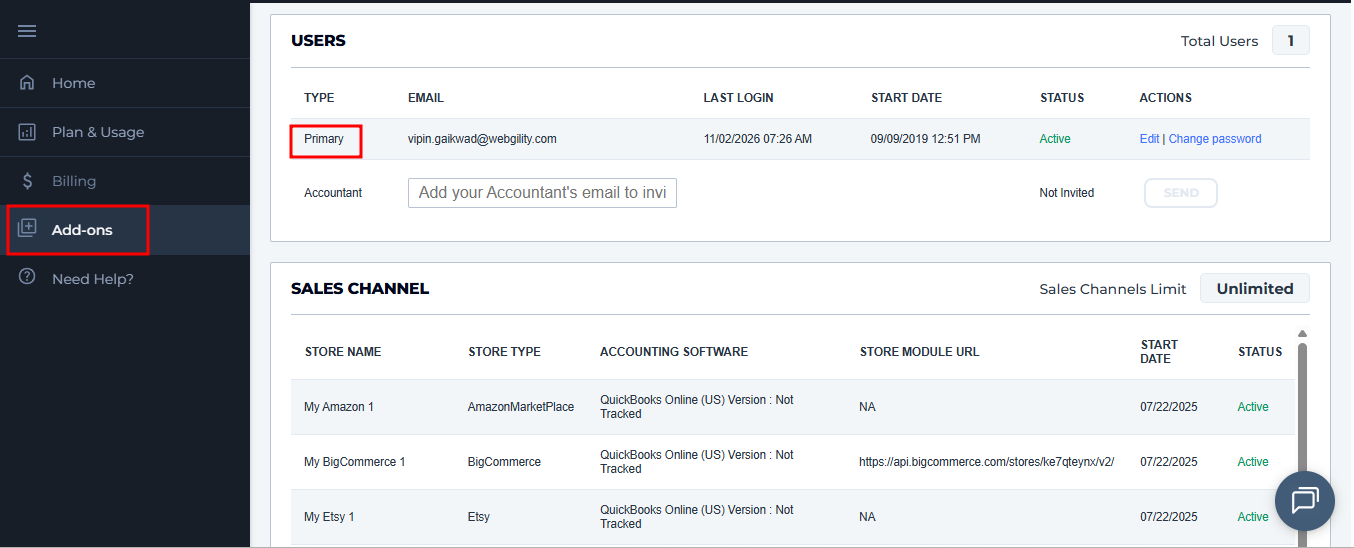
- Open Add-ons and select Users. Find the email address and check whether it appears as both the primary user and an add-on user.
- If it appears in both roles, remove it from the Add-On Users list and keep it as the Primary User. If the person needs add-on access, use a different email address for that user.
- Sign in to Webgility Desktop with the appropriate product login. For help updating login details, see How to Change Your Webgility Password & Login Details – Webgility Desktop.
If you have any questions or need more help, please contact our support team.