
Overview
If order numbers downloaded from your sales channel include a leading #, use this guide to document the configuration needed to display the number without that symbol.
Steps to Remove the # Symbol:
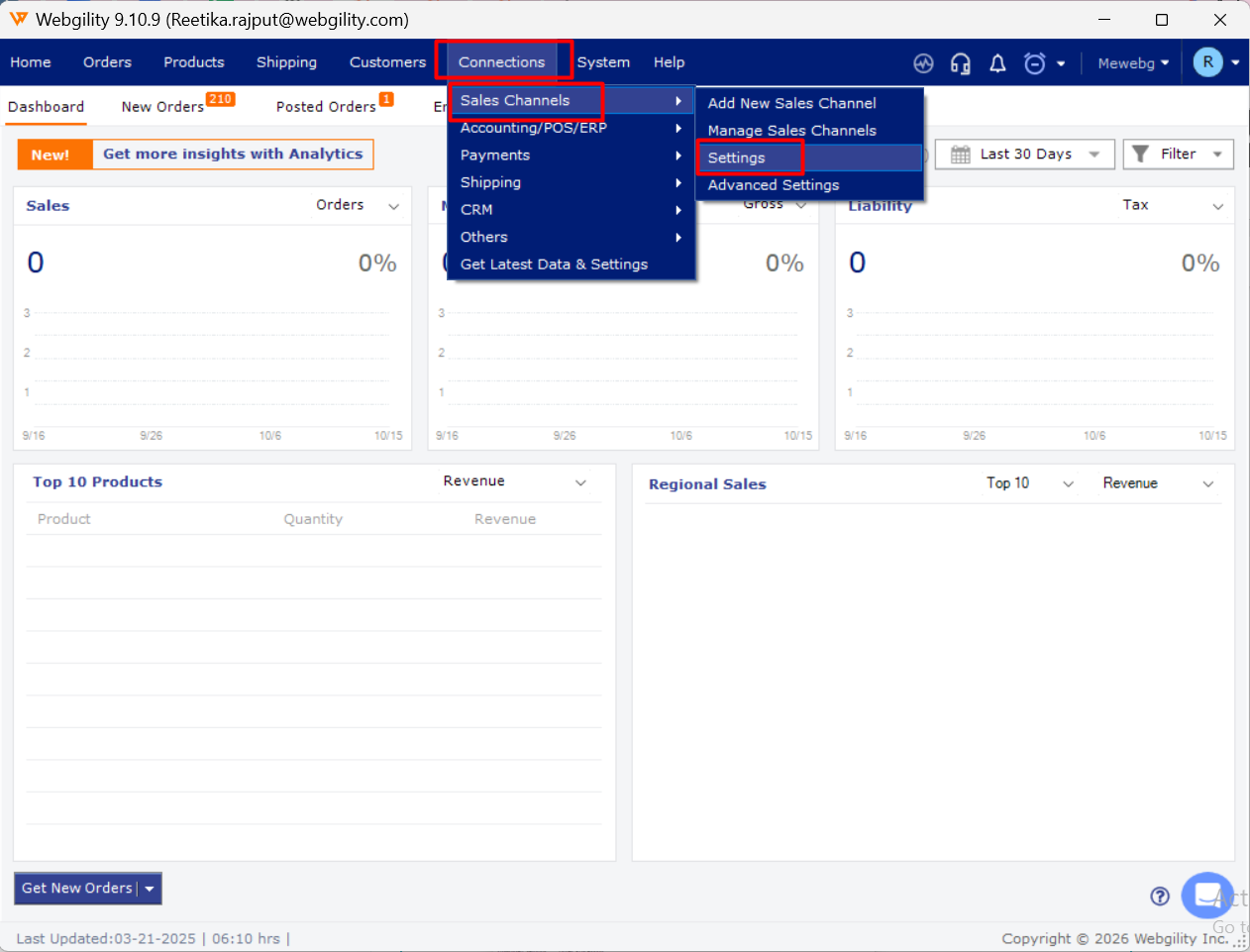
- Open Webgility Desktop and navigate to Connections > Sales Channels > Settings.
- Locate and select Remove # from order number at time of download orders.
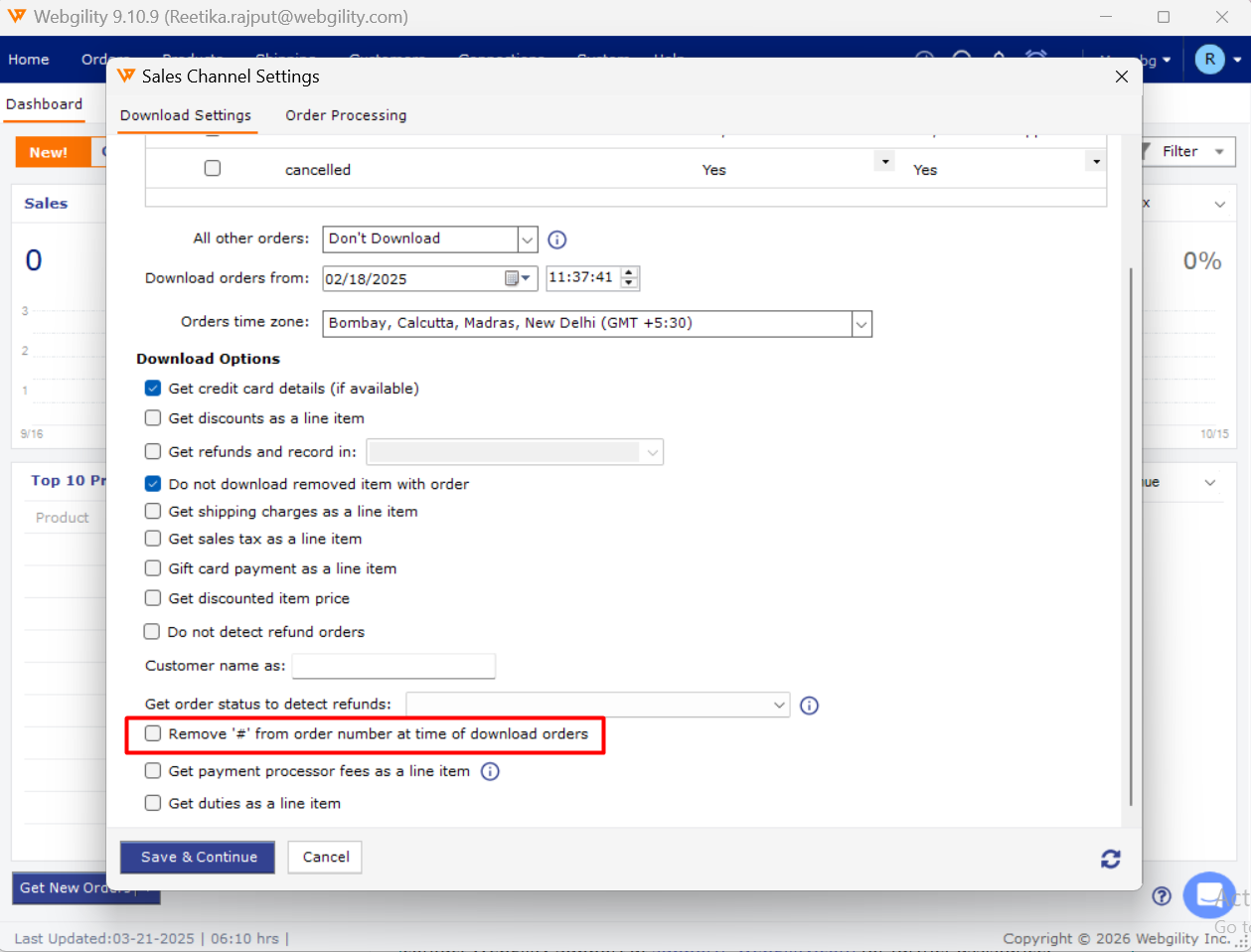
- Click Save Changes to apply the configuration.
- Navigate to the Orders section and redownload an order to verify that the # symbol has been removed from the order number.
Important Notes:
- Available settings may vary depending on the sales channel.
- Do not delete, redownload, or repost existing orders solely to change their number format without first confirming the appropriate procedure with Webgility Support.
If the option is unavailable or the # symbol remains after making the change, contact Webgility Support at support@webgility.com for further assistance.