
What this report gives you
Amazon publishes FBA inventory movements across several ledger reports at different cadences — receipts, customer shipments, returns, warehouse transfers, and various disposition changes. Piecing them together by hand is time-consuming and easy to get wrong. The Amazon FBA Report in Webgility Desktop pulls those ledgers together into one SKU-level view for a single month, calculates the ending balance, and compares it against what Amazon reports for that same month. If the two numbers match, your books are aligned. If they don’t, you have a specific number to raise with Amazon.

-
Open report Products › Amazon › Amazon FBA Report
-
Select month, Choose the month to reconcile
-
Export: View in Webgility or export to Excel
-
Reconcile: Match Amazon balance, act on variance
Walkthrough
Open the Amazon FBA Report
-
In Webgility Desktop, go to Products and open Amazon FBA Report from the left sidebar. The screen loads with a list of every SKU Amazon has reported activity on, one row per SKU per month.
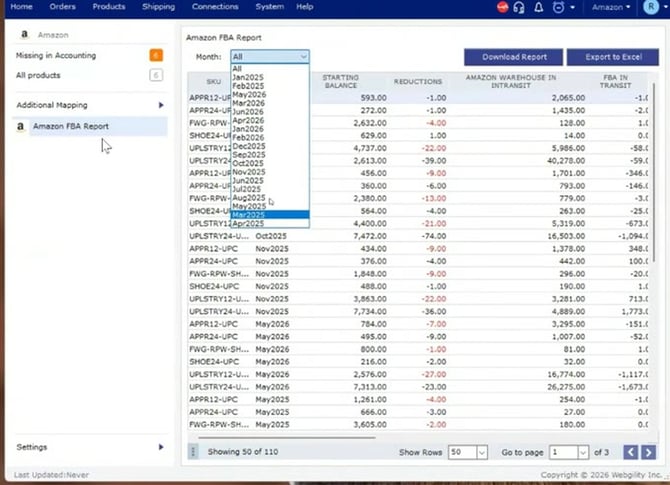 The Amazon FBA Report screen. Use the Month dropdown to pick a specific month or All to see every month you have data for.
Select the month to reconcile
2. Open the Month dropdown at the top of the report and pick the month you want to close. Amazon considers a month’s data stable 45 days after it ends, so pick a month that is at least 45 days old for the most accurate numbers.
On the 45-day rule: Amazon continues to adjust inventory events for a few weeks after month end — mainly in the lost, found, and damaged buckets. Pulling the report earlier still works and 90% of the numbers hold, but the reconciliation lands cleanest once the 45 days have passed. Many teams run the report every two weeks and treat the month closed once it is at least 45 days behind.
Get the report
3. You have two options next to the Month selector:
- Download Report — refresh the on-screen table with the latest data pulled directly from Amazon.
- Export to Excel — save the reconciliation as a formatted spreadsheet you can share with your accountant, keep in your close folder, or attach to a support case.
The exported spreadsheet opens with one tab per month you asked for (Jan-25, Feb-25, Mar-25, and so on), each showing the full reconciliation for that month at the SKU level.
Read the reconciliation
4. The exported report groups every movement into three sections: an Opening Position, all Movements Amazon recorded during the month, and a Reconciliation that compares Webgility’s calculated ending balance against Amazon’s reported ending balance for the same period. Each row is broken out across Amazon’s inventory dispositions — Sellable, Customer Damaged, Defective, Expired, Warehouse Damaged, Distributor Damaged — plus a Totals column on the right.
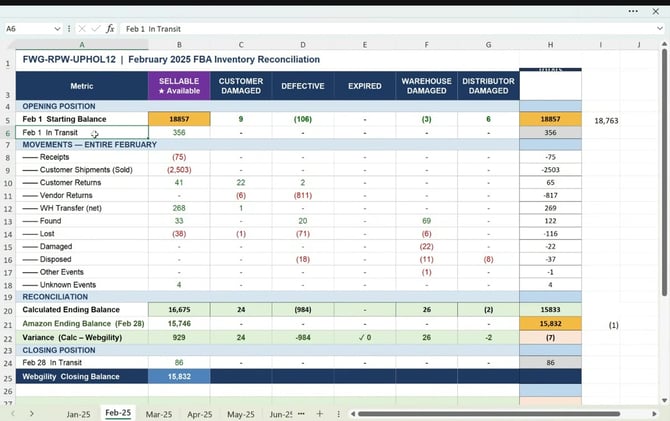 Exported reconciliation for one SKU across the month of February 2025. Row 22 (Variance) is where you land the check: a value at or near zero means Webgility’s numbers agree with Amazon’s.
The Movements section lines up with Amazon’s own event categories. Reading them in order gives you a clean picture of what happened to a SKU during the month.
| Starting Balance | On-hand quantity at the Amazon warehouse on the first day of the month, split across sellable and non-sellable dispositions. |
| In Transit | Units in motion between Amazon warehouses at the same moment. Amazon separates them out because they aren’t at any single location yet. |
| Receipts | Units Amazon acknowledges receiving into the FBA network during the month. |
| Customer Shipments | Units sold to buyers during the month. |
| Customer Returns | Units returned by buyers. These can include returns of items originally sold in a prior month. |
| Vendor Returns | Units Amazon returned to the vendor — often defective or damaged items Amazon isn’t willing to sell. |
| Warehouse Transfers | Movements between Amazon’s own warehouses. Amazon does this to optimize fulfillment; the units re-appear later as receipts or shipments at the receiving warehouse, so the reconciliation excludes this row from the calculated ending balance to avoid double-counting. |
| Found | Units Amazon located that had previously been counted as missing. |
| Lost | Units Amazon can no longer account for. |
| Damaged | Units marked damaged during the month, across the customer / warehouse / distributor damage columns. |
| Disposed | Units Amazon disposed of, typically damaged or expired stock. |
| Other Events / Unknown Events | Movements Amazon cannot classify under the categories above. |
The reconciliation math
Webgility sums every movement for the month except warehouse transfers, adds it to the starting balance, and compares the result against what Amazon reports as the month-end balance at each disposition. The Variance row is the difference.
Calculated Ending Balance=Starting Balance+Receipts+Returns−Shipments−Vendor Returns±Found / Lost / Damaged / Disposed±Other
Amazon Ending Balance=Amazon’s reported end-of-month balance across every dispositionVariance=Calculated Ending Balance−Amazon Ending Balance→at or near zero when everything ties
Webgility Closing Balance=Amazon Ending Balance+In-Transit at month end→the value to book in your accounting
The number to put in your books
Use the Webgility Closing Balance row as the on-hand quantity for that SKU at month end when reconciling in QuickBooks. Any reorder points or thresholds you set should compare against this number, not the raw Sellable total, because it includes units still in transit inside Amazon’s network.
Acting on the report
The reconciliation is most useful for the follow-ups it enables. A few examples:
- Warehouse Damaged — Amazon typically reimburses for units damaged in its own warehouses. Cross-check the number here against reimbursements on your next Amazon settlement.
- Vendor Returns — If Amazon marked units as defective and returned them to you, coordinate with your vendor on which items can be refurbished or resold.
- Non-zero Variance — If Variance is more than a few units, contact Webgility Support first with the SKU, the month, and the exported spreadsheet. Once Support confirms the calculation is correct on the Webgility side, raise the specific discrepancy directly with Amazon Seller Support.
How the data flows
Amazon is the source of truth for every number on this report — Webgility Desktop consolidates their ledger data but does not post FBA reconciliation entries to QuickBooks automatically. Export the spreadsheet, complete the reconciliation manually in QuickBooks, and keep the file with your monthly close records.
Availability
The Amazon FBA Report is available in Webgility Desktop for customers on the Complete package and is enabled as a customization on request. If you don’t see Amazon FBA Report in the left sidebar under Products › Amazon, ask your account manager to have it turned on for your subscription. The report works with any Amazon Seller Central FBA account; there is no restriction by account type or region.