
When This Applies
This is for you if Webgility Desktop prompts you to re-authorize your Walmart store, or if your Walmart orders have stopped downloading because the token has expired.
What You'll NeedYour Walmart Seller Center sign-in and admin access to Webgility Desktop. A recent database backup is a sensible precaution in case anything is interrupted.
Steps to Re-authenticate Walmart
Step 1: In Webgility Desktop, go to Connections > Sales Channel > Manage Sales Channel. The My Sales Channels list opens with your Walmart store listed as a row.
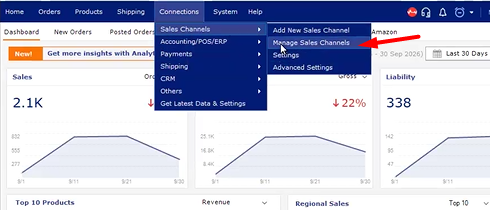
Step 2: In the Walmart row, click the pencil icon in the Action column (its tooltip reads Edit Connection). The Sales Channel Settings dialog opens with your existing Walmart profile loaded. The full walk-through of this screen is in How to update sales channel credentials in Webgility Desktop.
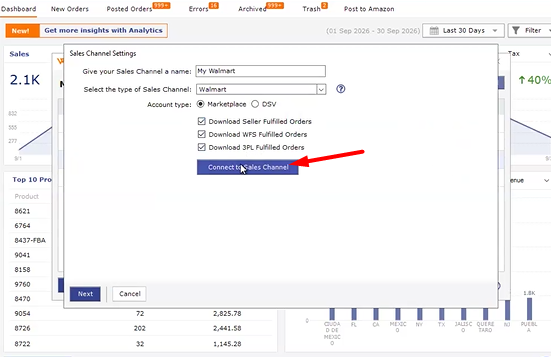
Step 3: In the dialog, click Connect to Walmart to run the Walmart Seller Center authorization. Sign in to Walmart Seller Center when prompted, approve the Webgility connection, and let the browser return you to Webgility Desktop.
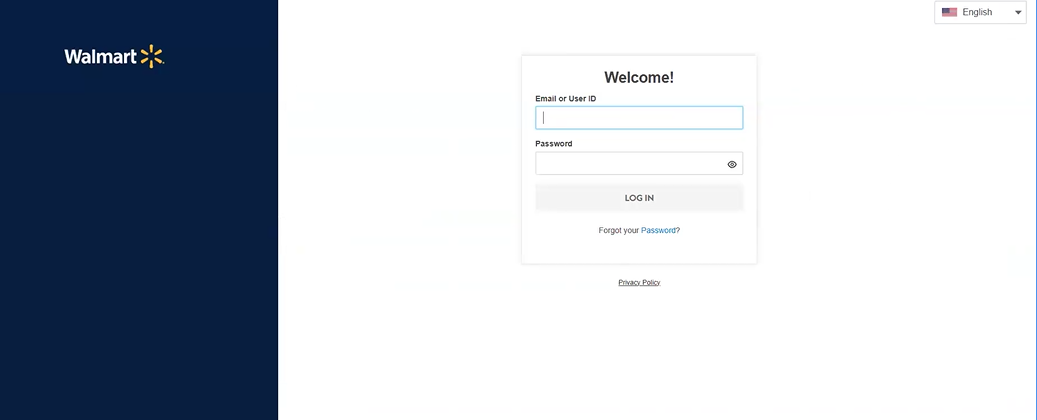
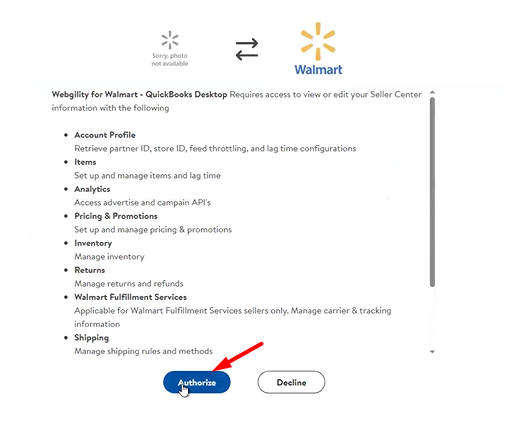
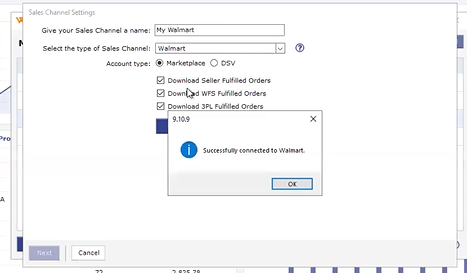
Step 4: Save the Sales Channel Settings dialog and let Webgility download the next scheduled Walmart orders to confirm the connection is working.
Additional Support
If you need to restore a backup to recover a lost Walmart profile, follow How to Restore a Webgility Database Backup. For anything the two articles do not cover, contact Webgility Support with your Subscriber ID and the Walmart Seller Center seller ID.