
TourbleShooting Steps:
- If you get the following Error Prompt while posting a settlement report & does not display an order# in the Prompt.
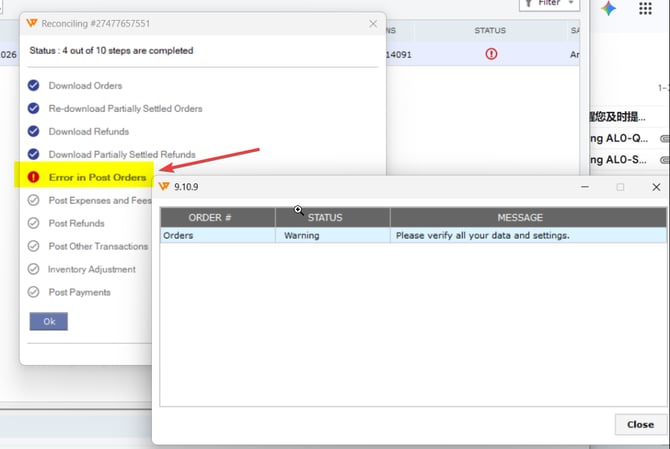
- In Webgility Desktop, review the relevant order tabs, especially Ignored and Trash.
- Identify any pending order status connected to the settlement you are trying to post.
- You can copy the Settlment ID & paste it in the search bar to filter orders related to the Settlement Report, as shown in the screenshot below
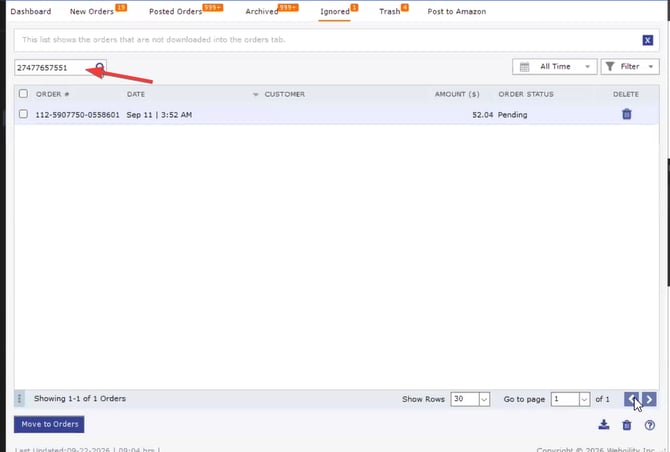
- If an order is found in the Ignored or Trash Tab, select the order & click on Move To Orders.
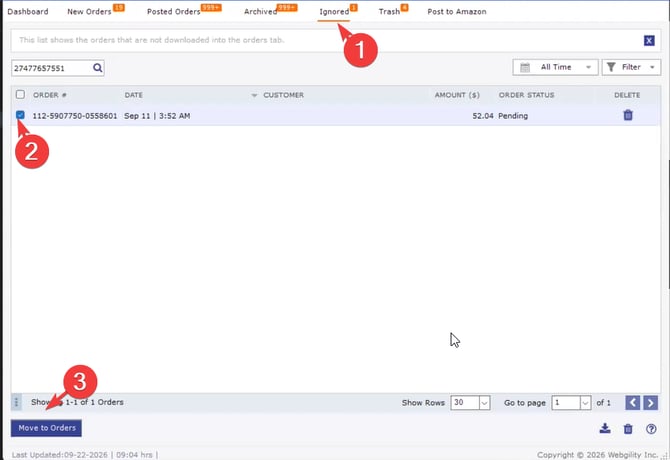
- The order will be moved to New Orders Tab, re-try donwloading the order & verify if the order status changes from Pending to Completed.
- If it's completed directly post the order to QuickBooks, and then sync the Settlement Report
- If the order is still Pending after re-downloading it, check the order directly on Amazon Seller Central, it could be a possibility the Payment is not yet received.
If the issue still persists please reach out to Webgility Support or initiate a Chat for further assistance