
Issue
Shopify invoices remain open in QuickBooks because historical payouts were not posted or were only partially posted.
Resolution Steps
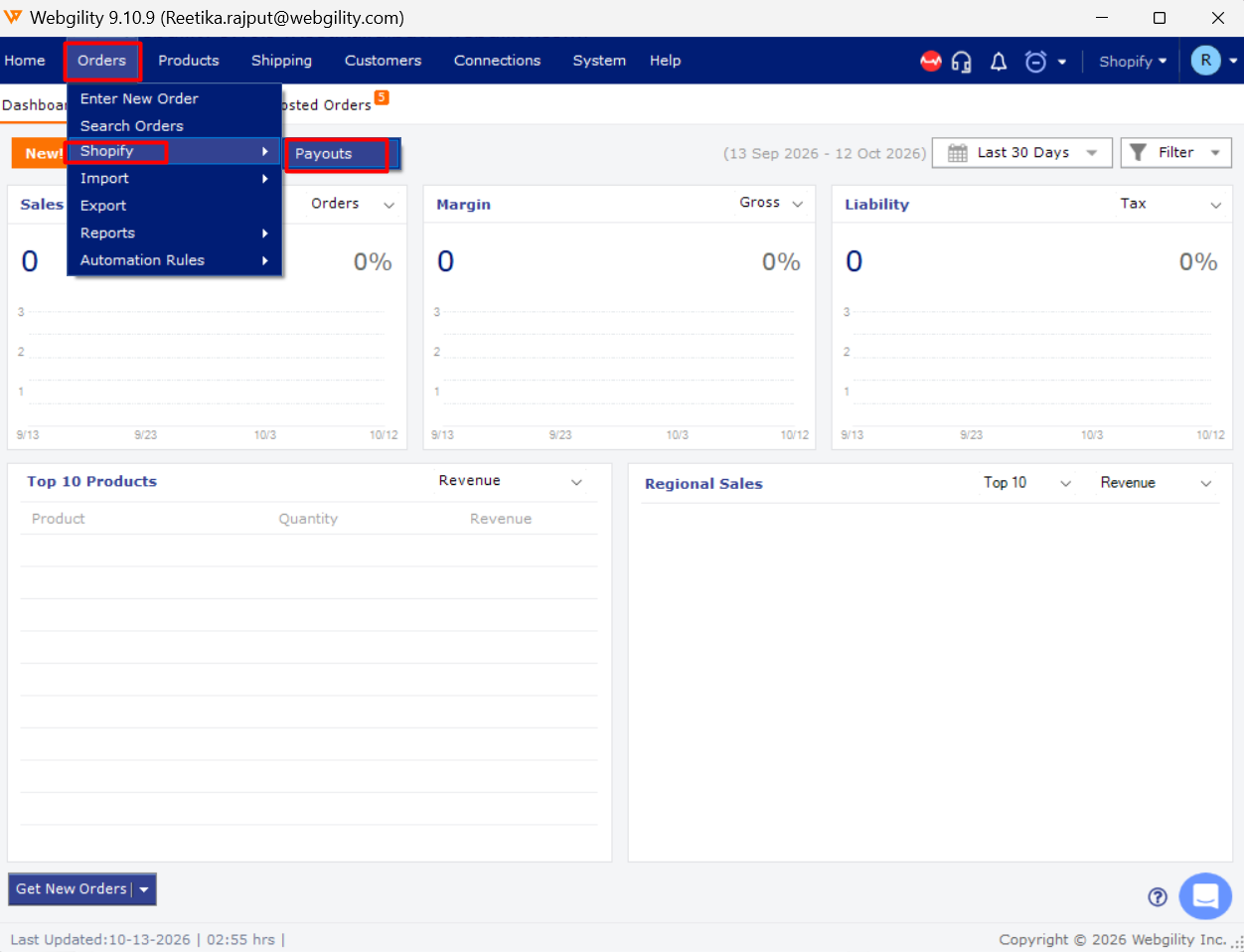
- Open Payment Settings: Navigate to Orders > Shopify > Payouts in Webgility Desktop and select one historical Shopify payout. Refer to Shopify Payout Reconciliation in Webgility Desktop.
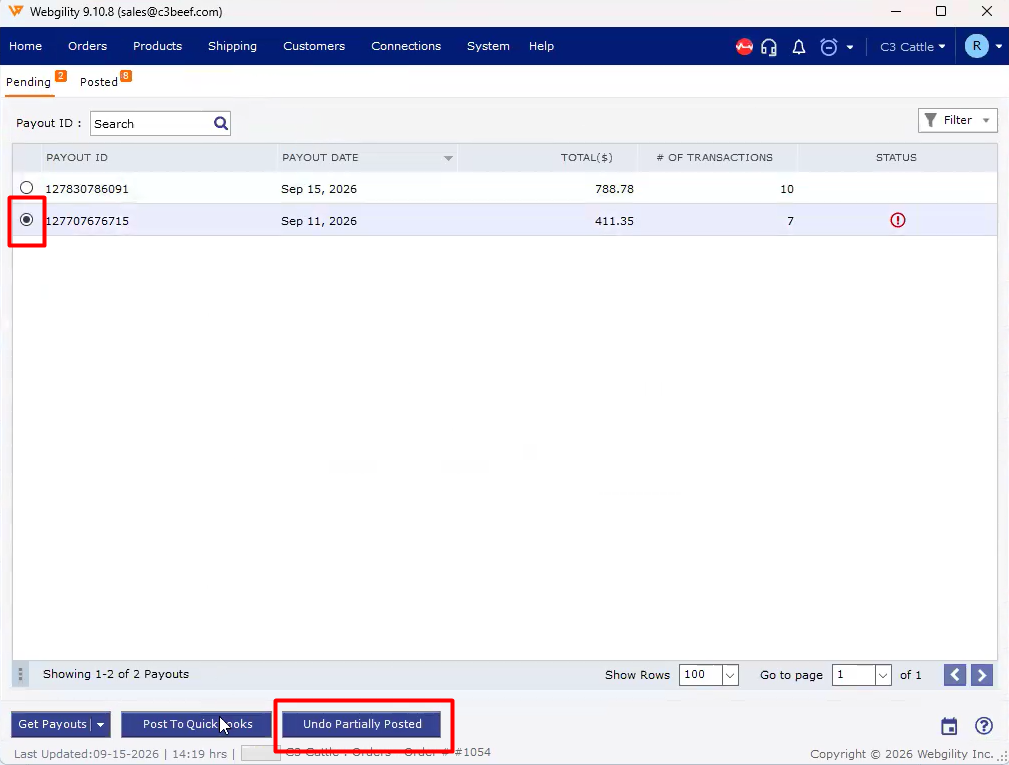
- Undo partial postings: If the payout was partially posted, undo the previous sync before proceeding. See How to Unpost Transactions Using Undo Sync. Skip this step for unposted payouts.
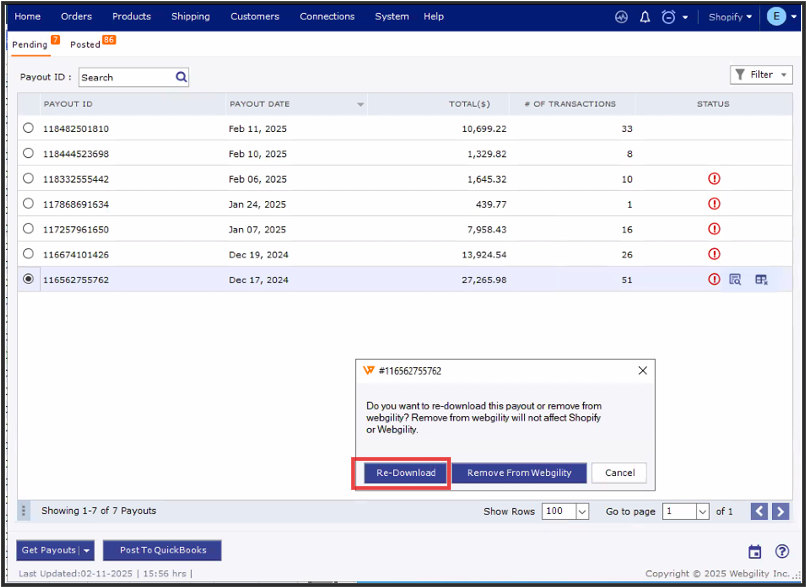
- Re-download payout data: Retrieve the selected payout data through Webgility to ensure the latest Shopify figures are used.
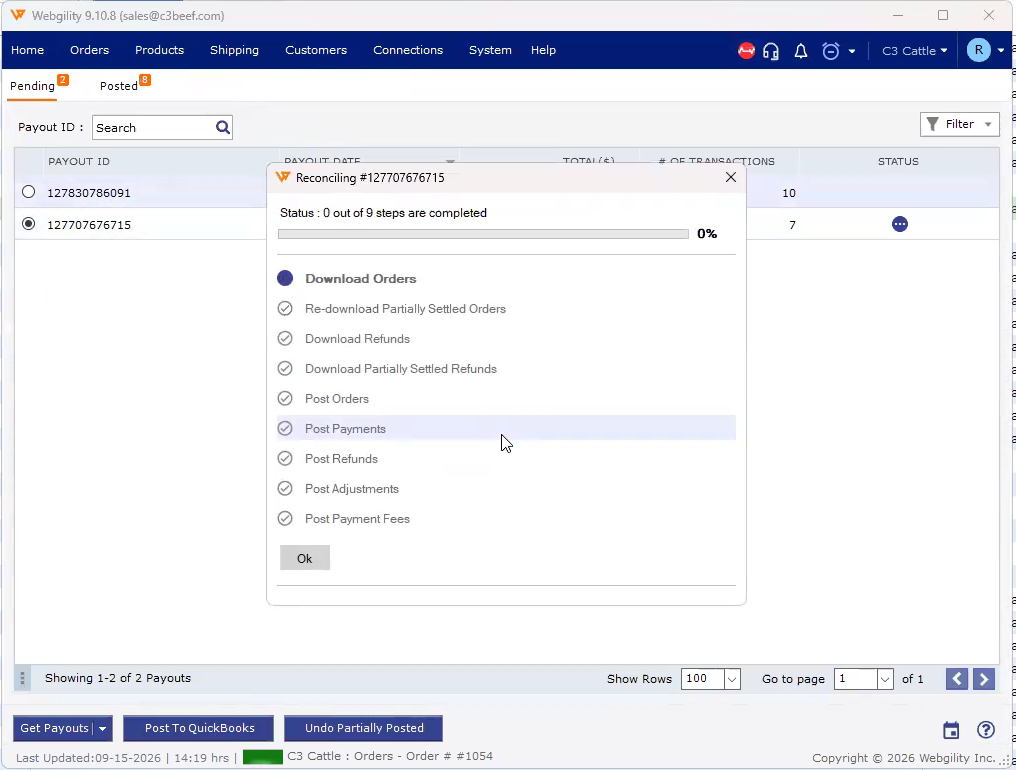
- Post the payout: Post the payout to QuickBooks and verify that the transaction amount matches Shopify's reported amount.
- Verify the balance: Review the QuickBooks customer balance report to confirm the outstanding balance has decreased. Repeat the process for each remaining payout.
Important Note
Process historical payouts individually rather than in bulk to maintain transaction traceability and reduce the risk of duplicate postings.
Best Practice
Ensure current Shopify payouts are posting correctly before clearing the historical backlog.
Additional Support
If a payout fails to post or the customer balance remains open, contact Webgility Support with the payout date, payout amount, and QuickBooks customer name.