

-
Step 1: Open Discounts sync settings
-
Step 2: Choose Tax or Not from the Post discount with tax dropdown
-
Step 3: Save and post a sample order to confirm
Overview
The Discounts panel in Sync Settings carries a Post discount with tax dropdown with two options — Tax and Not. The value you pick decides how every discount line posts to QuickBooks going forward.
When This AppliesUse this setting when discount codes on your orders are generated by a third-party app and the sales channel does not pass a reliable taxable-or-non-taxable flag with each discount. In that situation, the discount can post to QuickBooks with the wrong tax treatment and the invoice total will not match the sales channel. This setting lets you force the correct treatment.
Steps to Set the Discount Tax Treatment
Step 1: Open Discounts sync settings
In Webgility Desktop, go to Connections → Accounting/POS/ERP → Sync Settings, then select Discounts from the left panel of the Sync Settings window.
Step 2: Pick the tax treatment for discounts
Under Capture discounts and other charges, make sure Record discounts is checked, then open the Post discount with tax dropdown and choose Tax or Not. Pick Tax when the discount on the sales channel is applied before tax, and pick Not when the sales channel treats the discount as non-taxable.
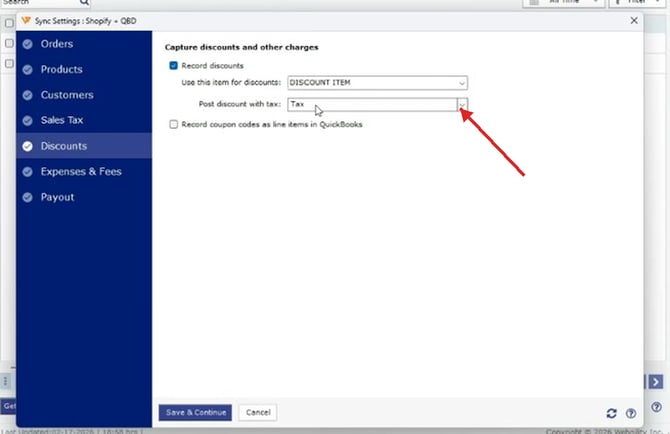 The Post discount with tax dropdown inside Sync Settings → Discounts.
The two adjacent fields on this panel stay the same:
| Use this item for discounts | The QuickBooks item Webgility uses when posting a discount line. Keep the default DISCOUNT ITEM unless you have a specific item in QuickBooks you want discounts to post against. |
|---|---|
| Record coupon codes as line items in QuickBooks | When checked, the sales channel's coupon code is posted as its own line item on the invoice. Leave unchecked to roll the coupon into the regular discount line. |
Step 3: Save and post a sample order
Click Save & Continue. The next time Webgility posts an order with a discount, the discount line uses the item and the tax treatment you chose here, and the invoice total in QuickBooks matches the sales channel.
Key RecommendationIf you are unsure which option matches your sales channel, post one test order each way and compare the invoice total in QuickBooks to the order total on the sales channel. The setting that makes the two totals match is the right one for your store.
Additional SupportIf the discount still posts incorrectly after you change this setting, contact Webgility Support with a screenshot of the sales channel order (showing the discount and tax lines) and the matching QuickBooks invoice so the team can see which treatment the channel expects.