
When credit memos post under the current system date, a refund that belongs to a September settlement can land in October and distort month-end reporting. Webgility Desktop lets you align every credit memo and fee with the settlement deposit date so refunds record in the same period as the settlement they came from.
When This AppliesFollow this when a marketplace settlement from one accounting period is posting its credit memos into the next period, and you want those credit memos to carry the settlement deposit date instead of today's date.
How It WorksWebgility Desktop reads the posting-date rule for refunds and fees from the Sync Settings > Expense and fee sub-tab. Switching the credit memo date rule to Settlement Deposit Date makes every subsequent credit memo record on the date the marketplace deposited the settlement.
Steps to Align Credit Memos with the Settlement Deposit Date
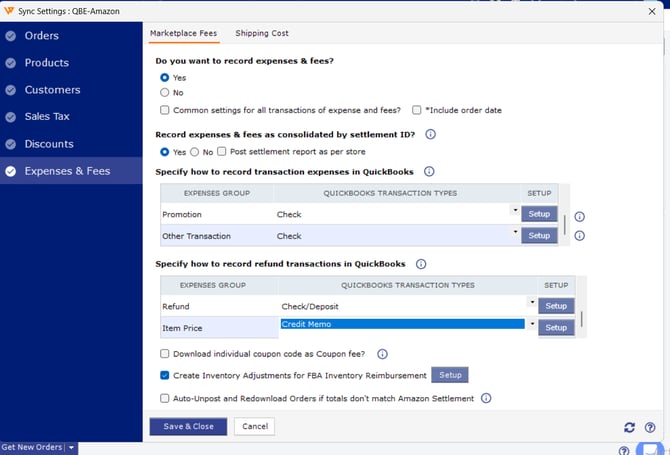
Step 1: In Webgility Desktop, go to Connections > Accounting/POS/ERP > Sync Settings > Expenses & Fees for your sales channel.
Step 2: Open the Marketplace Fees tab at the top of the Expenses & Fees panel.
Step 3: Scroll to Specify how to record refund transactions in QuickBooks, confirm the Item Price row's QuickBooks Transaction Type is Credit Memo, and click the Setup button on that row.
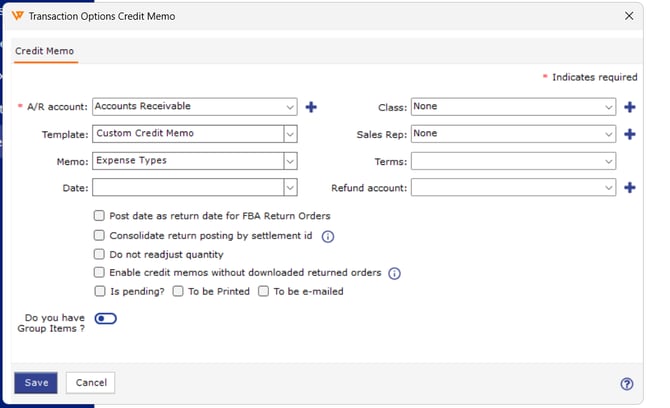
Step 4: In the Transaction Options Credit Memo dialog, set the Date dropdown to the settlement deposit date option, then click Save.
Step 5: Back on the Expenses & Fees tab, open the Setup button on each remaining row in both refund and expense tables and confirm each one's Date is also set to the settlement deposit date, so fees and refunds stay aligned.
Step 6: Click Save & Close to apply the new rule.
Step 7: Unpost and re-post one earlier settlement report whose credit memos landed in the wrong period to confirm the new date takes effect, then re-post the remaining reports once that first one looks correct.
Step 8: Re-enable settlement sync in the Scheduler once the re-post finishes.
Key RecommendationPause settlement posting in the Scheduler before you change the rule and re-enable it only after the back-fill re-post finishes, so no new settlements post with mixed date rules in the middle of your clean-up.
Additional SupportIf any credit memo still records under the current date after the re-post, email support@webgility.com with the settlement report number, the marketplace, and the deposit date you expected.