
Overview
If a Shopify order was already posted to QuickBooks before its fee became available, Webgility Online can detect the change and show the order in the Updates tab.
Review the update and select Accept & Post Update to apply the fee to the existing QuickBooks transaction.
For more information about how order updates work, see How to enable and use the orders update feature.
Steps
- Log in to Webgility Online and open the Shopify sales channel.
- Go to the Updates tab.
- Find and open the affected order to review the update and confirm that the missing fee is included.
- Select Accept & Post Update to apply the fee to the existing QuickBooks transaction. Webgility updates the order based on your accounting and posting settings.
- Open the corresponding transaction in QuickBooks and verify that the fee has been added correctly.
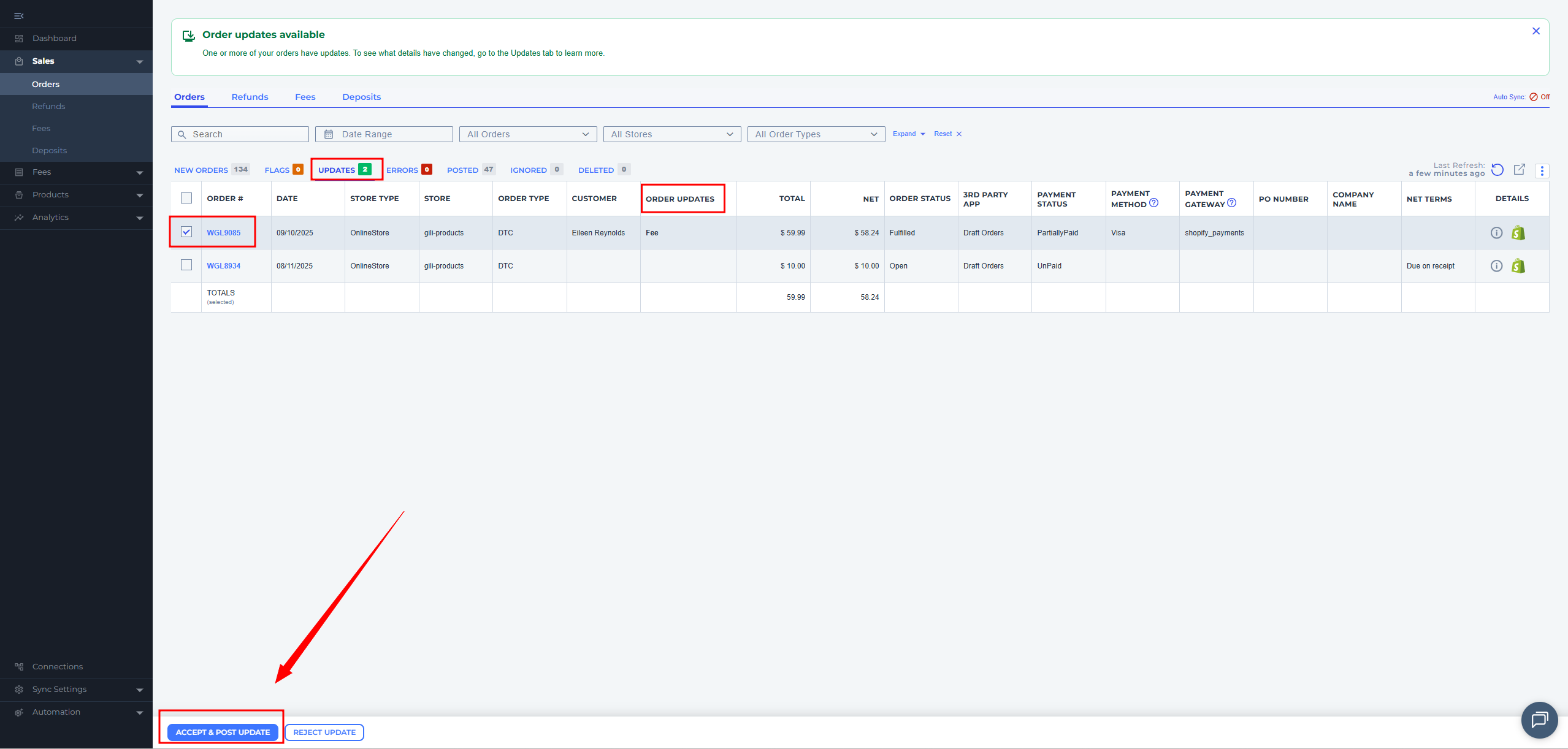
If multiple orders have missing fees, repeat the same steps for each order listed in the Updates tab.
If the order is not listed in Updates
Make sure the fee has been added to the Shopify order and that Webgility has completed a sync. Once Webgility detects the change, the order can appear in the Updates tab for review and posting.
If you have any questions or need more help, please contact our support team.