
Overview
Webgility Online uses Order Flags to identify orders that may have issues when posting to QuickBooks Online.
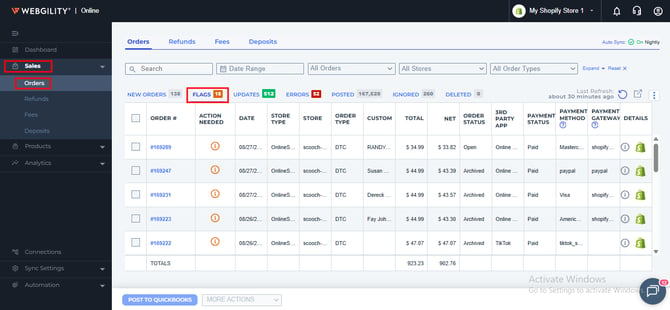
Flagged orders appear under Sales > Orders > Flags. Each flagged order includes an Action Needed message that explains what needs to be fixed.
After you complete the recommended action, the order should normally move back to the New Orders tab and be ready to post.
However, Webgility Online may take a few moments to refresh the order information.
Important: If you have already completed the recommended action, you do not need to repeat it just because the order is still showing in the Flags tab.
Why is the order still showing in the Flags tab?
After you fix a flag, Webgility Online may need some time to update the order.
For example, if an order is flagged because a product is not mapped to a QuickBooks Online item, you can complete the product mapping. The order may still appear in the Flags tab until Webgility refreshes the order information.
This is usually a temporary refresh delay.
How to check the flagged order
Step 1: Open the Flags tab
In Webgility Online, go to:
Sales > Orders > Flags
Find the order that you have already resolved.
Step 2: Check the Action Needed message
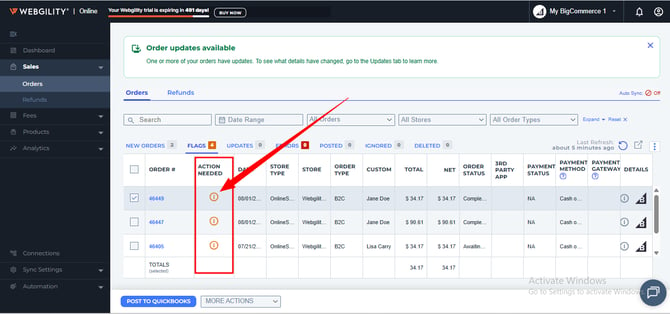
Find the Action Needed column for the order.
Click the Action Needed icon to see what issue was detected and what action Webgility recommends.
Step 3: Make sure the issue has been resolved
Confirm that you have completed the action shown in the flag.
For example, if the flag says that a product is not mapped to a QuickBooks Online item, map the product to the correct QuickBooks item.
Note: The action required depends on the type of flag shown for the order.
If the order is still in the Flags tab
If you have already completed the recommended action and the order is still showing under Flags:
- Wait a few moments for Webgility Online to refresh the order.
- Go back to Sales > Orders > Flags and check the order again.
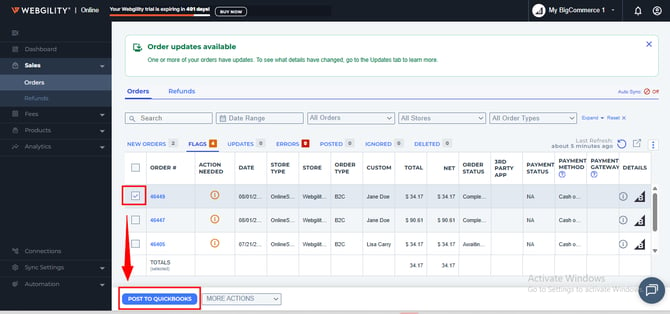
- If the order is still there, select the order.
- Click POST TO QUICKBOOKS.
Step 4: Click Post Anyway
Webgility Online may display a warning asking you to review the order flags before posting.
If you have already reviewed the flag and completed the required action, click POST ANYWAY to continue.
Important: Only use POST ANYWAY after reviewing the flag and confirming that the required issue has already been resolved.
What happens after posting?
After you post the order:
- If the order posts successfully, it will move to the Posted tab.
- If the order cannot be posted, it will move to the Errors tab. You can open the error details to find out what needs to be fixed.