
Issue
When Multiple currency settings are enabled for a store, orders can post to a different customer in QuickBooks than the one chosen in the Customers section of Sync Settings.
In the example below, the Sync Settings customer was WALMART CANADA, but QuickBooks kept showing another Shopify customer on the invoice.
Cause: with multiple currency enabled, Webgility picks the customer from the currency mapping in Setup Standard Customer, not from the Use this customer for all orders drop-down. If the mapping for the order's currency points to another customer, that customer is used.
Steps to fix
- In Webgility Desktop, go to Connections > Accounting/POS/ERP and open Sync Settings for the store.
- Select Customers in the left menu.
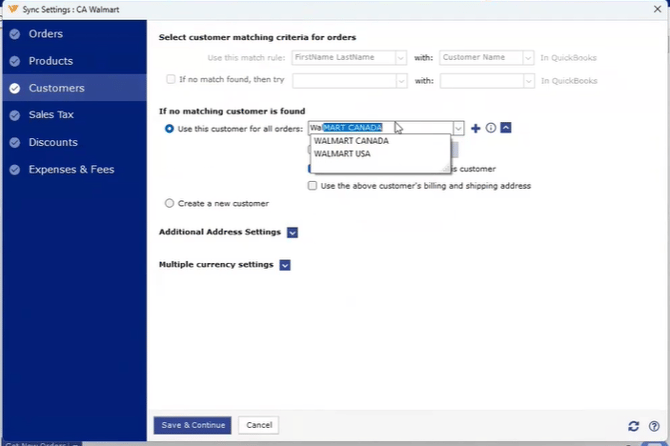
- Confirm the correct customer is selected under If no matching customer is found > Use this customer for all orders.
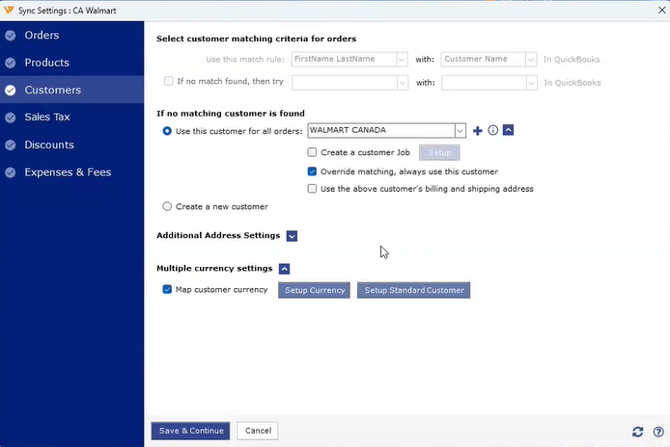
- Expand Multiple currency settings. With Map customer currency checked, click Setup Standard Customer.
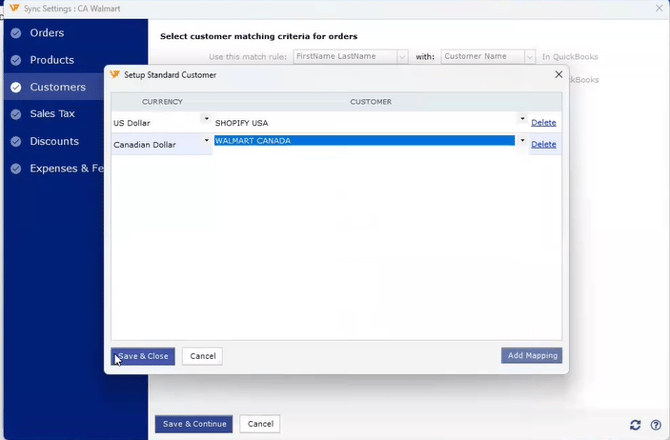
- In the Setup Standard Customer window, find the row for the currency your orders use (here, Canadian Dollar) and select the correct customer in the Customer column (here, WALMART CANADA).
- Click Save & Close, then click Save & Continue in Sync Settings.
Verify the result
Before the fix, the invoice posted to the wrong customer. Customer:Job shows the other Shopify customer (highlighted), even though WALMART CANADA was set in Sync Settings. Customer details are blurred in this example.
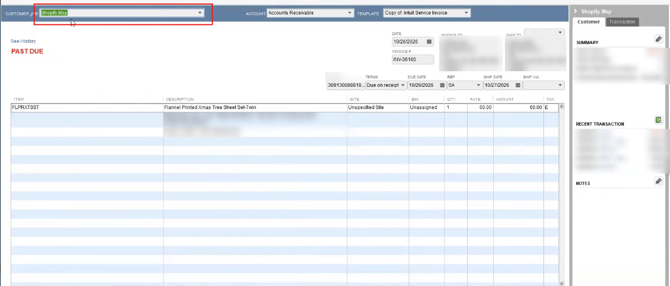
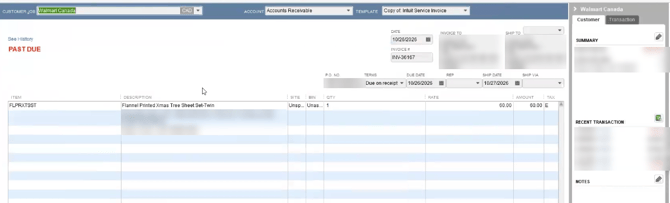
After correcting the Setup Standard Customer mapping, post the order again. Customer:Job now shows Walmart Canada (CAD) and the invoice appears under that customer.
Notes
- Map each currency. If the store sells in more than one currency, check every row in Setup Standard Customer. Each currency has its own customer.
- Already-posted orders. The correction applies to orders posted after you save. To fix an order that already posted to the wrong customer, undo its sync in Webgility and post it again.
- Missing currency row. If the order's currency has no row, click Add Mapping in the Setup Standard Customer window and add it.
If you require any further assistance, please feel free to reach out to Webgility Support. We'll be happy to help!