
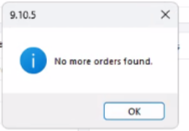
When attempting to download older orders from a sales channel into Webgility by selecting a custom (older) date range in the order download options, Webgility fails to retrieve the orders. Instead, the system displays the message:
"No more orders found."
This occurs even though valid orders exist within the selected date range on the sales channel.
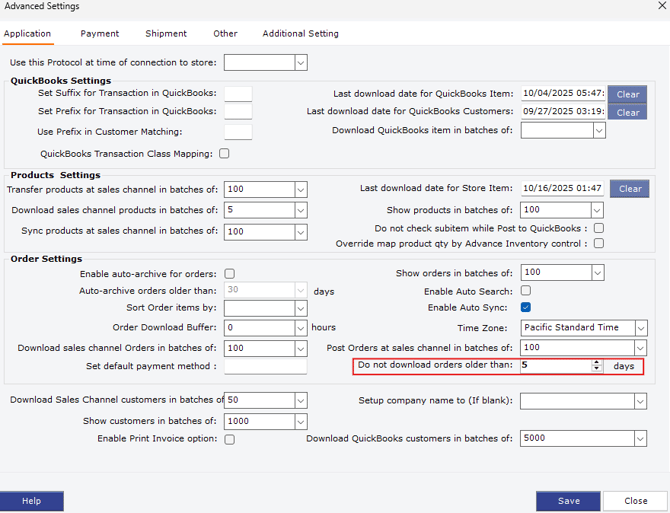
This issue may be caused by a restriction configured under the Advanced Settings of the sales channel connection. Specifically, the "Do not download orders older than [X] days" setting limits how far back Webgility will look when downloading orders.
If this value is set to a number of days that is less than the age of the orders you are trying to download, Webgility will not download orders beyond that threshold — regardless of the date range manually selected in the order download options. This causes the "No more orders found" message to appear, since Webgility is being restricted from pulling orders older than the configured limit.
Resolution Steps
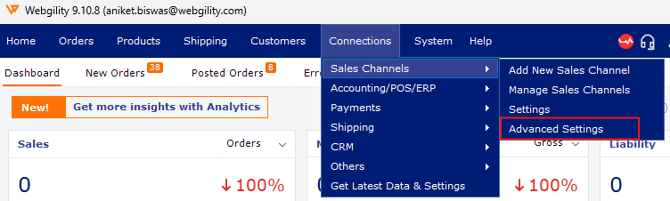
- In Webgility, navigate to Connections > Sales Channels > Advance Settings.
- Under the Application tab, locate the field "Do not download orders older than: [ ] days" (under the Order Settings section).
- Update this value to a number of days greater than or equal to the age of the orders you need to download (e.g., if you need orders from 60 days ago, set this to 60 or higher).
- Click Save, then close the Advanced Settings window.
- Return to the order download options, select your desired date range, and attempt the download again.
Additional Notes
-
This setting is designed to control performance and download batch size, so it's recommended to set a value that reasonably covers your business needs rather than an unnecessarily high number.
-
If you frequently need to download historical orders, consider keeping this value set to a higher threshold by default to avoid repeated occurrences of this issue.
If the issue persists after adjusting this setting, please reach out to Webgility Support or Chat Support for further assistance.