
Overview
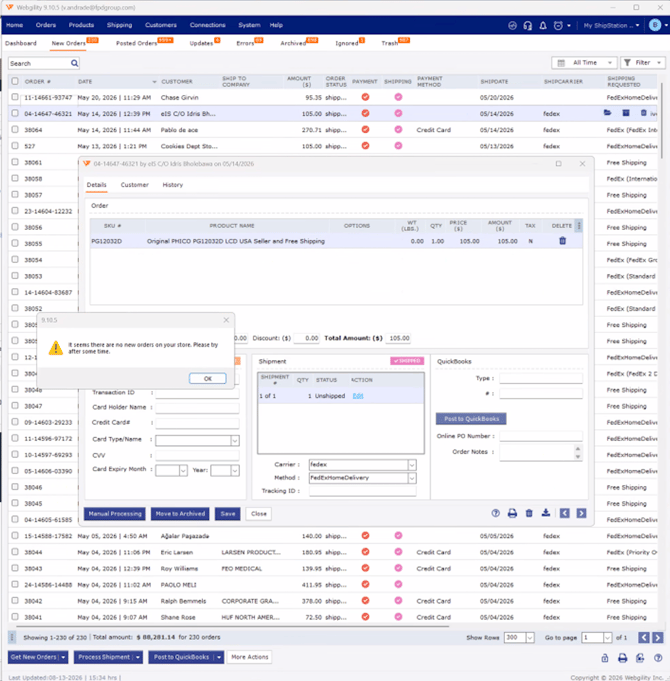
When Webgility Desktop displays “It seems there are no new orders on your store. Please try after some time,” the orders may have already been downloaded into Webgility. Check the New Orders, Scheduled, Posted Orders, and Errors tabs before trying another download.
Verify the Sales channel connection
Go to Connections > Sales Channels > Manage Sales Channels and verify that the Sales channel is connected. If the connection is active but the logs show an authentication error, reauthorize the Sales channel and then select Get New Orders to download the affected orders again.
Verify Your Order Status Settings
- Webgility Desktop: Go to Connections > Sales Channels > Settings > Download Settings.
- Review the checked statuses under Order Statuses to Download.
- Ensure the boxes match the exact status your new orders currently hold on your store.
- Save the changes.
Download orders from back date
On your main dashboard, click the small dropdown arrow next to Get New Orders and choose Orders by Range to explicitly type in the dates you want to pull.
Confirm the resolution
After completing these steps, confirm that the affected orders appear in the appropriate Webgility tab, and the orders post successfully to QuickBooks.
If the issue continues, please contact Webgility Support.