
Overview
This article provides guidance for Webgility Desktop users encountering the "Negotiated rates not showing for UPS Direct" error in Webgility Desktop. The issue typically arises when processing shipments through UPS Direct and is caused by missing or outdated UPS invoice details in the Webgility Desktop database. The article outlines the necessary steps to update the UPS invoice information within the application, ensuring that negotiated rates display correctly and shipments can be processed without interruption. Cause of the Issue
The issue may occur when Webgility Desktop does not have the latest UPS invoice details required to retrieve and display negotiated shipping rates.
Resolution Steps
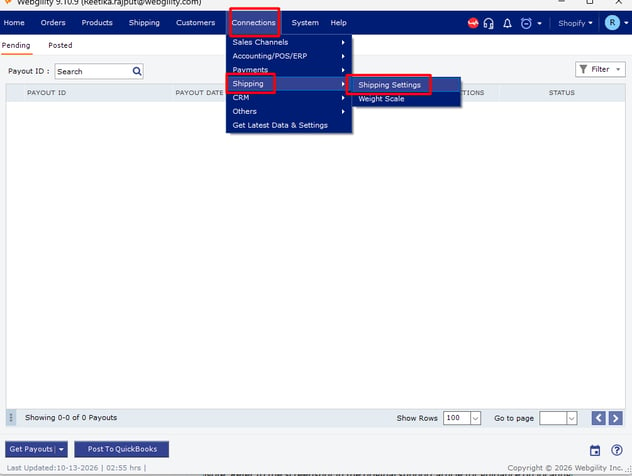
Step 1: Open Shipping Settings
- Open Webgility Desktop.
- Navigate to Connections > Shipping > Shipping Settings.
Step 2: Update UPS Account Information
- Open the UPS Direct tab.
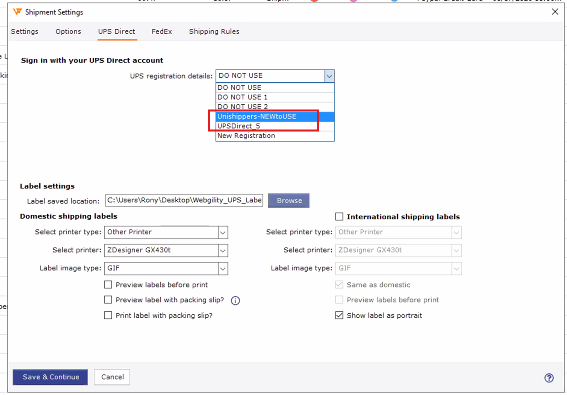
- Now go to the UPS Direct Tab, select the existing UPS Account information, and this will open another window.
- Update the latest invoice details for UPS as shown in the screenshot below.
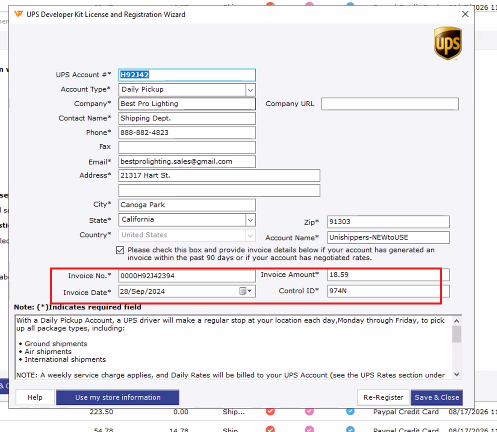
Note: Refer to the screenshot in the original support article for guidance on locating the invoice details fields.
Step 3: Retry the Shipment
- Save the updated information, if prompted.
- Return to the order you were trying to ship.
- Retry processing the shipment through UPS Direct.
- Verify that the negotiated shipping rates are now displayed.
Expected Result
The latest UPS invoice details are updated in Webgility Desktop, allowing negotiated rates to display correctly when processing shipments through UPS Direct.
If the issue persists after updating the invoice details, contact Webgility Support for further assistance.