
The Use shipping address for customer matching setting tells Webgility to use the order's shipping address, instead of the billing address, when it matches an order to a customer during posting.
By default, Webgility relies on the billing address. If the billing address does not identify the right customer, the order can post to the wrong customer record or create a duplicate. Turning this setting on fixes that by matching on the shipping address instead.
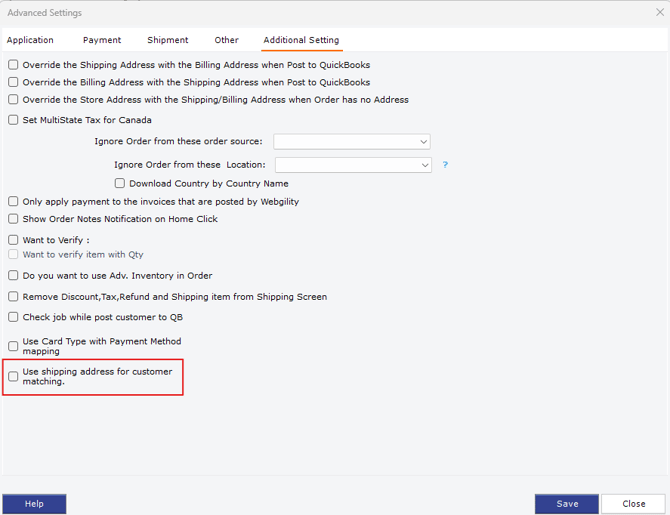
The setting is in the Additional Setting tab of Advanced Settings.
When to use this settingEnable it when the billing address on your orders is not a reliable way to tell customers apart. Common cases:
- A buyer pays with a card billed to one address but ships to a different one, such as a gift, a work address or a family member.
- Several different recipients share one billing address, for example a business that orders for multiple locations.
- Orders arrive with an incomplete or generic billing address, so the wrong customer is matched or a new one is created.
- Your QuickBooks customers are set up by the place goods are delivered, so the shipping address is the one that identifies them.
If your billing address already matches customers correctly, leave the setting off.
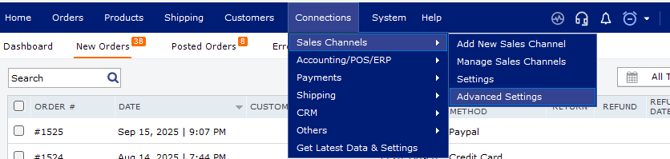
How to enable it- In Webgility, go to Connections > Sales Channels.
- Open Advanced Settings for the sales channel you want to change.
- Select the Additional Setting tab.
- Check Use shipping address for customer matching. It is near the bottom of the list, below Use Card Type with Payment Method mapping.
- Click Save, then Close.
The setting applies to orders you post after saving. Orders already posted are not changed.
To turn it off, clear the checkbox and save again.
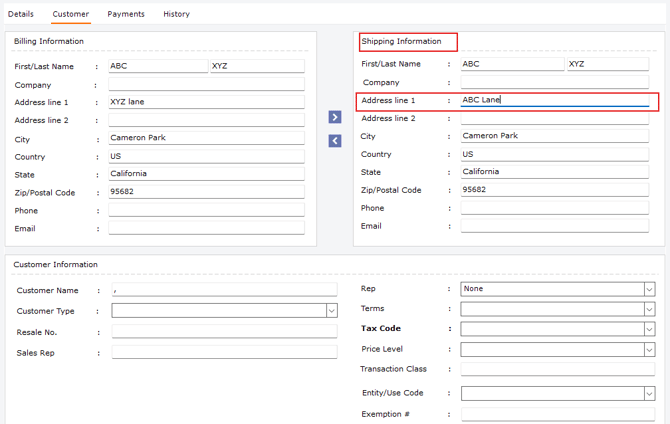
ExampleAn order comes in for ABC XYZ with different billing and shipping street addresses. The Customer tab of the order shows both:
|
Field |
Billing Information |
Shipping Information |
|---|---|---|
|
First/Last Name |
ABC XYZ |
ABC XYZ |
|
Address line 1 |
XYZ lane |
ABC Lane |
|
City |
Cameron Park |
Cameron Park |
|
State |
California |
California |
|
Zip/Postal Code |
95682 |
95682 |
|
Country |
US |
US |
With the setting off, Webgility matches the customer using the billing address (XYZ lane). With the setting on, it uses the shipping address (ABC Lane). Use whichever address identifies the customer in your QuickBooks file.
Things to keep in mind- Check the shipping address is filled in. Orders with an empty or incomplete shipping address give the matching nothing reliable to work with.
- Related overrides. The same tab has settings that copy one address over the other when posting to QuickBooks (Override the Shipping Address with the Billing Address and Override the Billing Address with the Shipping Address). They control what is written to QuickBooks, not which customer is matched. Review them together so the addresses on the posted order are what you expect.
- Existing customers. If orders were previously posted by billing address, new orders may now match different customers, or create new ones. Test with a few orders before posting a large batch.
- Still posting to the wrong customer? Confirm the customer's shipping address in QuickBooks is spelled the same way as on the order, then contact Webgility Support with the order number.