
When a sales channel delivers an order that carries a Refunded status, Webgility Desktop can post it to QuickBooks as fully paid instead of leaving an open balance. This article walks you through the one setting that controls that behavior for a single sales channel.
When This AppliesFollow this if you post Refunded status orders through Webgility Desktop and your accounting team notices that those orders are showing up as open unpaid invoices in QuickBooks rather than clearing on download. The same configuration applies whether the Refunded status was set on PayPal, Shopify Payments, or any other payment processor your sales channel uses.
How It WorksEach connected sales channel has its own set of download rules. One of those rules decides what Webgility does when the sales channel delivers an order with a Refunded status. If the rule is not set to post the order as paid, Webgility treats the order like any other open invoice and leaves the balance showing in QuickBooks, which is what triggers the open invoice list your accounting team is flagging.
Steps to Enable Mark as Paid for Refunded Status Orders
Step 1: Use the sales channel selector in the top-right corner of Webgility Desktop to switch to the store whose Refunded status orders you want to configure.
Step 2: Go to Connections > Sales Channels > Settings to open the Sales Channel Settings page for the selected store (see How to configure the Sales Channel Settings in Webgility Desktop for the full page layout).
Step 3: Open Download Order Settings and locate the rule that handles orders with a status of Refunded.
Step 4: Enable the option to No, Mark as Paid for the Refunded status so Webgility writes the order to QuickBooks as fully paid on download.
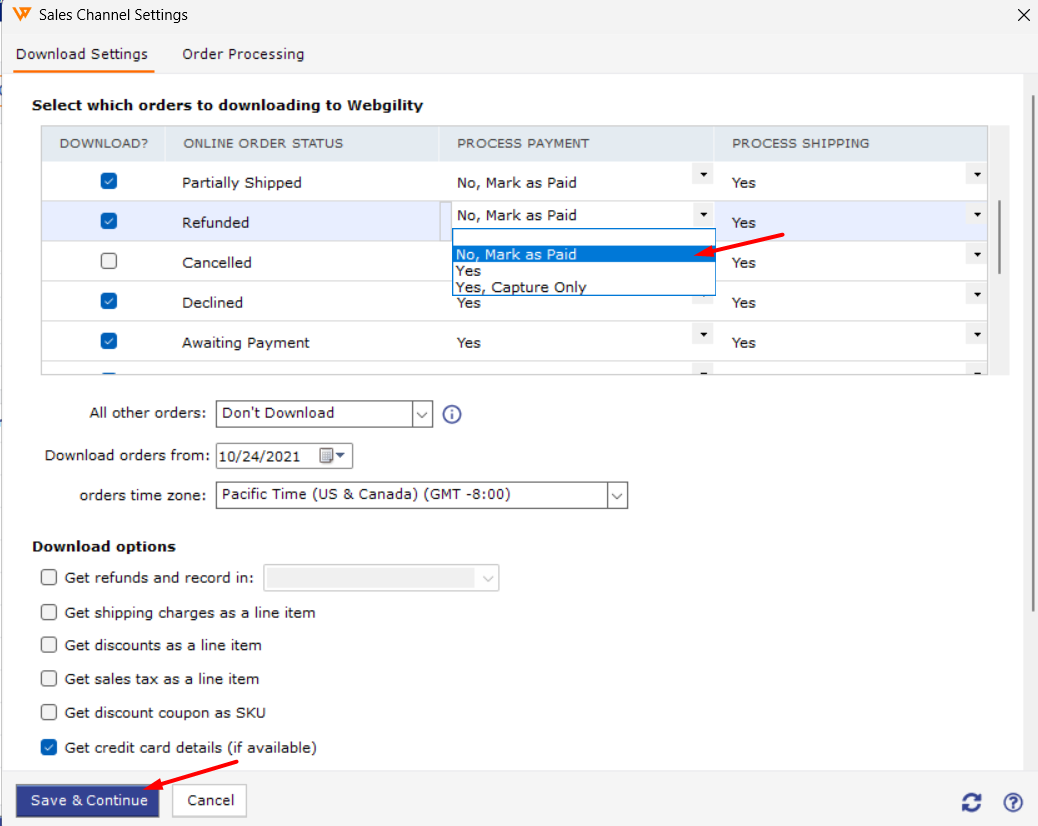
Step 5: Save the sales channel settings and repeat Steps 1 through 4 for every sales channel that should treat Refunded status orders this way, because the rule is per-channel and does not copy across stores.
Key RecommendationAfter you turn the setting on, download one Refunded status order and open it in QuickBooks to confirm it posted with a zero balance before you let the Scheduler process the full backlog. If a Refunded status order was already posted as an open invoice before you changed the rule, apply a credit memo or close the invoice in QuickBooks manually, because changing the rule governs new downloads and does not rewrite transactions that are already in your company file.
Additional SupportIf refunded orders still post as open invoices after the Mark as Paid rule is enabled, write to support@webgility.com with the sales channel name, one example order number, and a screenshot of the Download Order Settings page so Support can confirm the rule is active on the right channel.