
This article walks you through saving a Map Custom Fields configuration so each posted invoice carries the shopper's email and phone from the sales channel into the QuickBooks BILLING EMAIL and BILLING PHONE custom fields. The configuration applies in both customer modes on the Customers tab, so you can keep posting the way you already do.
When This AppliesYou are in the right place if your QuickBooks invoices come across with blank BILLING EMAIL or BILLING PHONE fields. The fix works whether Webgility Desktop is set to post under a single default customer or to create a new QuickBooks customer for each order.
How It WorksThe Map custom fields button lives inside the New Customer Settings dialog, which you open from the Create a new customer mode on the Customers tab. The mapping you save there applies to posted invoices in both the Create a new customer mode and the Use this customer for all orders mode, so you only need to visit this dialog once to turn the behavior on.
Important Note: "After saving the mapping, leave the Customers tab in whichever mode you normally post with; the mapping does not force you to switch modes."
Steps to Map Email and Phone
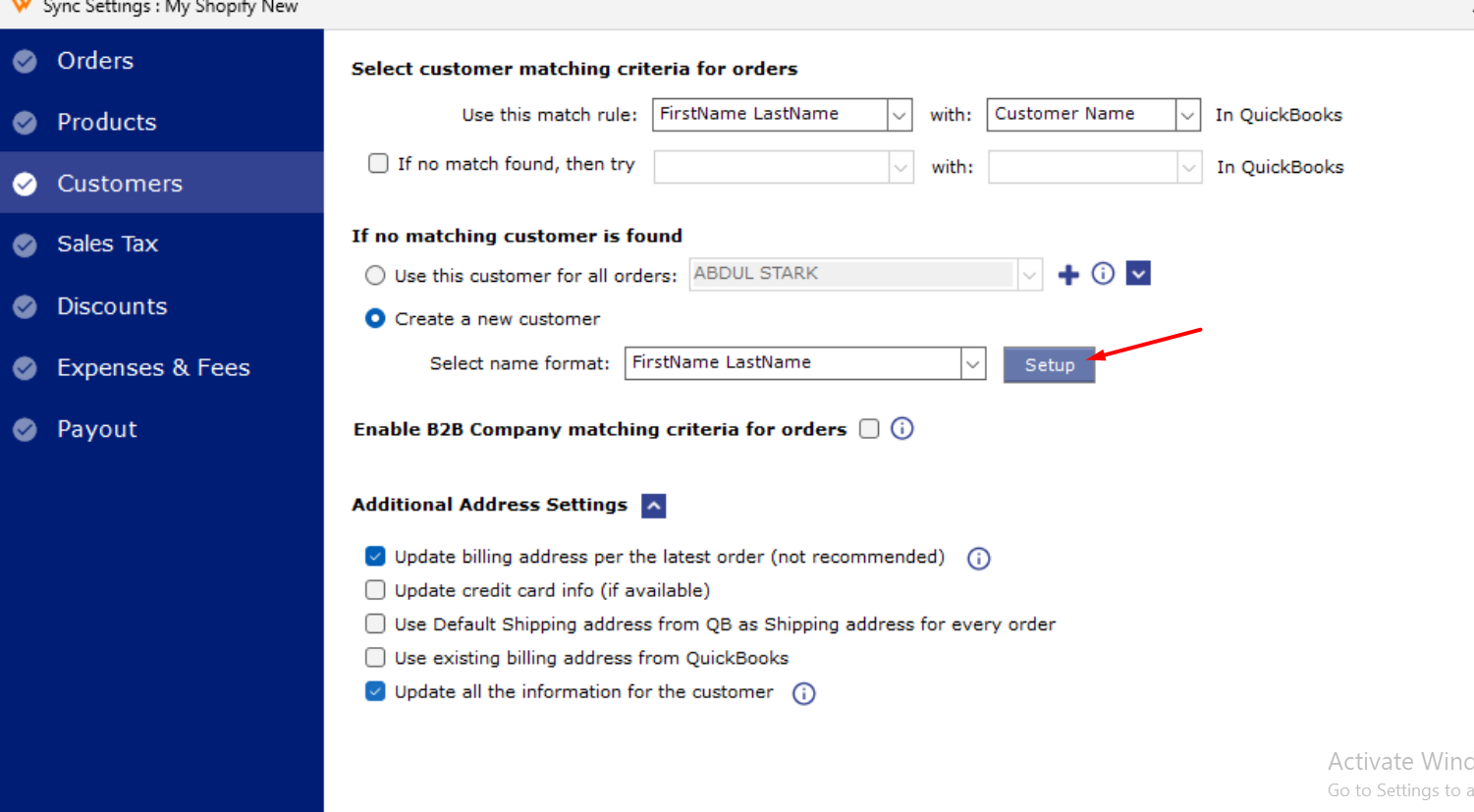
Step 1: In Webgility Desktop, open Connections > Accounting/POS/ERP > Sync Settings, go to the Customers tab, and under If no matching customer is found select the Create a new customer radio (Customer Settings overview).
Step 2: Click the Setup button next to Select name format to open the New Customer Settings dialog, scroll to the Map custom fields: row, and click its Setup button to open the Map Custom Fields dialog.
Step 3: In the Map Custom Fields dialog, set the MAPPING FIELD for the Email row to BILLING EMAIL and the MAPPING FIELD for the Phone row to BILLING PHONE. Close the dialog and the New Customer Settings dialog to return to the Customers tab.
Step 4: On the Customers tab, open Additional Address Settings, enable Update billing address per the latest order (not recommended) and Update all the information for the customer, then click Save & Continue.
Step 5: If you normally post under a single default customer, change the radio back to Use this customer for all orders and click Save & Continue. If you post as Create a new customer, leave the radio as it is.
Step 6: Pick a recent sales channel order in Webgility Desktop and post it to QuickBooks; the invoice carries the shopper's email and phone in the QuickBooks BILLING EMAIL and BILLING PHONE fields instead of blank values.
Key RecommendationEnable this mapping once and verify with a test order before letting background posting resume. Webgility labels the first checkbox "not recommended" because it rewrites the saved customer's billing address with each posted order, and that is the behavior that carries the per-order email and phone through, so the label applies to a different use case than yours.
Additional SupportIf the invoice BILLING EMAIL or BILLING PHONE still comes across blank after Step 6, write to support@webgility.com with the sales channel name and the test order number. Attach a screenshot of the Map Custom Fields dialog so support can confirm the Email and Phone rows point at BILLING EMAIL and BILLING PHONE.