
Overview
Webgility Desktop allows you to configure and record payment processor fees from PayPal and Stripe in QuickBooks. You can choose how fees are recorded, configure the required accounts and posting settings, and view the recorded fees in the order details to support accurate financial tracking and reconciliation.
Steps to Configure Payment Processor Fees
1. Navigate to Connections > Accounting/POS/ERP > Sync Settings.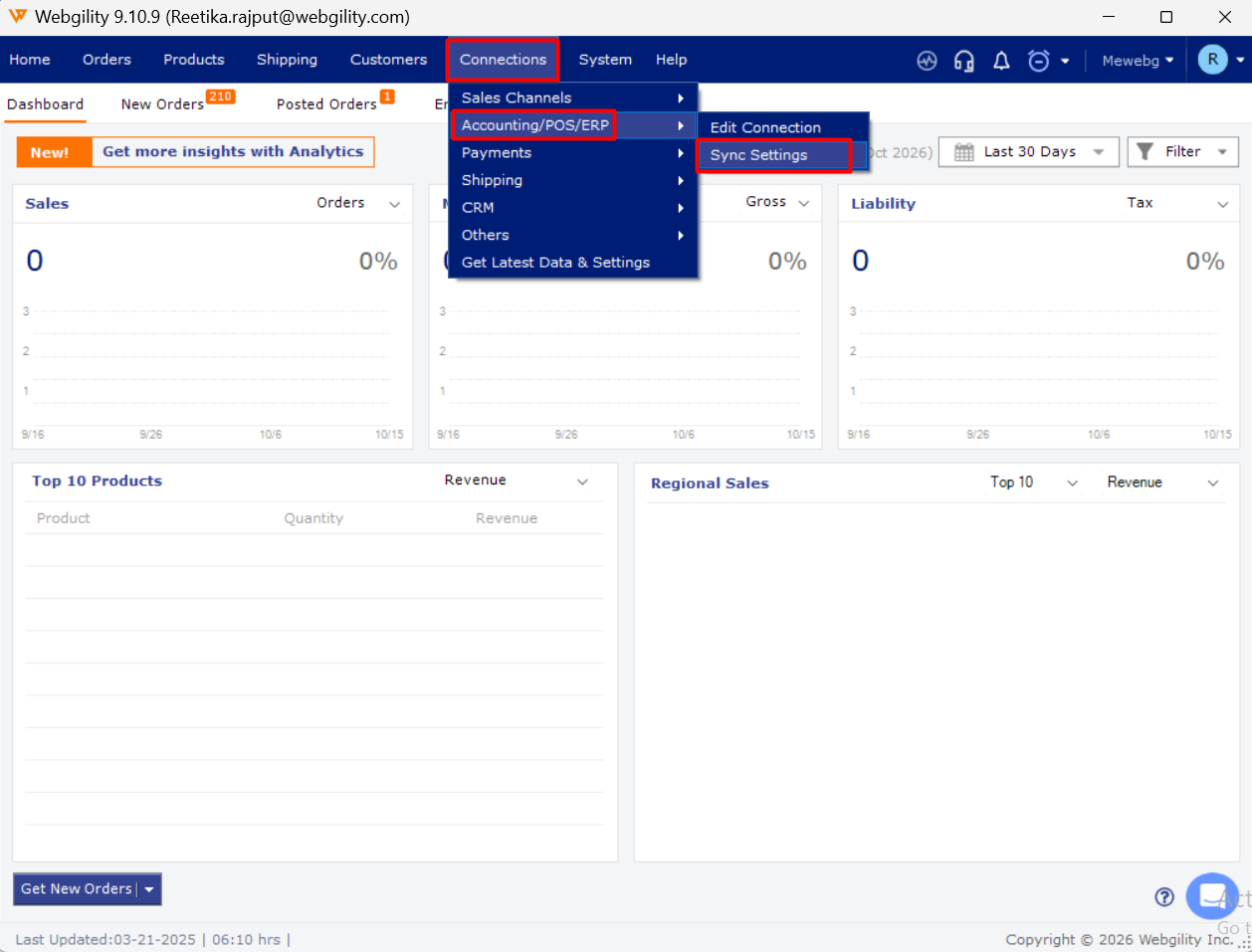
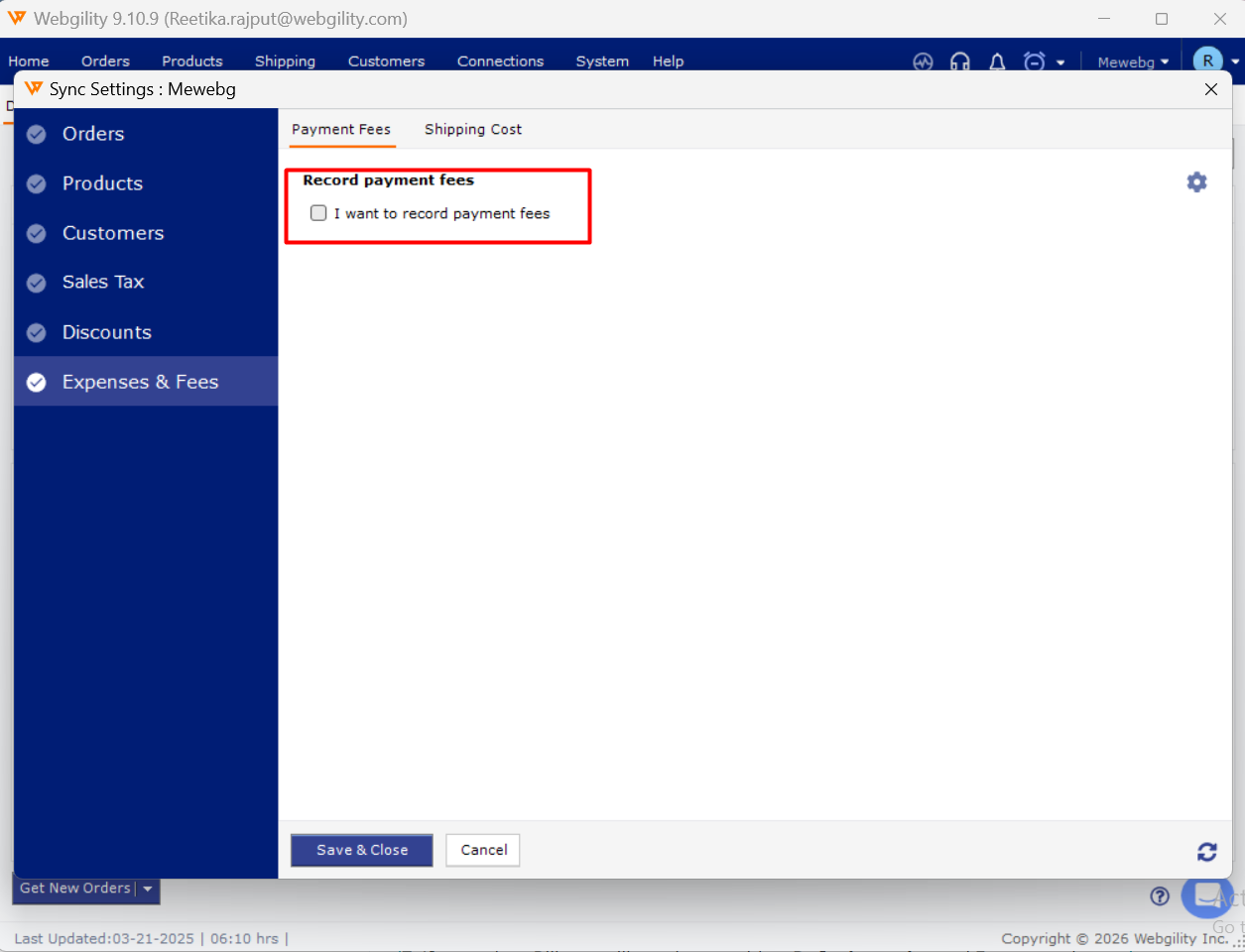
2. Click on Expenses & Fees. Then, select I want to record payment fees and I want to refund recorded payment fees.
3. To connect to PayPal or Stripe, click on the gear icon in the top right.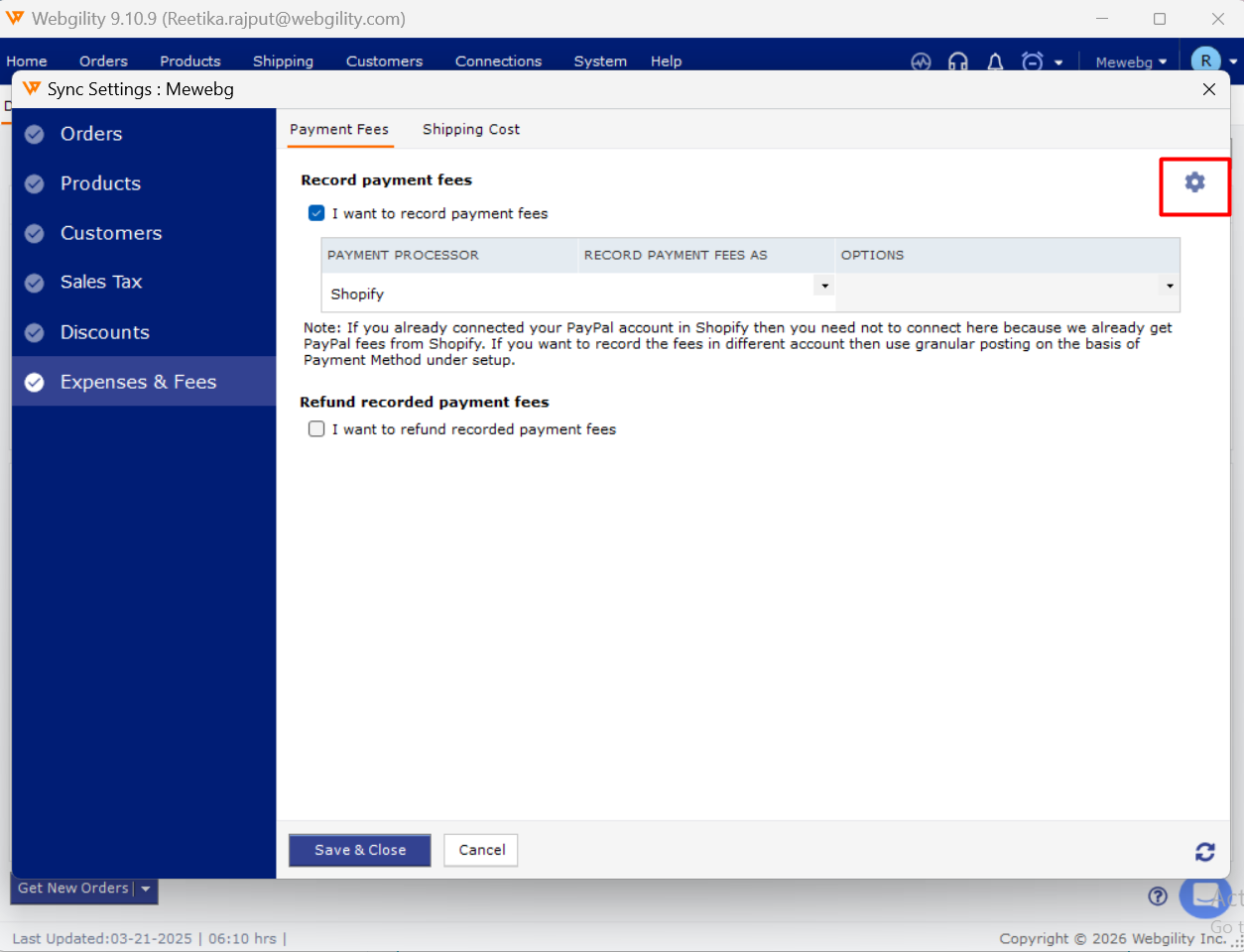
4. You can record fees as Bill Paid, Bill Unpaid, Check, or Line Items in sales transactions.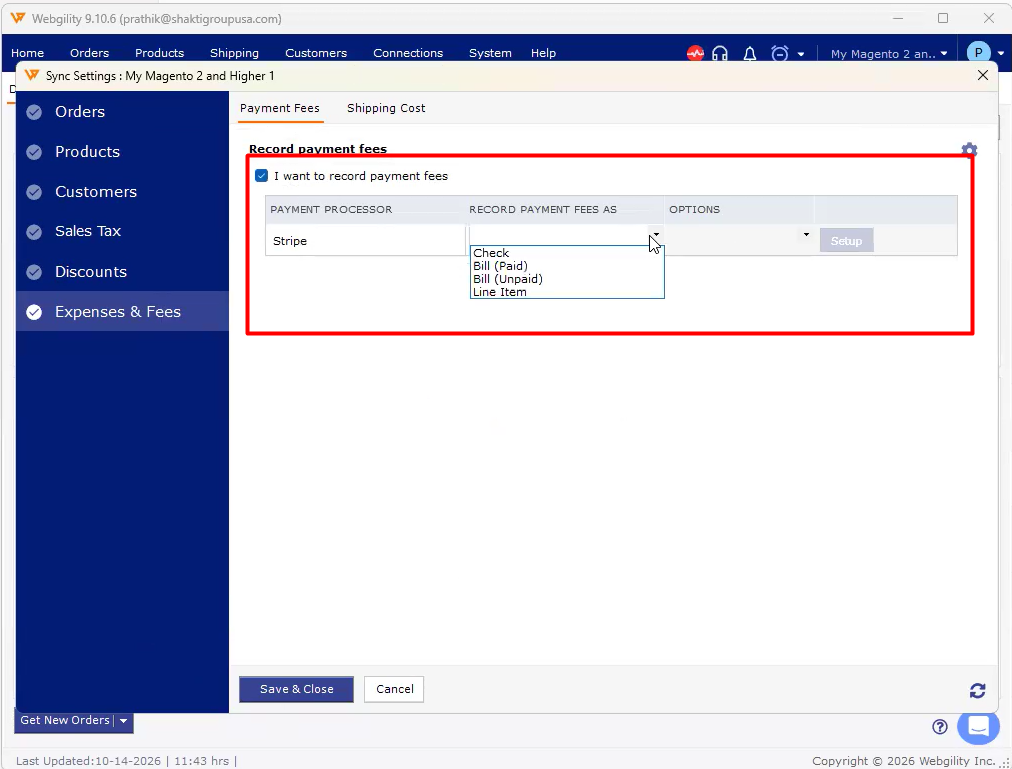
5. If you select Check, you will need to provide your Bank account and Default payee, along with some optional details.
6. You can select sync settings based on payment methods.
7. If you select Bill, you will need to provide a Default vendor and Expense, along with some optional details.
8. You will be able to see payment processor fees in the order details view in the Payment Processor Fee tab
If you need any further assistance, please contact Webgility Support. We’ll be happy to help.